Questions and answers, in John's words
Answers: quick answers, with the clicks, to the questions John asks most: where is the case? where are the notes? what is the RO number? why did a task disappear? why is there no blue Save button?
Short answers, each with the clicks to get there. Each points to the article with the detail. Every route starts in the left menu: the dark menu down the left edge of every screen.
Getting started
- What is pdrOS, in one sentence? An office employee trained on your cases: it types, sends, chases, counts and remembers; you decide. What pdrOS is
- What do I actually do all day? Work your tasks, one at a time. In the left menu, click Tasks. Click a task's row, then click Open Full View and read DO THIS. Do the one step it names. Then click the green Mark Complete button at the bottom right of the full view. Your day
- Where do I start a new case? On the Appraisal Case Sign-Up Form. Open your signup link from your bookmarks (on your phone, the icon named "Signup"). Fill it with the customer on the phone, or text or email the link to them. A customer who was referred by a shop or texted the 610 already has their own link in your task or alert: use that one. The signup form
- Do I have to remember what to do next? No. A task tells you when it is your turn, with the steps. To see your tasks, click Tasks in the left menu. The Tasks page
- A task disappeared before I marked it. If the task is already gone when you come back, pdrOS closed it because the step happened. Only three tasks close themselves today: ⚠️ Demand not sent, ⚠️ Our report not sent and ⚠️ Counteroffer not sent (they close when the email finally goes). Every other task waits for you to click Mark Complete. To find a closed task: in the left menu, click Tasks, then click the Completed box at the top. The Tasks page
- What are the three things I do in a case? Upload a PDF, type a number or a date, set a Send switch. All three happen on the left side of the customer's contact profile. What pdrOS is
- Is it safe to type into a field to see what happens? No. Fields do work. Type real things when they are true. Nothing happens until you click the blue Save button at the bottom of the left side; after that, the change does real work. The one rule
- Where is everything? pdrOS opens in your web browser at app.bc3d.agency; sign in with your email and password. Then everything is in the left menu. Tasks is your to-do list. Contacts holds each customer's contact profile, where the case lives. Conversations has every text and email. Calendars shows your inspections. Invoices holds the fees. Repair Stages is the case board. RO Hub lists every case. Support is where you ask the chat or open a ticket. Where things live
The contact profile
- Where is the case? On the customer's contact profile: one screen with everything about that customer and their case. In the left menu, click Contacts. Click in the search box at the top of the list and type the customer's last name or RO number (your case number). Click the customer's name in the list. Their contact profile opens. You are in the right place when you see the customer's name at the top left and their texts in the middle. Find a case
- How do I find a case? Search in Contacts: it finds a customer by name, phone, email, RO number or RO Type (the route is in question 9). Or start from a task: open the task on the Tasks page and click the link under WHERE (it follows the words "Open the case"). The contact profile opens in a new browser tab. Find a case
- What is the RO number? The number pdrOS gives every case: your case number. Tasks show it as "CASE #1007", texts to you as "case #1007", and customers see "file #1007": all the same number. On the contact profile it is the field RO# DO NOT EDIT THIS!! in the folder Contact, the first folder on the left side. pdrOS sets it; never change it. To find a customer by it, type it into the search box in Contacts. Every field
- What is the left side? The folders of fields, 15 of them, top to bottom. CASE is the one you use most. Your own four come right after Contact, near the top: CASE, CARRIER & APPRAISER, OUTCOME and SHORT PAY & INSPECTION. To open one: In the left menu, click Contacts. Click in the search box at the top of the list and type the customer's last name or RO number. Click the customer's name in the list. On the left side of the contact profile, scroll down to the folder and click the folder's name to open it. Can't find a field? Type its name in the search box at the top of the left side (it reads Search fields and folders). The folders on the left side
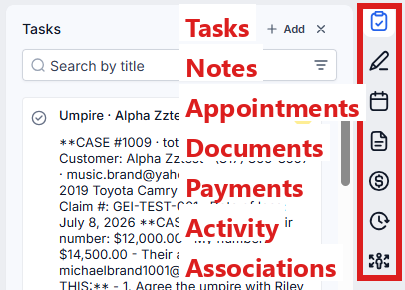
- What is the right edge for? It is a narrow column of small icons on the far right of the contact profile. Notes shows everything pdrOS did, newest at the top. Tasks shows this customer's tasks (add, change, reassign). Appointments is where you book, move and cancel an inspection. Documents lists every file. To see it: In the left menu, click Contacts. Click in the search box at the top of the list and type the customer's last name or RO number. Click the customer's name in the list. On the far right edge of the contact profile, hold the mouse over an icon to see its name. Click it to open its panel beside it. Notes, tasks and appointments
- How do I see what the system did on a case? Read the notes: each one says what pdrOS did, with the time. Where they are: question 15. Notes, tasks and appointments
- Where are the notes? On the far right edge of the contact profile. In the left menu, click Contacts. Click in the search box at the top of the list and type the customer's last name or RO number. Click the customer's name in the list. On the far right edge of the contact profile, click the Notes icon (it looks like a pen; hold the mouse over the icons to see their names). The notes open beside it, newest at the top. Notes also appear in the middle of the contact profile, mixed in with the texts and emails, in time order. To add your own: click + Add at the top of the notes, type a title and the note, and click Save in the note. Notes, tasks and appointments
- Where are the PDFs? The quick way: In the left menu, click RO Hub. Click in the box under RO #: at the top (it reads Enter repair order number), type the RO number (your case number) and click Search. Click the small Docs button, to the right of the Contacts button. The RO Documents window opens and lists the case's documents; click the one you want and it opens in a new browser tab. It lists the signed agreement (Repair Authorization Form), the signup sheet (Customer Signup Form), your report (Shop Estimate), their report (Supplement #1 Estimate) and the photo report (Scope Sheet Images). Under APPRAISAL CASE it also lists the customer's uploads (Carrier Valuation Report, Repair Invoice, Shop Estimate PDF, Carrier Estimate PDF) and your RTA or Demand PDF. When you are already on the contact profile, an uploaded file also opens by clicking its name in its field; only the address fields (Repair Authorization Form PDF and the like) do not open. Documents
- What does Case status mean? The one plain sentence for this stage; it is what Sarah says if the customer asks. pdrOS writes it in the field Case status. To read it: In the left menu, click Contacts. Click in the search box at the top of the list and type the customer's last name or RO number. Click the customer's name in the list. On the left side of the contact profile, scroll down to the folder CASE and click the folder's name to open it. Find Case status. Every stage
- What is Stage rank? A number pdrOS uses; leave it. It is in the folder CASE. Every field
- No blue Save button appeared. Changes to fields are saved only when you click the blue Save button at the bottom of the left side; until then nothing happens and nothing is sent. If you change a field and no blue Save button appears at the bottom of the left side, stop and tell us. Auto-Save has been switched on, and we switch it back. Until then pick Send switches carefully: they go the moment you choose. Never click Enable auto-save (it is under the three dots next to the blue Save button). The one rule
The Send switches
- What are the Send switches? Five lists at the top of the folder CASE that send the range, the demand, your report, the counter and the summary as you. From the top: Send range, Send demand, Send our report, Send counter and Send summary. To reach them: In the left menu, click Contacts. Click in the search box at the top of the list and type the customer's last name or RO number. Click the customer's name in the list. On the left side of the contact profile, scroll down to the folder CASE and click the folder's name to open it. The switches sit at the top of it, right after Case status. The Send switches
- Send it now or I sent it myself? Send it now when pdrOS should email it; I sent it myself when you already did. The switches are at the top of folder CASE (the route is in question 20). Click the box under the switch and pick one. Click the blue Save button at the bottom of the left side. The Send switches
- It says Not sent (see task). Now what? A field the switch needs is empty or wrong. In the left menu, click Tasks. Click the task's row (a ⚠️ task, or A Send switch could not act for the range and the summary), then click Open Full View: it names what is missing. Click the link under WHERE to open the contact profile. Type the field's name in the search box at the top of the left side (it reads Search fields and folders) and fill the field. Click the blue Save button at the bottom of the left side. Wait one minute. Type the switch's name in the same search box, click the box under it and pick Send it now. Click the blue Save button again. The Send switches
- I set a switch and nothing happened. First check that you clicked the blue Save button at the bottom of the left side. Then wait two minutes and read the newest note (the route is in question 15). Still Send it now after five minutes? You get a text and the task A Send switch did not go. Then: in the left menu, click Contacts. Click in the search box at the top of the list and type the customer's last name or RO number. Click the customer's name in the list. On the left side of the contact profile, scroll down to the folder CASE and click the folder's name to open it. Click the box under the switch and pick Not sent (see task) (never I sent it myself: that one records a send). Click the blue Save button. Wait one minute. Pick Send it now and click the blue Save button again. Then mark the task complete on the Tasks page. If this, then that
- Can I send the range twice? Yes: change the figures and send again. Send range goes again at once, so check the figures before you set it. In the left menu, click Contacts. Click in the search box at the top of the list and type the customer's last name or RO number. Click the customer's name in the list. On the left side of the contact profile, scroll down to the folder CASE and click the folder's name to open it. Click in the box under Range low or Range high and type the new amount. Click the box under Send range and pick Send it now. Click the blue Save button at the bottom of the left side. Your report and the range
- Can I resend the RTA? Yes, once you clear the sent date. In the left menu, click Contacts. Click in the search box at the top of the list and type the customer's last name or RO number. Click the customer's name in the list. On the left side of the contact profile, scroll down to the folder CARRIER & APPRAISER and click the folder's name to open it. Click in the box under RTA or demand sent date and delete the date. If the RTA changed, scroll up to the folder CASE and click its name to open it; in RTA or demand PDF, click the trash can icon to the right of the old file's name to remove it, then click Click to upload, pick the new PDF and click Open. Click the blue Save button at the bottom of the left side. Wait one minute. At the top of folder CASE, click the box under Send demand and pick Send it now. Click the blue Save button again. The RTA
- What does Send demand need? Five things. The RTA or demand PDF (folder CASE). The signed agreement (Agreement signed date, folder CASE; pdrOS fills it when the customer signs). The claim number (Claim #, folder Insurance Info). The date of loss (Date of Loss, folder FORM | Repair Authorization). A valid adjuster email (Adjuster email, folder CARRIER & APPRAISER). Adjuster name only prints in the demand email; fill it before Send demand. To check them: In the left menu, click Contacts. Click in the search box at the top of the list and type the customer's last name or RO number. Click the customer's name in the list. On the left side of the contact profile, scroll down to each of those folders and click the folder's name to open it. The RTA
- What does Send summary need? Award amount (folder OUTCOME) and Carrier's offer (folder CASE). On a total loss also Title fees and Sales tax % (folder OUTCOME) and Deductible (folder Insurance Info). To check them: In the left menu, click Contacts. Click in the search box at the top of the list and type the customer's last name or RO number. Click the customer's name in the list. On the left side of the contact profile, scroll down to each of those folders and click the folder's name to open it. The settlement summary
- Why was my demand refused with a date? It already went on that date. To send a corrected one, see question 25. The RTA
Documents and reports
- What does the customer have to send on a total loss? The insurer's valuation report. Documents
- And on a diminished value? The repair invoice, the mileage and photos. Diminished value
- The customer put the report in the wrong box. On a total loss it still counts. Documents
- How long does pdrOS chase documents? Reminders at day 2 and 12, tasks for you at day 5 and 19, then it stops. Timers
- Where do I upload my report? In Upload Estimate Doc Here, folder Estimates. In the left menu, click Contacts. Click in the search box at the top of the list and type the customer's last name or RO number. Click the customer's name in the list. On the left side of the contact profile, scroll down to the folder Estimates and click the folder's name to open it. In Upload Estimate Doc Here, click Click to upload, pick the PDF on your computer and click Open. Click the blue Save button at the bottom of the left side. Your report and the range
- Where does their report go? In Supplement #1 Upload Doc Here, folder Supplements. In the left menu, click Contacts. Click in the search box at the top of the list and type the customer's last name or RO number. Click the customer's name in the list. On the left side of the contact profile, scroll down to the folder Supplements and click the folder's name to open it. In Supplement #1 Upload Doc Here, click Click to upload, pick the PDF on your computer and click Open. Click the blue Save button at the bottom of the left side. Negotiation
- I uploaded a corrected report. Did anything re-send? No, only a note. To read it: in the left menu, click Contacts. Click in the search box at the top of the list and type the customer's last name or RO number. Click the customer's name in the list. On the far right edge of the contact profile, click the Notes icon (it looks like a pen; hold the mouse over the icons to see their names). The notes open beside it, newest at the top. Your report and the range
- Can I restart the reminders? Yes, by asking us. Tell us: in the left menu, click Support, then the orange Support Ticket button. Give the RO number and write "please restart the document reminders". We do it on our side within the hour; the schedule restarts from day 2. Documents
Range, agreement, fee
- What does the customer get when I send the range? A text, the agreement link, and the email with the figures. Your report and the range
- Do I still send RTAflow's range? No. Only from pdrOS. The habits
- How does the customer sign? On their phone from the link; they type the VIN and the vehicle. The agreement and the fee
- Who sends the invoice? pdrOS, through Square, the moment they sign, when the fee is standard and the owner pays. The agreement and the fee
- The fee is different on this case. Type the fee in Fee amount before they sign; you get a task to invoice by hand. In the left menu, click Contacts. Click in the search box at the top of the list and type the customer's last name or RO number. Click the customer's name in the list. On the left side of the contact profile, scroll down to the folder CASE and click the folder's name to open it. Click in the box under Fee amount and type the amount (numbers only, no dollar sign). Click the blue Save button at the bottom of the left side. Invoices and payments
- The shop is paying. Set Fee payer to Shop: no invoice goes to the owner, and you get a task to invoice the shop. In the left menu, click Contacts. Click in the search box at the top of the list and type the customer's last name or RO number. Click the customer's name in the list. On the left side of the contact profile, scroll down to the folder CASE and click the folder's name to open it. Click the box under Fee payer and pick Shop. Click the blue Save button at the bottom of the left side. Short pay
- They paid by Venmo. What do I do? Set Fee paid to Venmo first, then record the payment on the Square invoice if one went. In the left menu, click Contacts. Click in the search box at the top of the list and type the customer's last name or RO number. Click the customer's name in the list. On the left side of the contact profile, scroll down to the folder CASE and click the folder's name to open it. Click the box under Fee paid and pick Venmo from the list. Click the blue Save button at the bottom of the left side. Then, if a Square invoice went: in the left menu, click Invoices. Find the customer's invoice in the list and click the three dots at the right end of its row, then Record Payment, then Record Manually. Pick the choice that fits Venmo (Other if it is offered), type the amount and the date, and click Submit. Invoices and payments
- Can I waive the fee? Yes: set Fee paid to Waived. It closes the case like a payment. In the left menu, click Contacts. Click in the search box at the top of the list and type the customer's last name or RO number. Click the customer's name in the list. On the left side of the contact profile, scroll down to the folder CASE and click the folder's name to open it. Click the box under Fee paid and pick Waived from the list. Click the blue Save button at the bottom of the left side. If a Square invoice already went, void it: in the left menu, click Invoices. Find the customer's invoice in the list, click the three dots at the right end of its row, then Void. Fee and close
- Who has not paid me? The saved list Money out. In the left menu, click Contacts. Along the top of the list are saved lists; click Money out. It shows every hired case whose Fee paid is still No. Invoices and payments
The other side
- How does the adjuster get the RTA? As an email from you, with the RTA and the signed agreement attached. It goes the moment you pick Send it now in Send demand and click the blue Save button. The RTA
- Where do I read the adjuster's reply? In the adjuster's own conversation, under their name. Your phone tells you when it lands. In the left menu, click Conversations. On the left is the list of people; click Unread at the top of the list to see new messages. Click the adjuster's name: their thread opens in the middle. Your own messages
- What is Clock A? The 7 to 10 business days their appraiser has to call. Day 10 you get a text and task; day 17 another task. The RTA
- Their appraiser called. What do I type? Their name, email and the contact date. Clock A stops, the customer gets a text, and you get the task Their appraiser is in contact · send our report. In the left menu, click Contacts. Click in the search box at the top of the list and type the customer's last name or RO number. Click the customer's name in the list. On the left side of the contact profile, scroll down to the folder CARRIER & APPRAISER and click the folder's name to open it. Click in the box under Other appraiser name and type the name. Click in the box under Other appraiser email and type the email. Click the box under Other appraiser contact date and pick the day in the calendar that opens. Click the blue Save button at the bottom of the left side. The other appraiser
- How does my report get to them? Through Send our report. It goes as you, with the repair invoice, the two estimate PDFs and the photo report when the case has them. In the left menu, click Contacts. Click in the search box at the top of the list and type the customer's last name or RO number. Click the customer's name in the list. On the left side of the contact profile, scroll down to the folder CASE and click the folder's name to open it. Click the box under Send our report and pick Send it now. Click the blue Save button at the bottom of the left side. The other appraiser
- How long until pdrOS chases their report? Day 10 and day 17 emails; day 22 a task for you. The other appraiser
- Does Sarah ever answer an adjuster? Never. Their emails are not in a customer's conversation. Sarah
Negotiation
- They gave me a number. Where do I put it? In Their number, folder CARRIER & APPRAISER. Every chase stops and you get the Negotiate task. In the left menu, click Contacts. Click in the search box at the top of the list and type the customer's last name or RO number. Click the customer's name in the list. On the left side of the contact profile, scroll down to the folder CARRIER & APPRAISER and click the folder's name to open it. Click in the box under Their number and type the amount (numbers only, no dollar sign). Click the blue Save button at the bottom of the left side. Negotiation
- How do I counter? Type Counteroffer and a one-line Negotiation note, then send it with Send counter. In the left menu, click Contacts. Click in the search box at the top of the list and type the customer's last name or RO number. Click the customer's name in the list. On the left side of the contact profile, scroll down to the folder CARRIER & APPRAISER and click the folder's name to open it. Click in the box under Counteroffer and type the amount (numbers only, no dollar sign). Click in the box under Negotiation note and type one line. Scroll up to the folder CASE and click its name to open it. Click the box under Send counter and pick Send it now. Click the blue Save button at the bottom of the left side. Negotiation
- What does the counter email say? You are at X, my valuation supports Y, I can agree today at Z, with your note. Negotiation
- No answer to my counter? Day 7 you get a text and task. Negotiation
- I cleared Their number by accident. Nothing stopped. Type it again. In the left menu, click Contacts. Click in the search box at the top of the list and type the customer's last name or RO number. Click the customer's name in the list. On the left side of the contact profile, scroll down to the folder CARRIER & APPRAISER and click the folder's name to open it. Click in the box under Their number and type the amount (numbers only, no dollar sign). Click the blue Save button at the bottom of the left side. If this, then that
- How do I go to the umpire? Set Umpire to Called. The customer gets a text and an email on how it works and that you will invoice them for their half; you get a three-step task. In the left menu, click Contacts. Click in the search box at the top of the list and type the customer's last name or RO number. Click the customer's name in the list. On the left side of the contact profile, scroll down to the folder CARRIER & APPRAISER and click the folder's name to open it. Click the box under Umpire and pick Called from the list. Click the blue Save button at the bottom of the left side. The umpire
- Who pays the umpire? The fee is shared equally with the insurer. You send the customer an invoice for their half and release your valuation to the umpire once it is paid. The umpire
Settlement
- How do I settle a case? Type Award amount and Award signed date. The customer gets the Settled text and email; you get the task Check the settlement summary. In the left menu, click Contacts. Click in the search box at the top of the list and type the customer's last name or RO number. Click the customer's name in the list. On the left side of the contact profile, scroll down to the folder OUTCOME and click the folder's name to open it. Click in the box under Award amount and type the amount (numbers only, no dollar sign). Click the box under Award signed date and pick the day in the calendar that opens. Click the blue Save button at the bottom of the left side. The award
- What is in the settlement summary? Award, sales tax, title fees, deductible, net to the customer, and how much more than the first offer. The settlement summary
- Does pdrOS do the arithmetic? Yes: tax, net and recovery over offer, written into the folder OUTCOME and the email. The settlement summary
- Does the customer get the award itself from pdrOS? No, only the summary of the numbers. The signed award itself goes the way it does now, outside pdrOS. The award
- When does a case close? A hired case: when Outcome (folder OUTCOME) has a final value (not Counteroffer pending, Carrier review report received or Court) and Fee paid (folder CASE) is not No. A case the customer never signed: on any final Outcome. Fee and close
- What happens at the close? Sarah switches off for that customer, and every reminder and clock stops. On a won case, the customer gets a thank-you text with the Google review link. Fee and close
- The customer went to court. What do I set? Outcome to Court. The case stays open at 6.2 and waits for you; the customer is not asked. In the left menu, click Contacts. Click in the search box at the top of the list and type the customer's last name or RO number. Click the customer's name in the list. On the left side of the contact profile, scroll down to the folder OUTCOME and click the folder's name to open it. Click the box under Outcome and pick Court from the list. Click the blue Save button at the bottom of the left side. Other endings
- They took the insurer's number against my advice. Outcome to Customer took the carrier's number. The case closes as lost (if the fee on a hired case is still unpaid, it waits at 6.1 Fee due first). In the left menu, click Contacts. Click in the search box at the top of the list and type the customer's last name or RO number. Click the customer's name in the list. On the left side of the contact profile, scroll down to the folder OUTCOME and click the folder's name to open it. Click the box under Outcome and pick Customer took the carrier's number from the list. Click the blue Save button at the bottom of the left side. Other endings
- They vanished. Outcome to Went quiet. The case closes as abandoned. In the left menu, click Contacts. Click in the search box at the top of the list and type the customer's last name or RO number. Click the customer's name in the list. On the left side of the contact profile, scroll down to the folder OUTCOME and click the folder's name to open it. Click the box under Outcome and pick Went quiet from the list. Click the blue Save button at the bottom of the left side. Other endings
Other case types
- What is different on a diminished value? The customer is the claimant: the demand goes to the other driver's insurer, with your report. pdrOS chases it three times and tracks the two-year court deadline from the date of loss. Diminished value
- Who sets the statute deadline? pdrOS, two years from the date of loss, in Statute deadline (folder CARRIER & APPRAISER). The customer gets a text with the date; you get texts 14 and 3 days before. Diminished value
- What does Sharon do on a short pay? Enters the shop's estimate in CCC1 when both estimates are in. Her task has the files (on the Tasks page: the task's row, then Open Full View). Short pay
- How does the shop send estimates? From the upload link in the email pdrOS sends them at signup. Short pay
- How does an inspection get booked? The customer taps the booking link, or you book from the customer's contact profile. In the left menu, click Contacts. Click in the search box at the top of the list and type the customer's last name or RO number. Click the customer's name in the list. On the far right edge of the contact profile, click the Appointments icon (a calendar). Click + Add at the top of the panel, then Meetings. The Book appointment window opens. Under Calendar, make sure it reads Inspections Calendar. Under Date & time, pick the day under Date and a free time under Slot. Click the blue Book appointment button at the bottom right. Booking
- The customer did not show. Set the appointment to No show. They get the rebook text and link, you get a text. In the left menu, click Contacts. Click in the search box at the top of the list and type the customer's last name or RO number. Click the customer's name in the list. On the far right edge of the contact profile, click the Appointments icon (a calendar). Click the three dots at the right of the appointment and pick Edit. The Edit details panel opens. At the bottom, click the box next to Status and pick No show. Click Save. Booking
- After the report, what do I set? Engaged against: None, Shop or Carrier. In the left menu, click Contacts. Click in the search box at the top of the list and type the customer's last name or RO number. Click the customer's name in the list. On the left side of the contact profile, scroll down to the folder SHORT PAY & INSPECTION and click the folder's name to open it. Click the box under Engaged against and pick the customer's choice from the list. Click the blue Save button at the bottom of the left side. Engaged against
- Report only: does it close by itself? Yes, after the fee. Engaged against
Sarah and messages
- What does Sarah say to customers? Where the case stands, what you need, how it works. Never a figure, a date or a name. Sarah
- When does Sarah hand to me? Offers, releases, umpire, court, deadlines, or "I want a person" (money questions go to Sharon as a task). She sleeps eight hours on them. Sarah
- Can I turn Sarah off on one customer? Yes, through us: her switch is not on your screen. In the left menu, click Support, then the orange Support Ticket button, and give the customer's name and "please switch Sarah off". We do it within the hour and switch her back on when you say. You can answer any customer yourself at any time without switching her off. Sarah
- A customer wrote refund. You get an URGENT text and task at once; call them. Sarah
- Someone texted the 610 and I don't know them. Sarah asked who they are; you got a text with a signup link for that same person. Use it. To read what they wrote first: in the left menu, click Conversations, then click their phone number in the list. A text from someone with no case
- A customer has two cases on one phone. Their texts land on the older contact profile. If that case is closed, Sarah is off there and nobody answers. Tell us the day the new case opens and we move the number to the new one. If this, then that
- Can I email a customer myself? Yes, from the message box on their contact profile; saved replies and attachments are there. In the left menu, click Contacts. Click in the search box at the top of the list and type the customer's last name or RO number. Click the customer's name in the list. At the bottom of the middle of the contact profile is the message box. At its left end, click the small button with a down arrow and pick Email. Type a subject, then click in the box and type your message. For a saved reply, click the Snippets icon in the message box (hold the mouse over the small icons to find it). To attach a file, click the paperclip icon and pick the file. Click the paper-plane button at the right end to send. Your own messages
Mistakes
- I picked hail by mistake on the signup. Set RO Type to the right type, then tell us. In the left menu, click Contacts. Click in the search box at the top of the list and type the customer's last name or RO number. Click the customer's name in the list. On the left side of the contact profile, scroll down to the folder REPAIR STATUS and click the folder's name to open it. Click the box under RO Type and pick the right type from the list. Click the blue Save button at the bottom of the left side. Then tell us: in the left menu, click Support, then the orange Support Ticket button. Give the RO number and write "please restart the intake". We do it on our side within the hour. Wrong type or type changed
- I changed the type after they signed. You got a text; have them sign again from the new link. In the left menu, click Contacts. Click in the search box at the top of the list and type the customer's last name or RO number. Click the customer's name in the list. On the left side of the contact profile, scroll down to the folder FORM LINKS and click the folder's name to open it. Click in the box under REPAIR AUTHORIZATION LINK. Press Ctrl and A together to select the whole link, then Ctrl and C to copy it (on a Mac, Cmd). Do not type in the box; if a blue Save button appears, click Cancel next to the blue Save button instead of saving. At the bottom of the middle of the contact profile is the message box. At its left end, click the small button with a down arrow and pick SMS. Click in the box and paste the link alone, with no words around it (press Ctrl and V). Click the paper-plane button at the right end to send. Wrong type or type changed
- A booking landed on nobody. You got the text "NAME (phone number) booked an inspection but has no appraisal case": someone typed a name into Calendars, or a stranger booked. Send them the signup link alone in a text, or cancel the appointment; both are click by click in If this, then that under Booking. Always book from the customer's contact profile (Calendar).
- What is my email address in pdrOS? john@collisionsafetyconsultantspa.com. Every email pdrOS sends for you goes from it, and so does anything you write from the message box. Replies come back into pdrOS (the customer's thread, or the other side's conversation), not into a separate inbox. Your own messages
- Can I use pdrOS on my phone? Yes: the phone app (called LeadConnector in the App Store and Google Play), with the same email and password. It shows Conversations, Contacts, Calendars and your tasks. Alerts come as plain texts either way. Where things live
- Something does not fit how I work. Tell us; we change the step. Do not work around it. In the left menu, click Support, then click the orange Support Ticket button. Getting help
Did this page not match what you see? Ask the support chat or open a support ticket. We change the page, not you.