The Tasks page: how a task reads and what to do with it
Answers: how do I open my tasks? how do I read a task? what do I do when a task is done? which tasks close themselves?
A task is pdrOS saying "your turn", with everything you need written in it.
Open the Tasks page
- In the left menu, click Tasks.
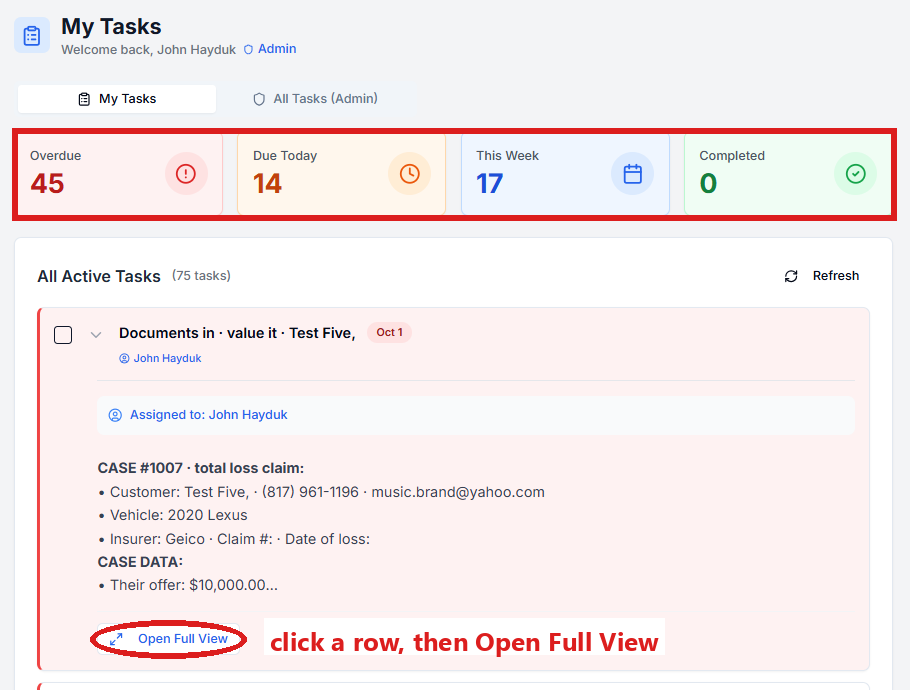
- My Tasks opens. You are in the right place when you see four boxes at the top: Overdue, Due Today, This Week and Completed.
- Each box shows how many tasks are in it. Click a box to see those tasks.
If you see two tabs, My Tasks and All Tasks (Admin), stay on My Tasks. All Tasks (Admin) shows Sharon's tasks too.
Open one task
- In the left menu, click Tasks.
- Click the task's row. A short preview opens under it.
- Click Open Full View to read the whole task.
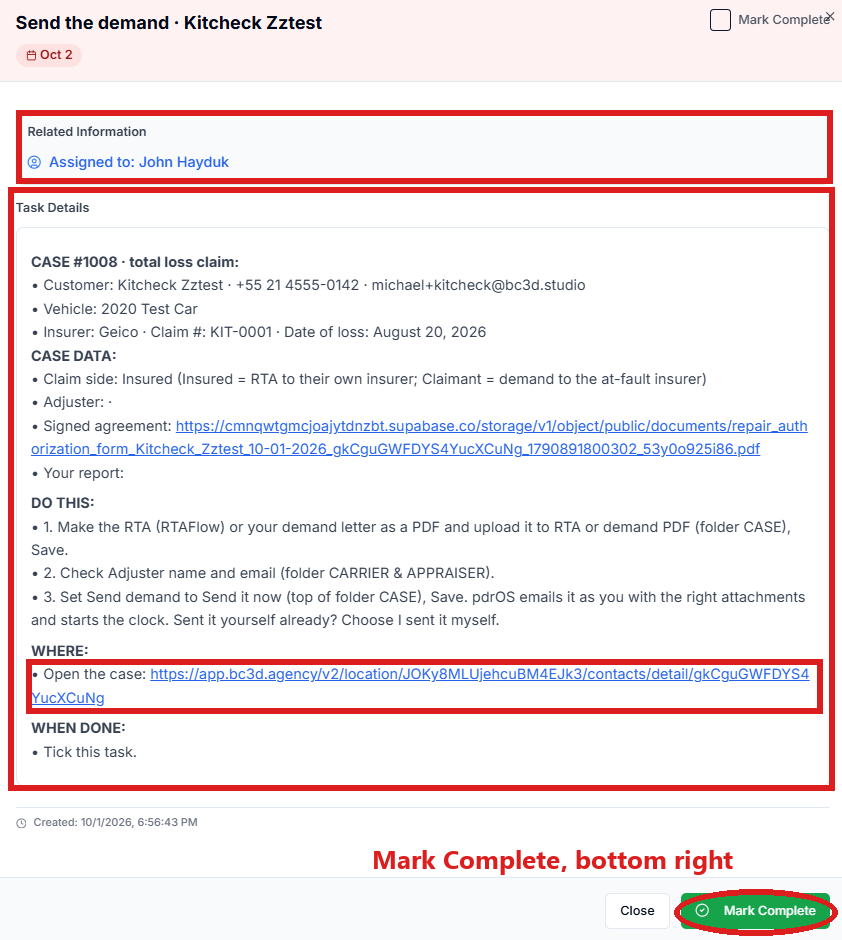
You are in the right place when you see the task's title at the top, then Related Information and Task Details.
A very short task (for example User query) has no Open Full View button: its preview already shows everything. Mark it complete with the box at the left of its row.
How a task reads
Related Information shows who the task is assigned to. Task Details holds the task itself. Most tasks pdrOS writes have the same five headings:
- CASE: for example "CASE #1009 · total loss claim". That is the RO number (your case number) and the type. Then the customer's name, phone, email, vehicle, insurer, claim number and date of loss.
- CASE DATA: the facts this task needs (their offer, the documents received with links, the figures so far).
- DO THIS: one to three numbered steps. Which folder, which field, which switch.
- WHERE: a link after the words "Open the case". It opens the customer's contact profile in a new browser tab. (Some tasks also have an Open Contact button at the bottom of the full view, next to Close; it opens the same contact profile.)
- WHEN DONE: "Tick this task", which means: click Mark Complete. On the three ⚠️ tasks it says the task closes itself when the email goes.
The three ⚠️ tasks read WHY IT DID NOT GO, FIX IT, WHERE and WHEN DONE instead.
The tasks Sarah makes for the office read a little differently. These are Sharon's: a money question, a date, new details, a document, an unhappy customer, needs a person. Their headings are:
- CUSTOMER (instead of CASE);
- NUMBERS ON FILE or WHERE IT STANDS NOW;
- WHY YOU HAVE THIS;
- DO THIS;
- WHERE (the link follows "Conversation and case");
- WHEN DONE.
Do a task, start to finish
- In the left menu, click Tasks.
- Click the task's row.
- Click Open Full View.
- Read DO THIS.
- Under WHERE, click the link. The customer's contact profile opens in a new browser tab.
You are in the right place when you see the customer's name at the top left and their texts in the middle. 6. Do the steps on the contact profile. After you change a field, click the blue Save button at the bottom of the left side. 7. At the very top of the screen, click the browser tab you came from. The Tasks page is still open there. (If the full view has closed, click the task's row and Open Full View again.) 8. Click the green Mark Complete button at the bottom right of the full view. 9. Click Close to go back to the list.
If the task is already gone when you come back, pdrOS closed it because the step happened.
Marking a task complete
Two ways, same result:
- In the full view: click the green Mark Complete button at the bottom right, then click Close.
- On the list: check the box at the left of the task's row.
Marking a task complete does not start anything. It keeps your list true, so what is left on the page is what is really left to do.
Marked one complete by mistake?
- In the left menu, click Tasks.
- Click the Completed box at the top of My Tasks.
- Find the task and uncheck the box at the left of its row. It is open again.
Tasks that close themselves
Only three tasks are built to close themselves: ⚠️ Demand not sent, ⚠️ Our report not sent and ⚠️ Counteroffer not sent. They close the moment the email finally goes. You do not have to mark them. Every other task stays on your list until you, or Sharon, click Mark Complete.
Who gets which tasks
- John: everything about a case's value, documents, demands, negotiation, award, fee.
- Sharon: entering the shop's estimate in CCC1, and the office follow-ups Sarah creates (money question, wants a date, document request, new details, unhappy customer, handover).
To give a task to the other person:
- In the left menu, click Contacts.
- Click in the search box at the top of the list and type the customer's last name or RO number.
- Click the customer's name in the list. Their contact profile opens.
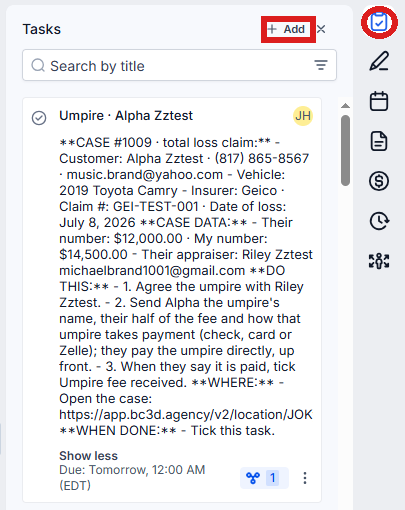
You are in the right place when you see the customer's name at the top left and their texts in the middle. 4. On the far right edge of the contact profile, click the Tasks icon (a clipboard with a check mark). The customer's tasks open beside it. 5. Click the task's title. 6. Click Assignee and pick Sharon (or yourself). 7. Click Save at the bottom of the task panel.
Did this page not match what you see? Ask the support chat or open a support ticket. We change the page, not you.