Find a case
Answers: how do I find a customer? how do I open their contact profile? what if I only have the RO number?
Everything you do for a case happens on the customer's contact profile. The search box in Contacts opens it from anywhere. A task, a conversation and the RO List each have a shortcut to it too.
From the search box (the main way)

- In the left menu, click Contacts.
- Click in the search box at the top of the list and type the customer's last name or RO number (your case number).
- Click the customer's name in the list. Their contact profile opens.
You are in the right place when you see the customer's name at the top left and their texts in the middle.
The search also finds a customer by phone number, email or RO Type.
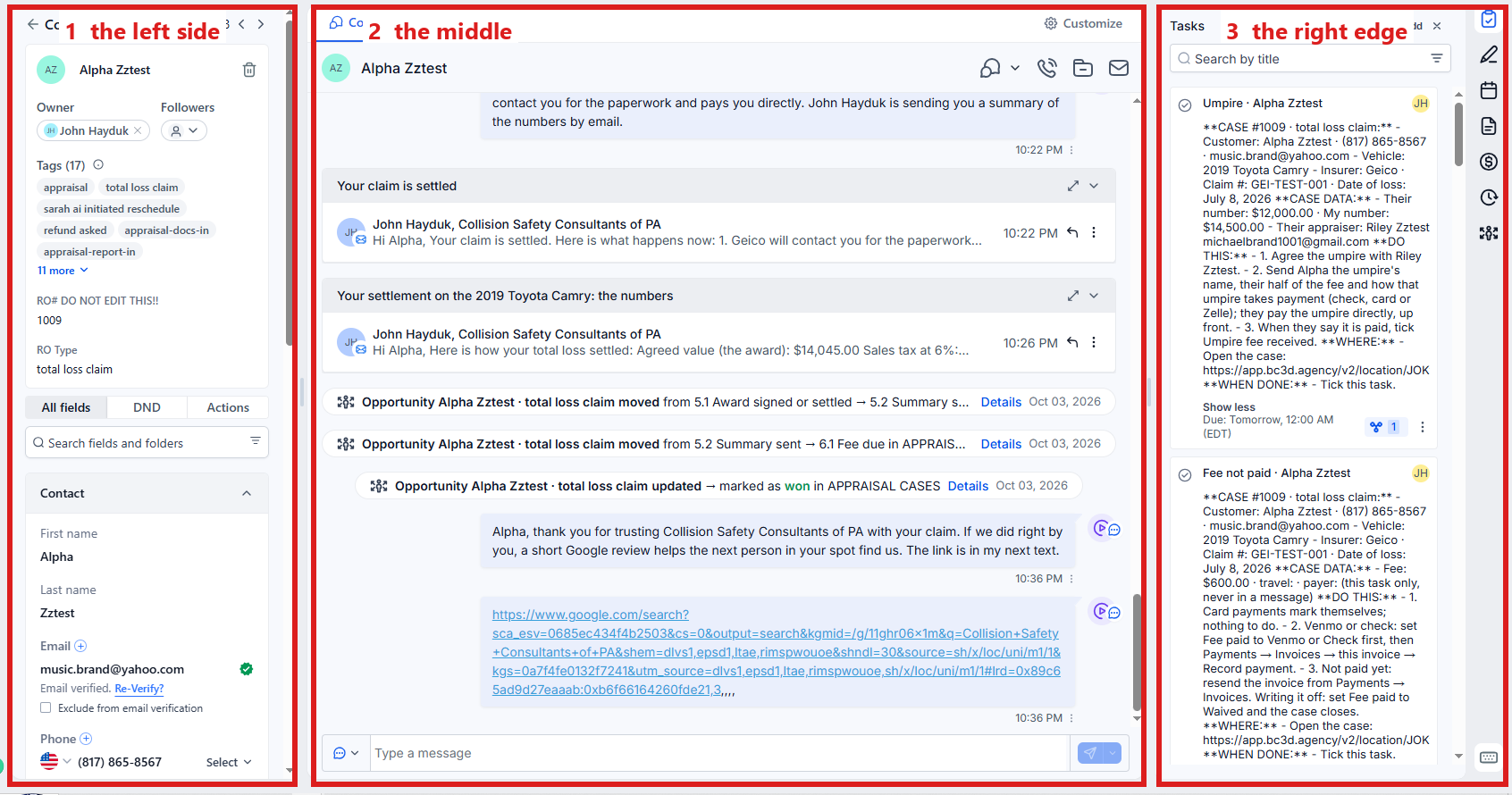
From a task
- In the left menu, click Tasks. My Tasks opens.
- Click the task's row. A short preview opens under it.
- Click Open Full View.
- Click the link under WHERE (it follows the words "Open the case"). The customer's contact profile opens in a new browser tab.
You are in the right place when you see the customer's name at the top left and their texts in the middle. Your Tasks page is still open in the first browser tab.
From a text or email (Conversations)
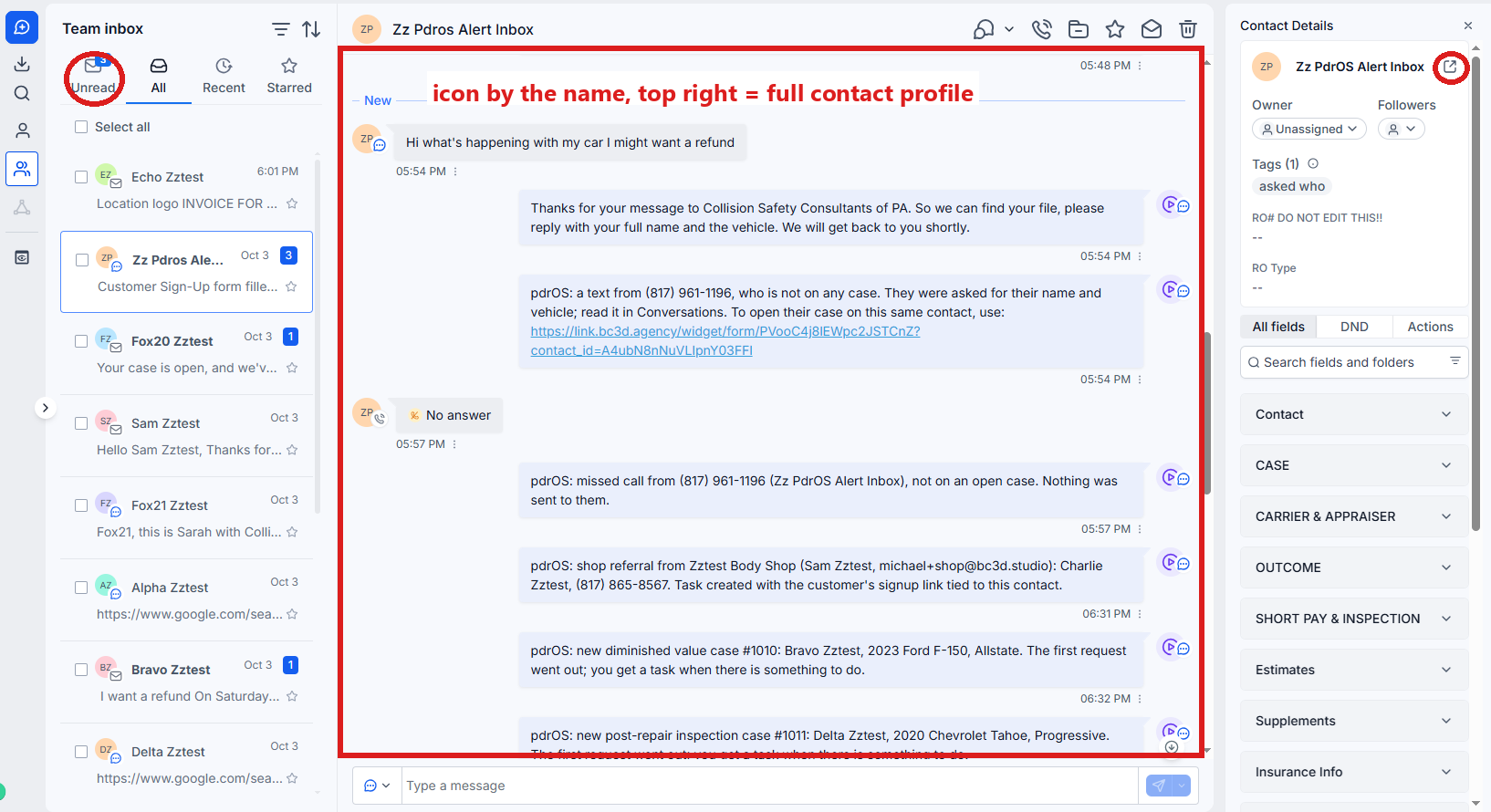
- In the left menu, click Conversations. On the left, under the heading Team inbox (or My inbox), is the list of people.
- Click Unread at the top of the list to see new messages.
- Click the person's name. Their thread opens in the middle, and their details on the right (the column headed Contact Details).
- At the top of the right column, click the small square-with-an-arrow icon next to the person's name. Their full contact profile opens.
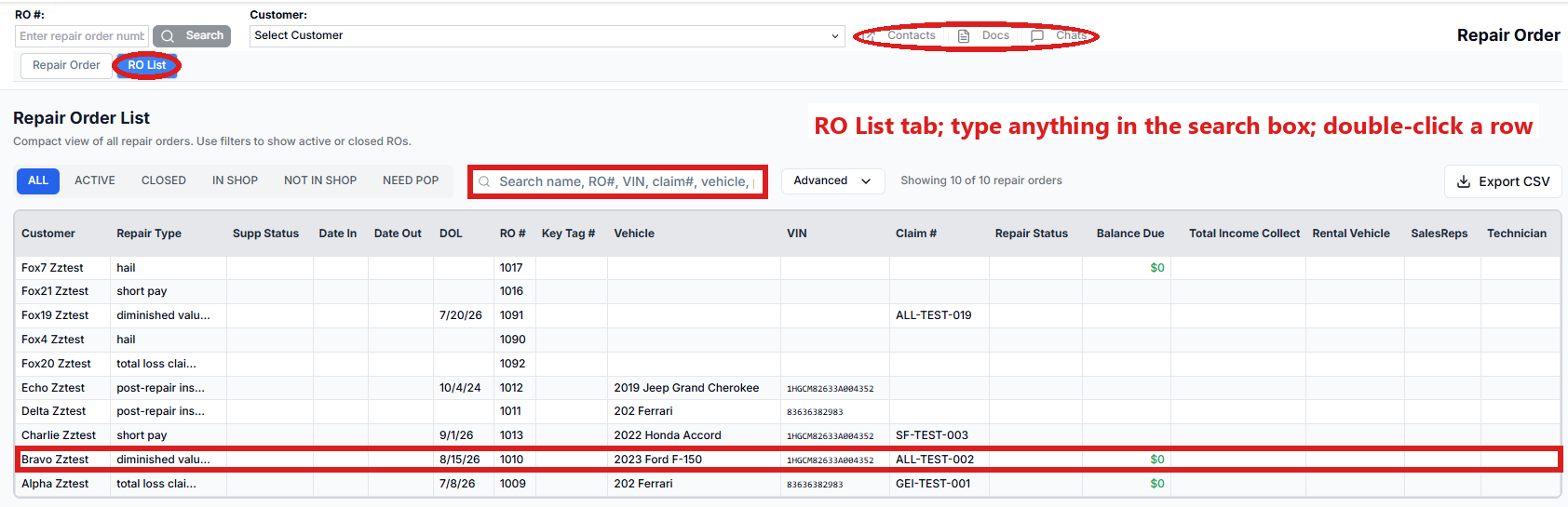
From the RO List (every case in one list)
- In the left menu, click RO Hub.
- Across the top are tabs. Click RO List. Every case shows in a list.
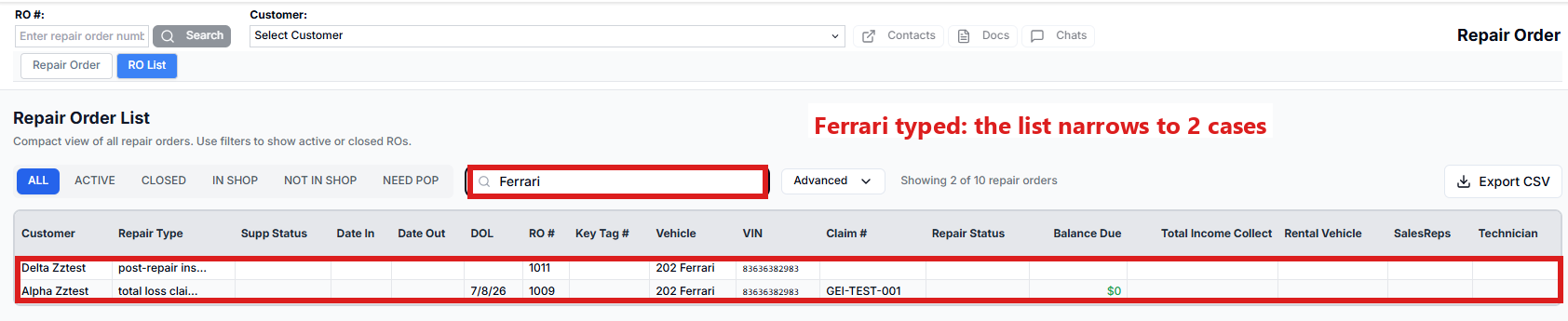
- To find one, click in the search box at the top of the list and type anything you know: the name, the RO number, the VIN, the claim number, the vehicle, the phone, the email or the insurer. The list narrows as you type.
- Double-click the customer's row. RO Hub opens in a new browser tab with that case loaded on the Repair Order tab.
- In that tab, click the Contacts button at the top right (next to the search box and the Docs button). The customer's contact profile opens in another tab. Or click Docs for the case's documents.
From a text on your phone
The alert text names the customer and the case number. Open their contact profile from the search box. In the left menu, click Contacts. Click in the search box at the top of the list and type that name or number. Click the customer's name in the list.
If a customer has two contact profiles
A customer with two claims has two contact profiles with the same phone number. Right after you open a contact profile, before you type anything, check you have the right one:
- On the left side of the contact profile, click the folder Contact to open it. It is the first folder.
- Read RO# DO NOT EDIT THIS!! (the RO number) and Customer Vehicle / Customer Signup Form (the vehicle).
If a text from that customer seems to have landed on the wrong contact profile, see When something goes wrong.
If you cannot find them
- Try the phone number without the dashes.
- A customer who texted the 610 number but never signed up has a contact profile with no name: search the phone number. The alert you got for them carries the signup link for that same contact profile.
Other words for this
contact profile = the contact, the customer's details; RO number = RO#, CASE #, case #, file #, case number.
Did this page not match what you see? Ask the support chat or open a support ticket. We change the page, not you.