Step 9: the settlement summary
Answers: how do I send the settlement summary? which folder is each number in? what does pdrOS calculate? what if a number is missing?
Check five numbers, then set Send summary to Send it now. pdrOS computes the sales tax, the net to the customer and the gain over the first offer. It emails the customer the summary. Then pdrOS checks Fee paid: if it is No, you get the task Fee not paid · NAME; if it is paid, the case closes.
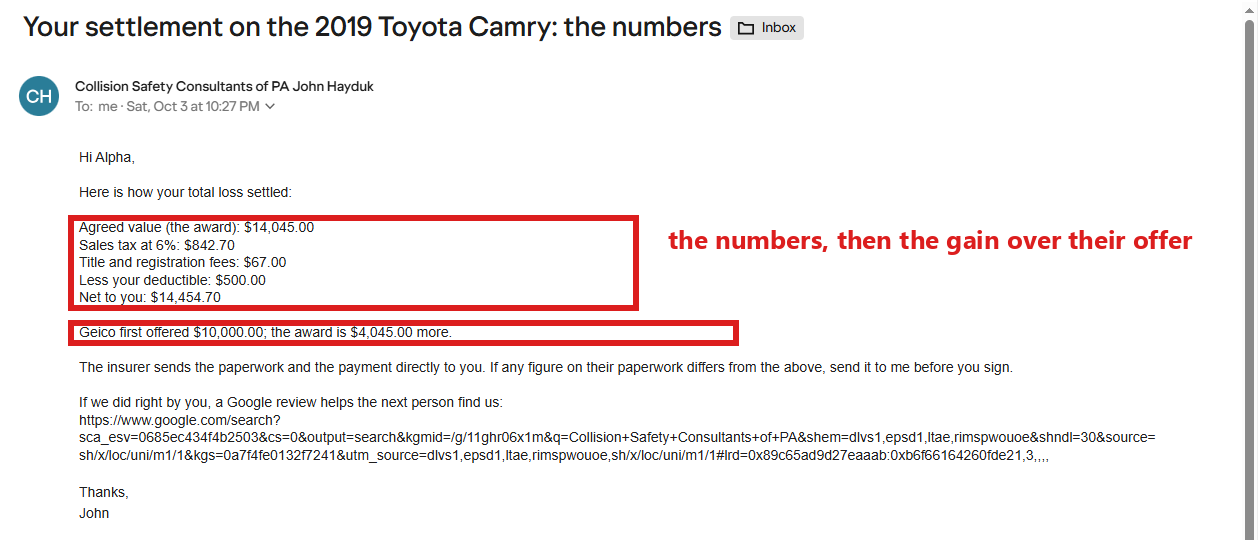
The five numbers (total loss)
They sit in three folders on the left side of the contact profile:
- Award amount, in folder OUTCOME (you typed it in Step 8: the award).
- Carrier's offer, in folder CASE (the insurer's first written offer; from the signup, or type it).
- Title fees, in folder OUTCOME.
- Deductible, in folder Insurance Info.
- Sales tax %, in folder OUTCOME (preset to 6).
A diminished value summary needs only the first two.
Check them and send
You work from the task Check the settlement summary · NAME.
You can also start from the task. In the left menu, click Tasks. Click the row Check the settlement summary · NAME, then Open Full View. Click the link under WHERE (after the words "Open the case"). The contact profile opens in a new browser tab. Then start at step 4.
- In the left menu, click Contacts.
- Click in the search box at the top of the list and type the customer's last name or RO number (your case number).
- Click the customer's name in the list. Their contact profile opens. You are in the right place when you see the customer's name at the top left and their texts in the middle.
- On the left side of the contact profile, scroll down to the folder Insurance Info and click the folder's name to open it. (If you already see its fields, it is open: clicking its name again closes it.)
- Look at Deductible. If it is empty or wrong, click in the box under Deductible and type the amount (numbers only, no dollar sign).
- Scroll up to the folder CASE and click the folder's name to open it.
- Look at Carrier's offer. If it is empty or wrong, click in the box under Carrier's offer and type the amount (numbers only, no dollar sign).
- Scroll down to the folder OUTCOME and click the folder's name to open it.
- Look at Award amount. It shows the award you typed.
- Look at Title fees. If it is empty or wrong, click in the box under Title fees and type the amount (numbers only, no dollar sign).
- Look at Sales tax %. It reads 6 unless someone changed it. To change it, click in the box under Sales tax % and type the number.
- If you typed anything, click the blue Save button at the bottom of the left side.
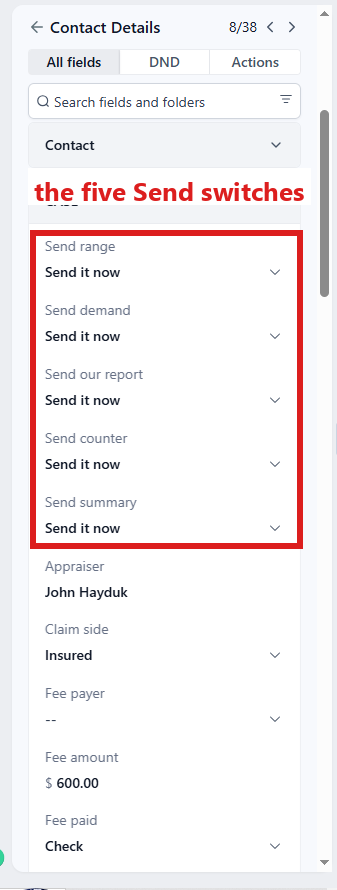
- Scroll up to the folder CASE (two folders above OUTCOME). If its fields do not show, click the folder's name to open it. The Send switches are near its top, right after Case status.
- Click the box under Send summary ⚡ and pick Send it now from the list.
- Click the blue Save button at the bottom of the left side.
Then close the task:
- In the left menu, click Tasks. My Tasks opens. You are in the right place when you see the boxes Overdue, Due Today, This Week and Completed at the top.
- Click the row Check the settlement summary · NAME (click Due Today or Overdue at the top if you do not see it). A short preview opens under it.
- Click Open Full View.
- Click the green Mark Complete button at the bottom right of the full view.
If the task is already gone when you come back, pdrOS closed it because the step happened.
What pdrOS computes
| Line | How |
|---|---|
| Recovery over offer | Award amount minus Carrier's offer |
| Sales tax amount | Award amount × Sales tax % ÷ 100 |
| Net to customer | Award amount + Sales tax amount + Title fees − Deductible |
Worked example, a real one from testing: award $14,045.00, offer $10,000.00, title fees $67.00, deductible $500.00, tax 6 percent. - Sales tax amount: $842.70 - Net to customer: $14,454.70 - Recovery over offer: $4,045.00
Those three are written into folder OUTCOME on the contact profile, and into the email.
What happens, within two minutes
- The customer gets the email "Your settlement on the [vehicle]: the numbers" (diminished value: "Your diminished value settlement: the numbers") with every line.
- Send summary reads Sent; Settlement summary sent date is written; Outcome becomes Settled; the case moves to 5.2 Summary sent.
- pdrOS then checks Fee paid. If it is No, the case moves to 6.1 Fee due and you get the task Fee not paid · NAME. If the fee is already paid, the case closes (see Fee and close).
If a number is missing
Send summary returns Not sent (see task) and the task A Send switch could not act says which number. Type it, wait a minute, then set the switch again. On a short pay or an inspection the switch is refused too (no customer summary on those types).
- In the left menu, click Tasks. My Tasks opens.
- Click the row A Send switch could not act · NAME. A short preview opens under it.
- Click Open Full View and read which number is missing.
- Click the link under WHERE (it follows the words "Open the case"). The contact profile opens in a new browser tab. You are in the right place when you see the customer's name at the top left and their texts in the middle.
- On the left side of the contact profile, scroll down to the folder that holds the missing number and click the folder's name to open it. Deductible is in Insurance Info, Carrier's offer in CASE, the other three in OUTCOME.
- Click in the box under the missing number and type it (numbers only, no dollar sign).
- Click the blue Save button at the bottom of the left side.
- Wait one minute.
- Scroll to the folder CASE (up from OUTCOME, down from Insurance Info). If it is closed, click its name. Look at the top of the folder.
- Click the box under Send summary ⚡ and pick Send it now from the list.
- Click the blue Save button at the bottom of the left side.
- Go back to the browser tab with the task.
- Click the green Mark Complete button at the bottom right of the full view.
If the task is already gone when you come back, pdrOS closed it because the step happened.
If you sent the summary yourself
Set Send summary to I sent it myself: the figures are still computed and written, the date and Outcome are set, no email goes.
- In the left menu, click Contacts.
- Click in the search box at the top of the list and type the customer's last name or RO number.
- Click the customer's name in the list. Their contact profile opens. You are in the right place when you see the customer's name at the top left and their texts in the middle.
- On the left side of the contact profile, scroll down to the folder CASE and click the folder's name to open it.
- Look at the top of folder CASE, where the Send switches are.
- Click the box under Send summary ⚡ and pick I sent it myself from the list.
- Click the blue Save button at the bottom of the left side.
- In the left menu, click Tasks. My Tasks opens.
- Click the row Check the settlement summary · NAME. A short preview opens under it.
- Click Open Full View.
- Click the green Mark Complete button at the bottom right of the full view.
If the task is already gone when you come back, pdrOS closed it because the step happened.
If you picked Outcome Settled yourself
If you set Outcome to Settled before the summary went, nothing happens: the case waits for the summary. Send it, or set I sent it myself:
- In the left menu, click Contacts.
- Click in the search box at the top of the list and type the customer's last name or RO number.
- Click the customer's name in the list. Their contact profile opens. You are in the right place when you see the customer's name at the top left and their texts in the middle.
- On the left side of the contact profile, scroll down to the folder CASE and click the folder's name to open it.
- Look at the top of folder CASE, where the Send switches are.
- Click the box under Send summary ⚡ and pick Send it now (pdrOS emails the summary) or I sent it myself (no email goes).
- Click the blue Save button at the bottom of the left side.
Did this page not match what you see? Ask the support chat or open a support ticket. We change the page, not you.