Step 5: the other appraiser and your report
Answers: their appraiser called, what do I type and where? how do I send my report? how long does pdrOS chase their report?
When their appraiser makes contact, you type their details and the date; pdrOS texts the customer and asks you to send your report. You set Send our report to Send it now; pdrOS emails it as you and chases their report at day 10 and day 17.
Their appraiser calls
- In the left menu, click Contacts.
- Click in the search box at the top of the list and type the customer's last name or RO number (your case number).
- Click the customer's name in the list. Their contact profile opens. You are in the right place when you see the customer's name at the top left and their texts in the middle.
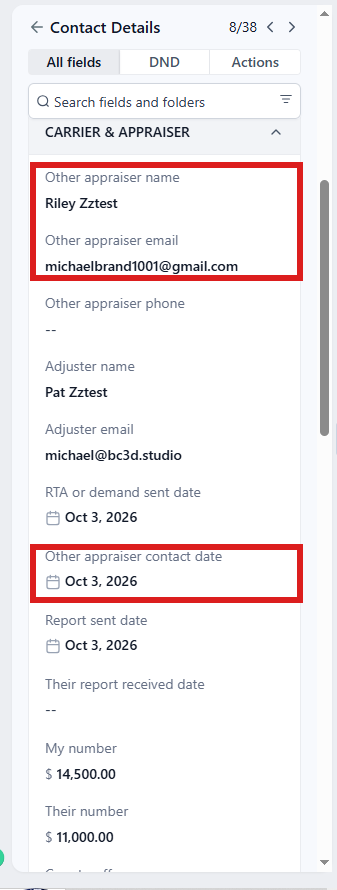
- On the left side of the contact profile, scroll down to the folder CARRIER & APPRAISER and click the folder's name to open it.
- Click in the box under Other appraiser name and type the name.
- Click in the box under Other appraiser email and type the email.
- If you have their phone, click in the box under Other appraiser phone and type the number.
- Click the box under Other appraiser contact date ⚡ and pick today in the calendar that opens.
- Click the blue Save button at the bottom of the left side. Nothing happens until you click it.
Within a minute: Clock A stops (no day-10 alert will come); the case moves to 3.2 Other appraiser in contact; the customer gets "[Insurer]'s appraiser is now in contact with John Hayduk. Next the two appraisers exchange reports"; you get the task Their appraiser is in contact · send our report · NAME.
Send your report
You can also start from the task Their appraiser is in contact · send our report · NAME. In the left menu, click Tasks. Click the task's row, then Open Full View. Click the link under WHERE (after the words "Open the case"). The contact profile opens in a new browser tab. Then start at step 4.
- In the left menu, click Contacts.
- Click in the search box at the top of the list and type the customer's last name or RO number.
- Click the customer's name in the list. Their contact profile opens. You are in the right place when you see the customer's name at the top left and their texts in the middle.
- On the left side of the contact profile, scroll down to the folder CASE and click the folder's name to open it.
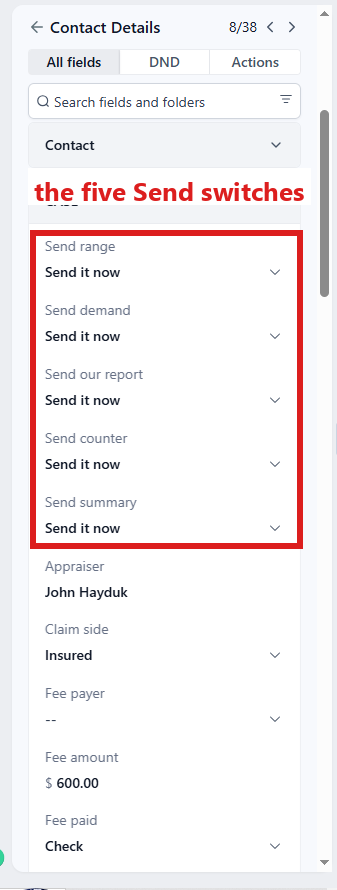
- At the top of the folder, click the box under Send our report ⚡ and pick Send it now from the list.
- Click the blue Save button at the bottom of the left side. Nothing is sent until you click it.
- In the left menu, click Tasks.
- Click the row of the task Their appraiser is in contact · send our report · NAME. If the task is already gone when you come back, pdrOS closed it because the step happened.
- Click Open Full View.
- Click the green Mark Complete button at the bottom right.
Within a minute, the other appraiser gets an email from you: "My appraisal report · NAME · claim X", with your report attached and, when the case has them, the repair invoice, the two estimate PDFs and the photo report. pdrOS makes a contact profile for that appraiser under their own name; their reply lands in their own conversation and you get a text. The case moves to 3.3 Report out; Case status changes to the sentence Sarah gives if asked: your report went to their appraiser and you follow up at day ten. Nothing goes to the customer.
Clock B: waiting for their report
- Day 10: pdrOS emails them again ("your report, please", with your report attached once more).
- Day 17: a second request.
- Day 22: your phone gets "day 22 and still no report from [name] on NAME. Two chase emails went" and the task Day 22 · no report from their appraiser · NAME: call them, or call the umpire. Then mark the task complete (steps below).
To mark the task complete:
- In the left menu, click Tasks.
- Click the task's row (click Due Today or Overdue at the top if you do not see it).
- Click Open Full View.
- Click the green Mark Complete button at the bottom right.
If the task is already gone when you come back, pdrOS closed it because the step happened.
Every chase stops the moment you upload their report into Supplement #1 Upload Doc Here or type Their number (next step).
If it will not send
Not sent (see task) means one of three things, and the ⚠️ task names which. Your report is not in Upload Estimate Doc Here (folder Estimates), Other appraiser email (folder CARRIER & APPRAISER) is empty, or Claim # (folder Insurance Info) is empty. Fix it, wait a minute, set the switch again:
- In the left menu, click Contacts.
- Click in the search box at the top of the list and type the customer's last name or RO number.
- Click the customer's name in the list. Their contact profile opens. You are in the right place when you see the customer's name at the top left and their texts in the middle.
- On the left side of the contact profile, scroll down to the folder Insurance Info and click the folder's name to open it.
- Look at Claim #. If it is empty, click in the box under it and type the claim number.
- Scroll up to the folder Estimates and click the folder's name to open it.
- Look in Upload Estimate Doc Here. If your report is not there, click Click to upload, pick your report PDF and click Open.
- Scroll up to the folder CARRIER & APPRAISER and click the folder's name to open it.
- Look at Other appraiser email. If it is empty, click in the box under it and type their email.
- Click the blue Save button at the bottom of the left side.
- Wait one minute.
- Scroll up to the folder CASE (just above CARRIER & APPRAISER). If its fields do not show, click the folder's name to open it. The Send switches are near its top, right after Case status.
- Click the box under Send our report and pick Send it now from the list.
- Click the blue Save button at the bottom of the left side.
The ⚠️ Our report not sent task that came with the refusal closes itself when the email goes.
If the report went before they called
You can set Send our report as soon as you have their email, before the contact date. When you later pick the contact date, your report is not sent again.
- In the left menu, click Contacts.
- Click in the search box at the top of the list and type the customer's last name or RO number.
- Click the customer's name in the list. Their contact profile opens. You are in the right place when you see the customer's name at the top left and their texts in the middle.
- On the left side of the contact profile, scroll down to the folder CARRIER & APPRAISER and click the folder's name to open it.
- Click in the box under Other appraiser email and type their email.
- Click the blue Save button at the bottom of the left side.
- On the left side of the contact profile, scroll back up to the folder CASE and click the folder's name to open it.
- At the top of the folder, click the box under Send our report and pick Send it now from the list.
- Click the blue Save button at the bottom of the left side.
If you emailed the report yourself
Set Send our report to I sent it myself: the date is written and Clock B starts; no email goes.
- In the left menu, click Contacts.
- Click in the search box at the top of the list and type the customer's last name or RO number.
- Click the customer's name in the list. Their contact profile opens. You are in the right place when you see the customer's name at the top left and their texts in the middle.
- On the left side of the contact profile, scroll down to the folder CASE and click the folder's name to open it.
- At the top of the folder, click the box under Send our report and pick I sent it myself from the list.
- Click the blue Save button at the bottom of the left side.
- In the left menu, click Tasks.
- Click the row of the task Their appraiser is in contact · send our report · NAME. If the task is already gone when you come back, pdrOS closed it because the step happened.
- Click Open Full View.
- Click the green Mark Complete button at the bottom right.
If something looks wrong
If your phone gets "no contact from [insurer]'s appraiser in 7 business days" (day 10) after their appraiser did call, then Other appraiser contact date is empty. Pick the day and click the blue Save button; the clock stops and nothing else is sent.
- In the left menu, click Contacts.
- Click in the search box at the top of the list and type the customer's last name or RO number.
- Click the customer's name in the list. Their contact profile opens. You are in the right place when you see the customer's name at the top left and their texts in the middle.
- On the left side of the contact profile, scroll down to the folder CARRIER & APPRAISER and click the folder's name to open it.
- Click the box under Other appraiser contact date ⚡ and pick the day their appraiser first called, in the calendar that opens.
- Click the blue Save button at the bottom of the left side.
- In the left menu, click Tasks.
- Click the row of the task No contact in 7 business days · call the carrier · NAME. If the task is already gone when you come back, pdrOS closed it because the step happened.
- Click Open Full View.
- Click the green Mark Complete button at the bottom right.
If the chase emails keep going after their report arrived, then the report was not put in Supplement #1 Upload Doc Here, or Their number was not typed. Do either; every chase stops at once.
- In the left menu, click Contacts.
- Click in the search box at the top of the list and type the customer's last name or RO number.
- Click the customer's name in the list. Their contact profile opens. You are in the right place when you see the customer's name at the top left and their texts in the middle.
- Do one of these two.
- To add their report: scroll down to the folder Supplements and click its name. In Supplement #1 Upload Doc Here ⚡, click Click to upload, pick their report PDF and click Open.
- To add their figure: scroll down to the folder CARRIER & APPRAISER and click its name. Click in the box under Their number ⚡ and type their figure (numbers only, no dollar sign).
- Click the blue Save button at the bottom of the left side.
Did this page not match what you see? Ask the support chat or open a support ticket. We change the page, not you.