Step 2: your report and the range
Answers: where do I upload my report? how do I send the range? how do I resend a corrected range? what if I already sent the range myself?
You write the valuation in RTAflow, upload the PDF, type your numbers and set Send range to Send it now. pdrOS emails and texts the customer the range with the agreement link, and reminds them.
Upload your report
You can also start from the task Documents in · value it · NAME. In the left menu, click Tasks. Click the task's row, then Open Full View. Click the link under WHERE (after the words "Open the case"). The contact profile opens in a new browser tab. Then start at step 4.
- In the left menu, click Contacts.
- Click in the search box at the top of the list and type the customer's last name or RO number (your case number).
- Click the customer's name in the list. Their contact profile opens. You are in the right place when you see the customer's name at the top left and their texts in the middle.
- On the left side of the contact profile, scroll down to the folder Estimates and click the folder's name to open it.
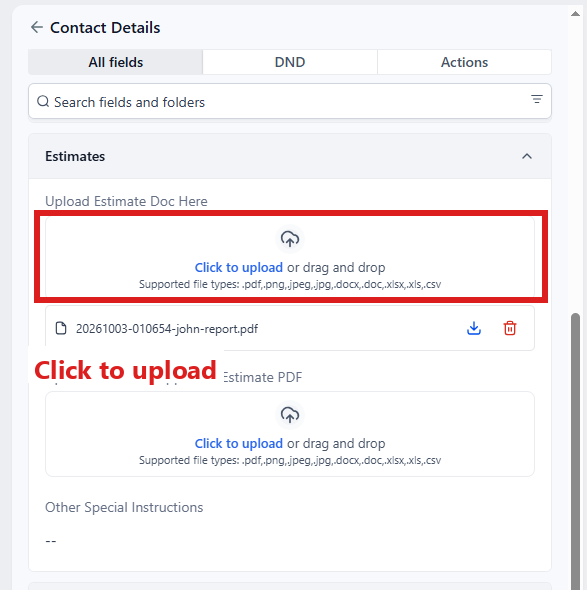
- In Upload Estimate Doc Here ⚡, click Click to upload, pick your report PDF on your computer and click Open.
- Click the blue Save button at the bottom of the left side. Nothing happens until you click it.
- In the left menu, click Tasks.
- Click the row of the task Documents in · value it · NAME. If the task is already gone when you come back, pdrOS closed it because the step happened.
- Click Open Full View.
- Click the green Mark Complete button at the bottom right.
Within a minute: the case moves to 1.3 Report written, Case status changes to "Our report is written. John Hayduk is finalizing the range to send you" (what Sarah says if asked), and you get the task Set the range · NAME. Nothing is sent to the customer yet.
To correct your report, first remove the old file: in Upload Estimate Doc Here, click the trash can icon to the right of the file's name. Then upload the new one (steps 1 to 6 again). Nothing is re-sent; every file left in that field goes with your report later.
Set the range
You can also start from the task Set the range · NAME. In the left menu, click Tasks. Click the task's row, then Open Full View. Click the link under WHERE (after the words "Open the case"). The contact profile opens in a new browser tab. Then start at step 4.
- In the left menu, click Contacts.
- Click in the search box at the top of the list and type the customer's last name or RO number.
- Click the customer's name in the list. Their contact profile opens. You are in the right place when you see the customer's name at the top left and their texts in the middle.
- On the left side of the contact profile, scroll down to the folder CARRIER & APPRAISER and click the folder's name to open it.
- Click in the box under My number and type your valuation (numbers only, no dollar sign).
- On the left side of the contact profile, scroll back up to the folder CASE and click the folder's name to open it.
- Click in the box under Range low and type the low figure (numbers only, no dollar sign).
- Click in the box under Range high and type the high figure (numbers only, no dollar sign).
- Look at Carrier's offer, just under Range high. If it is empty, click in the box under Carrier's offer and type the insurer's offer (numbers only, no dollar sign). It prints in the email.
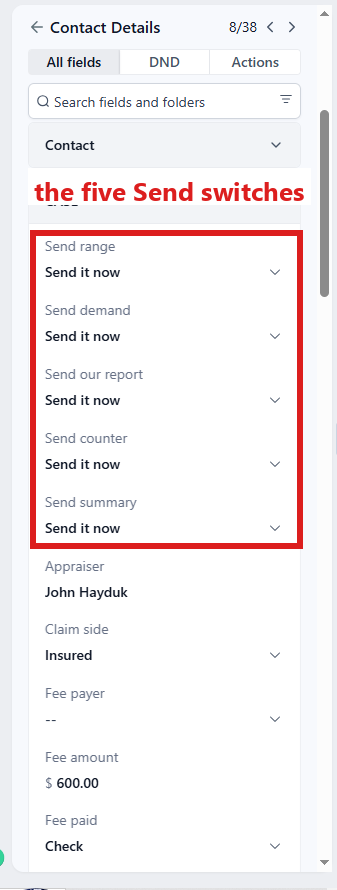
- Scroll up to the top of folder CASE. Send range ⚡ comes right after Case status, the first field.
- Click the box under Send range and pick Send it now from the list.
- Click the blue Save button at the bottom of the left side. Nothing is sent until you click it.
- In the left menu, click Tasks.
- Click the row of the task Set the range · NAME. If the task is already gone when you come back, pdrOS closed it because the step happened.
- Click Open Full View.
- Click the green Mark Complete button at the bottom right.
What the customer gets, within a minute
- A text: "John Hayduk has emailed you the valuation and our agreement. To go ahead, sign with the link in my next text".
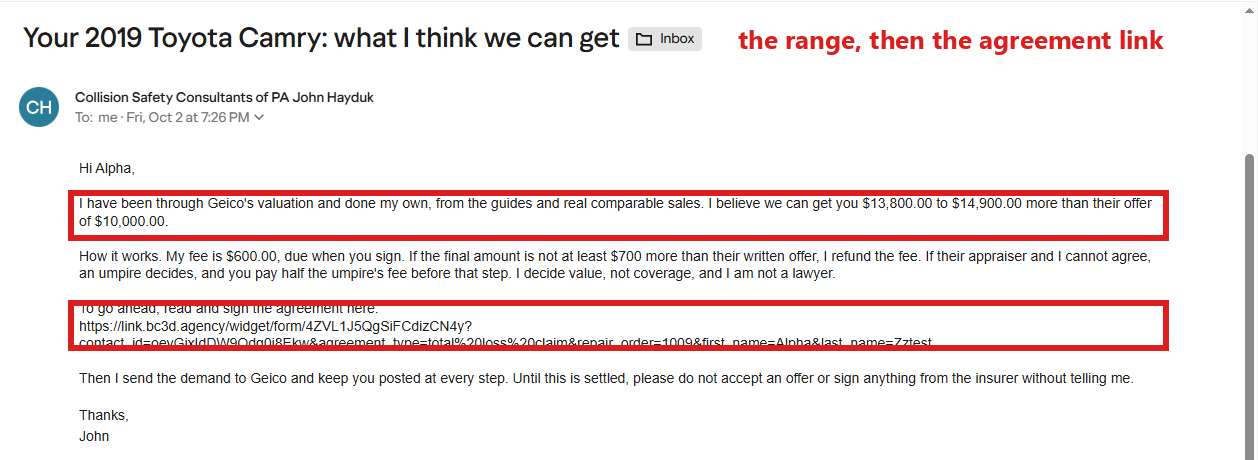
- The agreement link, in its own text.
- The email "Your [vehicle]: what I think we can get", with your low and high figures and the insurer's offer.
The case moves to 1.4 Range sent. The invoice comes later, when they sign.
If the range will not send
Send range comes back Not sent (see task) when Range low or Range high is empty, or the case is not a total loss or diminished value. If the type is wrong, fix it first: see Wrong type. If a number is missing:
- In the left menu, click Contacts.
- Click in the search box at the top of the list and type the customer's last name or RO number.
- Click the customer's name in the list. Their contact profile opens. You are in the right place when you see the customer's name at the top left and their texts in the middle.
- On the left side of the contact profile, scroll down to the folder CASE and click the folder's name to open it.
- Click in the box under Range low and type the low figure (numbers only, no dollar sign).
- Click in the box under Range high and type the high figure (numbers only, no dollar sign).
- Click the blue Save button at the bottom of the left side.
- Wait one minute.
- Scroll up to the top of folder CASE.
- Click the box under Send range and pick Send it now from the list.
- Click the blue Save button at the bottom of the left side.
- In the left menu, click Tasks.
- Click the row of the task that came with the refusal (A Send switch could not act · NAME). If the task is already gone when you come back, pdrOS closed it because the step happened.
- Click Open Full View.
- Click the green Mark Complete button at the bottom right.
Sending a corrected range
Change the number, then set Send range to Send it now again. The texts and email go again with the new figures.
- In the left menu, click Contacts.
- Click in the search box at the top of the list and type the customer's last name or RO number.
- Click the customer's name in the list. Their contact profile opens. You are in the right place when you see the customer's name at the top left and their texts in the middle.
- If your valuation changed: on the left side of the contact profile, scroll down to the folder CARRIER & APPRAISER and click the folder's name to open it. (If only the range changed, skip to step 6.)
- Click in the box under My number and type the new figure (numbers only, no dollar sign).
- Scroll up to the folder CASE (just above CARRIER & APPRAISER; scroll down to it if you skipped steps 4 and 5) and click the folder's name to open it.
- Click in the box under Range low or Range high and type the new figure (numbers only, no dollar sign).
- Click the blue Save button at the bottom of the left side.
- Scroll up to the top of folder CASE.
- Click the box under Send range and pick Send it now from the list.
- Click the blue Save button at the bottom of the left side.
If you already sent the range yourself
pdrOS records the date, moves the case to 1.4 Range sent and starts the reminders, and sends nothing.
- In the left menu, click Contacts.
- Click in the search box at the top of the list and type the customer's last name or RO number.
- Click the customer's name in the list. Their contact profile opens. You are in the right place when you see the customer's name at the top left and their texts in the middle.
- On the left side of the contact profile, scroll down to the folder CASE and click the folder's name to open it.
- At the top of the folder, click the box under Send range and pick I sent it myself from the list.
- Click the blue Save button at the bottom of the left side.
- In the left menu, click Tasks.
- Click the row of the task Set the range · NAME. If the task is already gone when you come back, pdrOS closed it because the step happened.
- Click Open Full View.
- Click the green Mark Complete button at the bottom right.
The reminders
- Day 3 after the range, no signature: a text ("Any questions about John Hayduk's valuation? When you're ready to go ahead, the agreement link is in my next text") and the link again.
- Day 7: the task Range not answered · call NAME. Call them, then mark the task complete (steps below).
The reminders stop the moment they sign.
To mark the task complete:
- In the left menu, click Tasks.
- Click the task's row (click Due Today or Overdue at the top if you do not see it).
- Click Open Full View.
- Click the green Mark Complete button at the bottom right.
If the task is already gone when you come back, pdrOS closed it because the step happened.
The habit
Send the range from pdrOS only. Do not also send RTAflow's range and payment links, or the customer gets two sets of links and two invoices.
If something looks wrong
If Send range comes back "Not sent (see task)": follow the steps under If the range will not send, higher up on this page.
If nothing happened two minutes after the upload, then check the file went into Upload Estimate Doc Here (folder Estimates). Check too that you clicked the blue Save button:
- In the left menu, click Contacts.
- Click in the search box at the top of the list and type the customer's last name or RO number.
- Click the customer's name in the list. Their contact profile opens. You are in the right place when you see the customer's name at the top left and their texts in the middle.
- On the left side of the contact profile, scroll down to the folder Estimates and click the folder's name to open it.
- Look in Upload Estimate Doc Here: your report's file name should show there. If it does not, click Click to upload, pick your report and click Open.
- If a blue Save button shows at the bottom of the left side, click it.
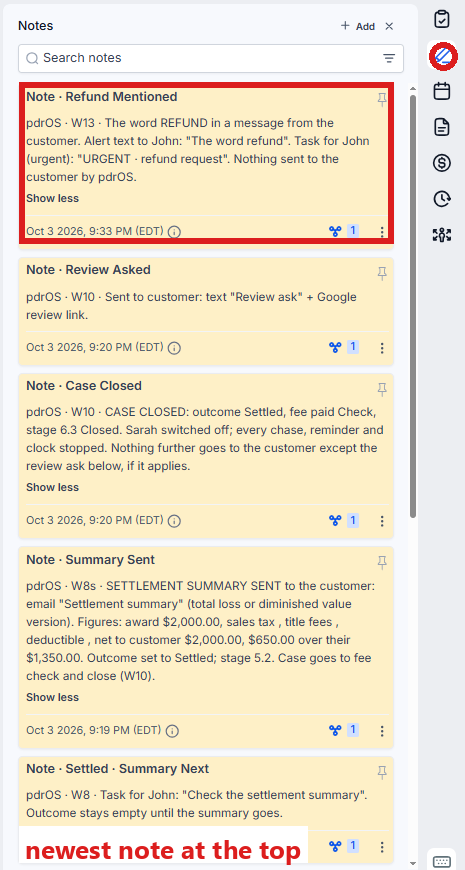
- On the far right edge of the contact profile, click the Notes icon (it looks like a pen; hold the mouse over the icons to see their names). The notes open beside it, newest at the top.
- The top note says "Report in" when it worked.
Did this page not match what you see? Ask the support chat or open a support ticket. We change the page, not you.