Invoices and payments
Answers: how is the fee invoiced? how do I send a custom invoice or invoice a shop? how do I record Venmo or a check? how do I copy the pay link? how do I void or refund? what do the invoice statuses mean? what is the fee guard?
pdrOS invoices the standard fee through Square the moment the customer signs. You record Venmo and checks on the customer's contact profile, in the field Fee paid. A hired case closes when it has a final Outcome and Fee paid is not No (a case the customer never signed closes on any final Outcome).
The automatic invoice
When the customer signs, pdrOS sends the Square invoice "Appraisal fee" by text and email at once. It does this when the fee is the standard $600 (or $1,200 with travel) and the owner pays. The invoice is due the next day and has a pay-by-card link. The customer pays on their phone. When they do, Fee paid is set to Square for you and you get a text. Card payments run through Square, connected with us on your first day. If a card payment ever fails, tell us.
When no automatic invoice goes
- Fee amount is not the standard: you get the task Send a custom invoice.
- Fee payer is the shop: you get the task Invoice the shop.
For either one, first read the fee. In the left menu, click Contacts. Click in the search box at the top of the list and type the customer's last name or RO number (your case number). Click the customer's name in the list. On the left side of the contact profile, scroll down to the folder CASE and click the folder's name to open it. Read Fee amount. Then:
- In the left menu, click Invoices. You are in the right place when you see the list of invoices, each with its status.
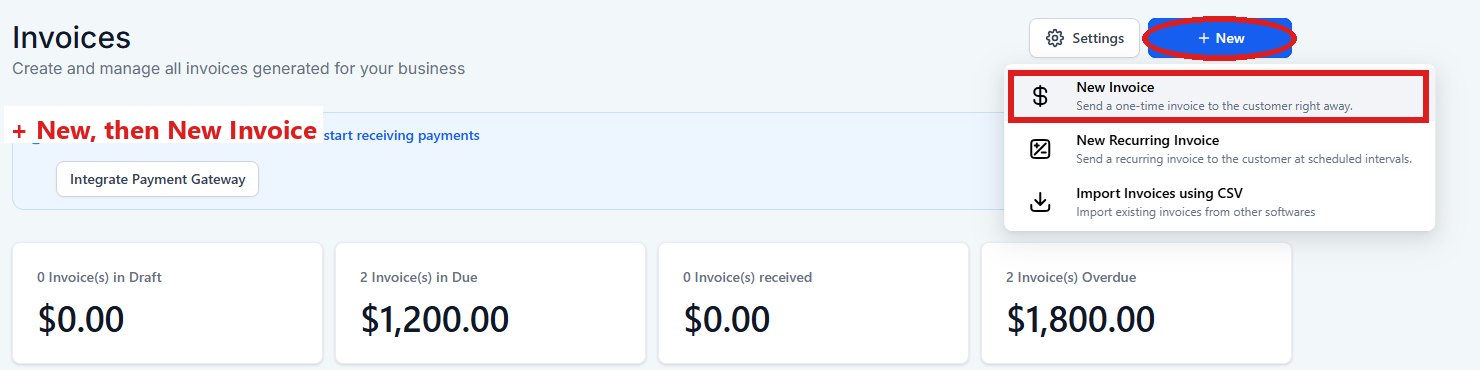
- Click the blue + New button at the top right, then New Invoice. A new invoice opens.
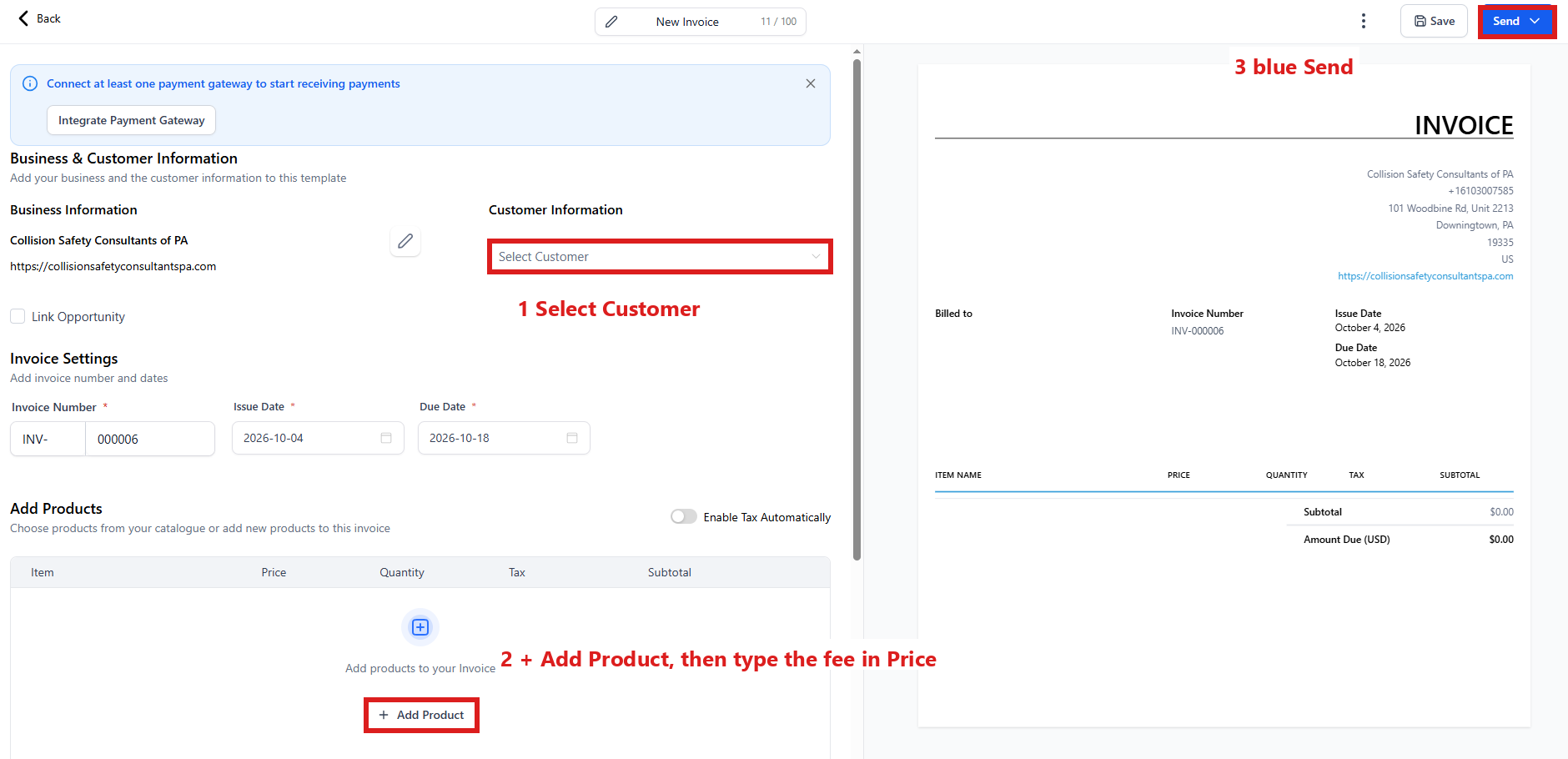
- Under Customer Information, click the box Select Customer and type the customer's name (for Invoice the shop, the shop's name).
- Click the name in the list.
- Under Add Products, click + Add Product.
- Pick Appraisal fee from the list.
- Click in the Price box on that line and type the fee from Fee amount. Numbers only, no dollar sign.
- Click the blue Send button at the top right.
- A window asks how to send it. Choose email and text, then click its send button.
- In the left menu, click Tasks. My Tasks opens. You are in the right place when you see the boxes Overdue, Due Today, This Week and Completed at the top.
- Click the task's row. A short preview opens under it.
- Click Open Full View.
- Click the green Mark Complete button at the bottom right of the full view. If the task is already gone when you come back, pdrOS closed it because the step happened.
Recording Venmo or a check
When the money arrives:
- In the left menu, click Contacts.
- Click in the search box at the top of the list and type the customer's last name or RO number (your case number).
- Click the customer's name in the list. Their contact profile opens. You are in the right place when you see the customer's name at the top left and their texts in the middle.
- On the left side of the contact profile, scroll down to the folder CASE and click the folder's name to open it.
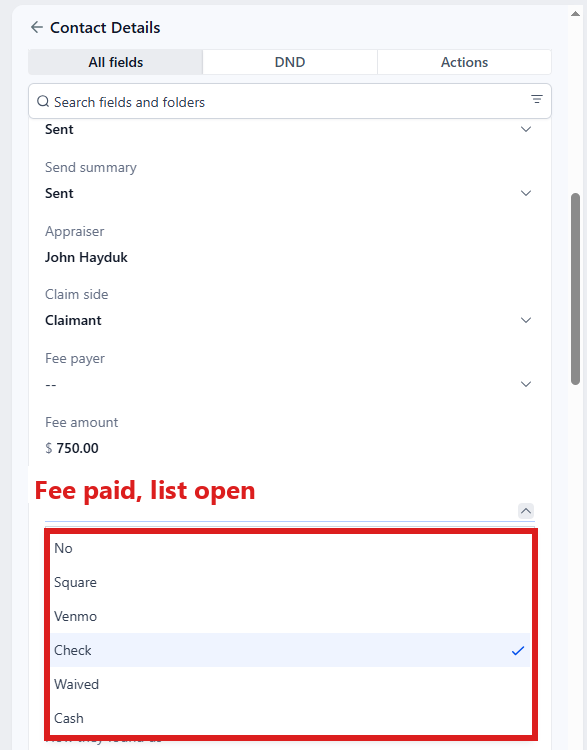
- Find Fee paid ⚡.
- Click the box under Fee paid and pick Venmo, Check or Cash.
- Click the blue Save button at the bottom of the left side.
If an open Square invoice went for that case, record the payment on it. Then the customer stops getting its reminders. Always set Fee paid first, then record the payment on the invoice. If the invoice is marked paid while Fee paid still says No, pdrOS writes Square in Fee paid. That is why Fee paid comes first. To record the payment:
- In the left menu, click Invoices. You are in the right place when you see the list of invoices, each with its status.
- Find the customer's name in the list.
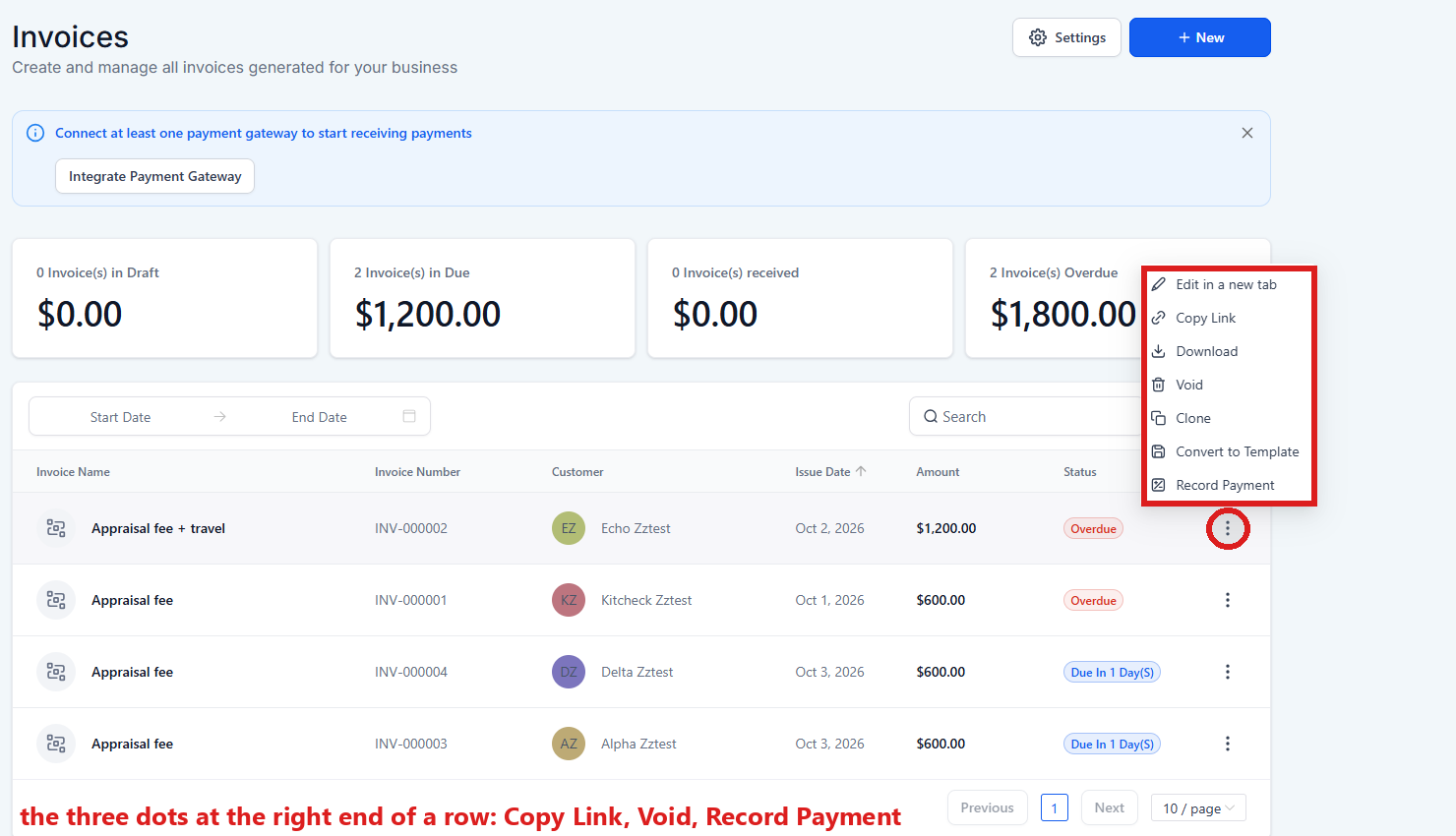
- Click the three dots at the right end of the invoice's row.
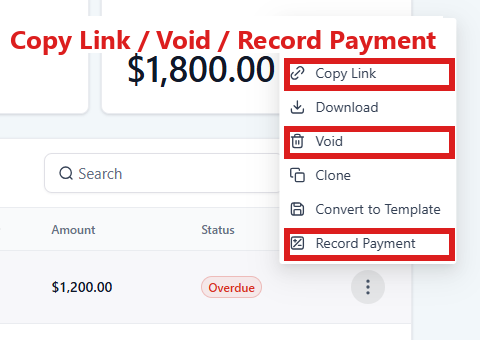
- Click Record Payment.
- Click Record Manually.
- Pick Check for a check, Cash for cash, or the choice that fits Venmo (Other if it is offered).
- Type the amount and the date.
- Click Submit.
Copying the pay link
If the customer cannot find the invoice text, send them its link again.
- In the left menu, click Invoices. You are in the right place when you see the list of invoices, each with its status.
- Find the customer's name in the list.
- Click the three dots at the right end of the invoice's row.
- Click Copy Link.
- In the left menu, click Contacts.
- Click in the search box at the top of the list and type the customer's last name or RO number.
- Click the customer's name in the list. Their contact profile opens. You are in the right place when you see the customer's name at the top left and their texts in the middle.
- At the bottom of the middle is the message box. At its left end, click the small button with a down arrow and pick SMS.
- Click in the box and press Ctrl and V together to paste the link (on a Mac, Cmd and V). Put nothing else in that text: a link mixed with words breaks on the phone.
- Click the paper-plane button at the right end to send.
Waiving the fee
Waived closes the case like a payment.
- In the left menu, click Contacts.
- Click in the search box at the top of the list and type the customer's last name or RO number.
- Click the customer's name in the list. Their contact profile opens. You are in the right place when you see the customer's name at the top left and their texts in the middle.
- On the left side of the contact profile, scroll down to the folder CASE and click the folder's name to open it.
- Click the box under Fee paid ⚡ and pick Waived.
- Click the blue Save button at the bottom of the left side.
If a Square invoice already went, void it:
- In the left menu, click Invoices. You are in the right place when you see the list of invoices, each with its status.
- Find the customer's name in the list.
- Click the three dots at the right end of the invoice's row.
- Click Void.
Voiding or refunding
Void an invoice only when you waive the fee (see Waiving the fee, above). If the customer paid another way, record the payment on it instead (see Recording Venmo or a check, above). Refund an invoice that was paid by card. A refund does not change the case.
To void:
- In the left menu, click Invoices. You are in the right place when you see the list of invoices, each with its status.
- Find the customer's name in the list.
- Click the three dots at the right end of the invoice's row.
- Click Void. A paid invoice must be refunded first.
To refund a card payment:
- In the left menu, click Invoices. You are in the right place when you see the list of invoices, each with its status.
- Find the customer's name in the list and click their invoice to open it.
- Click the three dots at the top right of the invoice (next to Save).
- Click View Transaction (it shows only on a paid invoice).
- Click Refund. If you do not see View Transaction, tell us (in the left menu, click Support, then the orange Support Ticket button) and we refund it with you.
Refunding under the promise
The agreement promises a refund if the final value is not at least $700 over the insurer's offer as it stood when they signed. If that happens, refund the fee, then add a note saying refunded under the promise. The case stays Settled. (A customer asking for a refund is a different thing: that raises the URGENT refund task, see The tasks you will see.)
For a card payment, refund it on the invoice (if you refund by check or Venmo instead, start at step 6):
- In the left menu, click Invoices. You are in the right place when you see the list of invoices, each with its status.
- Find the customer's name in the list and click their invoice to open it.
- Click the three dots at the top right of the invoice (next to Save).
- Click View Transaction (it shows only on a paid invoice).
- Click Refund. If you do not see View Transaction, tell us (in the left menu, click Support, then the orange Support Ticket button) and we refund it with you.
Then add the note:
- In the left menu, click Contacts.
- Click in the search box at the top of the list and type the customer's last name or RO number.
- Click the customer's name in the list. Their contact profile opens. You are in the right place when you see the customer's name at the top left and their texts in the middle.
- On the far right edge of the contact profile, click the Notes icon (it looks like a pen; hold the mouse over the icons to see their names).
- Click + Add at the top of the notes.
- Type a title and the note: refunded under the promise.
- Click Save in the note.
The fee guard
A settled case with Fee paid at No sits at 6.1 Fee due with the task Fee not paid. Your phone gets a text at day 14. The Square invoice sends its own reminders to the customer. The task stays open. When the fee is in, set Fee paid, then mark the task complete:
- In the left menu, click Contacts.
- Click in the search box at the top of the list and type the customer's last name or RO number.
- Click the customer's name in the list. Their contact profile opens. You are in the right place when you see the customer's name at the top left and their texts in the middle.
- On the left side of the contact profile, scroll down to the folder CASE and click the folder's name to open it.
- Click the box under Fee paid ⚡ and pick how they paid: Square, Venmo, Check or Cash (or Waived).
- Click the blue Save button at the bottom of the left side.
- In the left menu, click Tasks. My Tasks opens. You are in the right place when you see the boxes Overdue, Due Today, This Week and Completed at the top.
- Click the task Fee not paid. A short preview opens under it.
- Click Open Full View.
- Click the green Mark Complete button at the bottom right of the full view. If the task is already gone when you come back, pdrOS closed it because the step happened.
If they paid by Venmo or check, also record it on the invoice (see Recording Venmo or a check, above). Otherwise the invoice keeps reminding them.
The Money out list
Check it on Mondays.

- In the left menu, click Contacts.
- Along the top of the list are saved lists; click Money out.
- It shows every hired case whose Fee paid is still No, in one list.
Where to see every invoice
- In the left menu, click Invoices. You are in the right place when you see the list of invoices, each with its status.
- Every invoice is listed with the customer, the amount and its status. Click an invoice to open it.
What each status means:
- Draft: made, not sent yet.
- Due In 1 Day(S) (or another number of days): sent to the customer, not paid yet.
- Paid: paid.
- Overdue: past its due date and not paid.
- Void: cancelled; nobody owes it.
The invoice email and text the customer got are also in the middle of their contact profile, with their other messages.
Did this page not match what you see? Ask the support chat or open a support ticket. We change the page, not you.