Short pay: what differs
Answers: what is different on a short pay? what does the shop get? what does Sharon do? how do I upload the rewrite, record the award and invoice the shop?
On a short pay the paperwork comes from the body shop. Sharon enters the shop's estimate in CCC1 and you rewrite it. The owner signs when the rewrite is done. The shop usually pays, and the shop is told when the case settles.
At signup
- Usually a shop referral comes first: pdrOS makes the owner's contact profile with the shop's name already on it.
- Or you fill the signup with the owner yourself:
- Open your signup link (your bookmark named "Signup"; see Your three links).
- Fill it with the owner on the phone.
- Type the shop's name in Referring shop, and its contact person and email in the boxes next to it when the form shows them.
- Click Submit.
- Fee payer is Shop in most cases, and Claim side is Insured (the owner's own insurer short-paid). Both are lists in folder CASE. To check: in the left menu, click Contacts, search the owner and click their name. On the left side of the contact profile, scroll down to the folder CASE and click its name. If one is wrong, click its box and pick the right choice, then click the blue Save button at the bottom of the left side.
What goes out at signup
- The owner gets the welcome text and email, and one text: "On your short pay we work with [shop] on the paperwork and with [insurer] on the numbers. Nothing to send now."
- The shop gets an email from you with the owner's upload link: "what we need on NAME's [vehicle]": the shop's estimate (PDF), the carrier's estimate (PDF), invoices and photos.
The shop chase
If the shop sends nothing, it gets a reminder email on day 2 and day 12. You get the task Chase documents · NAME on day 5 and Nothing after three weeks · close it? · NAME on day 19.
For Chase documents · NAME, call the shop. For Nothing after three weeks · close it? · NAME, call once more or close the case as Went quiet (steps in Step 1: the documents). Then close the task:
- In the left menu, click Tasks. My Tasks opens. You are in the right place when you see the boxes Overdue, Due Today, This Week and Completed at the top.
- Click the task's row (click Due Today or Overdue at the top if you do not see it). A short preview opens under it.
- Click Open Full View.
- Click the green Mark Complete button at the bottom right of the full view.
If the task is already gone when you come back, pdrOS closed it because the step happened.
Both estimates in
When Shop estimate PDF and Carrier estimate PDF (both in folder CASE) both hold a file (either from the shop's uploads or from you): - The case moves to 1.2 Documents in. - Sharon gets the task Enter the shop's estimate in CCC1 · NAME with both files, and the office phone gets a text about it. When the estimate is entered, Sharon closes the task: in the left menu, click Tasks, click the task's row, click Open Full View, then click the green Mark Complete button at the bottom right. - You get the task Finish the rewrite · NAME.
One estimate alone does nothing yet.
To upload an estimate yourself:
- In the left menu, click Contacts.
- Click in the search box at the top of the list and type the owner's last name or RO number (your case number).
- Click the owner's name in the list. Their contact profile opens. You are in the right place when you see the owner's name at the top left and their texts in the middle.
- On the left side of the contact profile, scroll down to the folder CASE and click the folder's name to open it. (If you already see its fields, it is open: clicking its name again closes it.)
- In Shop estimate PDF ⚡ (or Carrier estimate PDF ⚡), click Click to upload.
- Pick the PDF on your computer and click Open.
- Click the blue Save button at the bottom of the left side.
Sharon's totals
Optional: the short pay tasks print these totals, so filling them saves you a look at the PDFs.
- In the left menu, click Contacts.
- Click in the search box at the top of the list and type the owner's last name or RO number.
- Click the owner's name in the list. Their contact profile opens. You are in the right place when you see the owner's name at the top left and their texts in the middle.
- On the left side of the contact profile, scroll down to the folder SHORT PAY & INSPECTION (right after OUTCOME) and click the folder's name to open it.
- Click in the box under Shop estimate total and type the amount (numbers only, no dollar sign).
- Click in the box under Carrier estimate total and type the amount.
- Click in the box under Variance and type the gap between the two.
- When the rewrite is done, click in the box under Rewritten estimate total and type its total.
- Click the blue Save button at the bottom of the left side.
The rewrite
You work from the task Finish the rewrite · NAME.
You can also start from the task. In the left menu, click Tasks. Click the row Finish the rewrite · NAME, then Open Full View. Click the link under WHERE (after the words "Open the case"). The contact profile opens in a new browser tab. Then start at step 4.
- In the left menu, click Contacts.
- Click in the search box at the top of the list and type the owner's last name or RO number.
- Click the owner's name in the list. Their contact profile opens. You are in the right place when you see the owner's name at the top left and their texts in the middle.
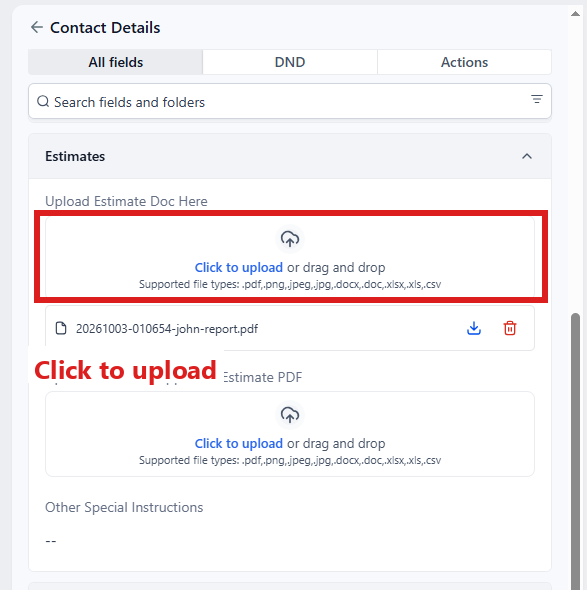
- On the left side of the contact profile, scroll down to the folder Estimates and click the folder's name to open it.
- In Upload Estimate Doc Here ⚡, click Click to upload.
- Pick your rewrite on your computer and click Open.
- Click the blue Save button at the bottom of the left side.
Within a minute: 1. The case moves to 1.3 Report written. 2. The owner gets "Our rewrite of your repair estimate is done. To let us take it up with [insurer] for you, please sign the agreement with the link in my next text", the agreement link, and the email "Your short pay with [insurer]: one signature to start". 3. Your phone gets "the rewrite for NAME is in and the agreement went to them to sign. Next task: Send the demand, once they sign".
There is no range step on a short pay (Send range is refused on this type).
Then close the task:
- In the left menu, click Tasks. My Tasks opens.
- Click the row Finish the rewrite · NAME. A short preview opens under it.
- Click Open Full View.
- Click the green Mark Complete button at the bottom right of the full view.
If the task is already gone when you come back, pdrOS closed it because the step happened.
The agreement
The owner signs the short pay agreement. Fee payer Shop means no invoice to the owner. Instead you get the task Invoice the shop · NAME (the steps are under The fee below).
The RTA and the rest
From here it runs like a total loss. Send demand sends the RTA to the adjuster and starts the wait for their appraiser to call (7 business days). You pick the other appraiser's contact date. Send our report sends your rewrite and both estimates (and the repair invoice when the case has one), and the wait for their report (22 days) starts. Then come their number, counters and the umpire. The steps are in Step 4: the RTA through Step 7: the umpire.
Settled
Type the Award amount and pick the Award signed date (folder OUTCOME). The owner gets the Settled text and email, Outcome becomes Settled, and the shop gets an email from you: "Settled · NAME's [vehicle]". There is no customer summary on a short pay (Send summary is refused). Then pdrOS checks Fee paid: if it is No, you get the task Fee not paid · NAME.
- In the left menu, click Contacts.
- Click in the search box at the top of the list and type the owner's last name or RO number.
- Click the owner's name in the list. Their contact profile opens. You are in the right place when you see the owner's name at the top left and their texts in the middle.
- On the left side of the contact profile, scroll down to the folder OUTCOME and click the folder's name to open it.
- Click in the box under Award amount and type the amount (numbers only, no dollar sign).
- Click the box under Award signed date ⚡ and pick the day the award was signed in the calendar that opens.
- Click the blue Save button at the bottom of the left side.
The fee
Invoice the shop by hand. When paid, set Fee paid (Check, Cash, Square, Venmo). If you decide not to charge, Waived closes the case the same way.
Invoice the shop
First, look up the fee:
- In the left menu, click Contacts.
- Click in the search box at the top of the list and type the owner's last name or RO number.
- Click the owner's name in the list. Their contact profile opens. You are in the right place when you see the owner's name at the top left and their texts in the middle.
- On the left side of the contact profile, scroll down to the folder CASE and click the folder's name to open it.
- Read the amount in Fee amount. You only looked, so there is nothing to save.
Then make the invoice:
- In the left menu, click Invoices. You are in the right place when you see the list of invoices, each with its status.
- Click the blue + New button at the top right, then New Invoice.
- Under Customer Information, click the box Select Customer, type the customer's last name and click their name (for a shop, type the shop's name).
- Under Add Products, click + Add Product and pick Appraisal fee.
- Click in the Price box on that line and type the fee (numbers only, no dollar sign).
- Click the blue Send button at the top right.
- A window asks how to send it. Choose email and text, then click its send button.
- In the left menu, click Tasks. My Tasks opens.
- Click the row Invoice the shop · NAME. A short preview opens under it.
- Click Open Full View.
- Click the green Mark Complete button at the bottom right of the full view.
More on invoices: Invoices and payments.
When the shop has paid
- In the left menu, click Contacts.
- Click in the search box at the top of the list and type the owner's last name or RO number.
- Click the owner's name in the list. Their contact profile opens. You are in the right place when you see the owner's name at the top left and their texts in the middle.
- On the left side of the contact profile, scroll down to the folder CASE and click the folder's name to open it.
- Click the box under Fee paid ⚡ and pick Check, Cash, Square or Venmo (or Waived if you decide not to charge).
- Click the blue Save button at the bottom of the left side.
- Record the payment on the shop's invoice (for Venmo pick Other), so its reminders stop. The steps are under Record a check, cash or Venmo on the invoice in Step 10: the fee and the close. If you picked Waived, void the invoice instead (same page).
If you had the task Fee not paid · NAME, close it:
- In the left menu, click Tasks. My Tasks opens.
- Click the row Fee not paid · NAME. A short preview opens under it.
- Click Open Full View.
- Click the green Mark Complete button at the bottom right of the full view.
If the task is already gone when you come back, pdrOS closed it because the step happened.
Other words for this
short pay = the shop was shorted, the carrier underpaid the repair; the rewrite = the re-estimate, the corrected estimate; CCC1 = the estimating system; the shop = the body shop, the referring shop.
Did this page not match what you see? Ask the support chat or open a support ticket. We change the page, not you.