Step 8: the award
Answers: how do I record the award? which folder is it in? what happens when I type it? how do I correct the amount?
Type the Award amount and pick the Award signed date. Both together settle the case: the customer gets the Settled text and email, every chase stops, and you get the summary task.
Type it
- In the left menu, click Contacts.
- Click in the search box at the top of the list and type the customer's last name or RO number (your case number).
- Click the customer's name in the list. Their contact profile opens. You are in the right place when you see the customer's name at the top left and their texts in the middle.
- On the left side of the contact profile, scroll down to the folder OUTCOME and click the folder's name to open it. (If you already see its fields, it is open: clicking its name again closes it.)
- Click in the box under Award amount ⚡ and type the agreed or awarded amount of loss (numbers only, no dollar sign).
- Click the box under Award signed date ⚡ and pick the day the award was signed in the calendar that opens.
- Click the blue Save button at the bottom of the left side.
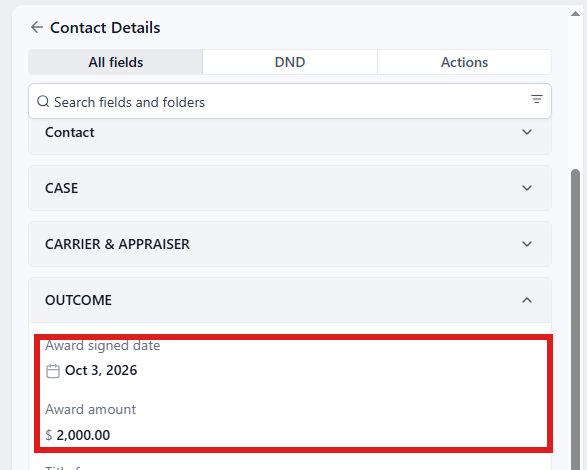
Typing only the amount does nothing yet; the date completes it. You can fill them in either order.
What happens, within a minute
- The case is marked settled and moves to 5.1 Award signed or settled. Every chase, clock and reminder stops.
- The customer gets the text "Good news… your claim is settled. [Insurer] will contact you for the paperwork and pays you directly. John Hayduk is sending you a summary of the numbers by email" and the email "Your claim is settled".
- On a total loss or diminished value you get the task Check the settlement summary · NAME (its steps are in Step 9: the settlement summary). Outcome stays empty until the summary goes.
- On a short pay the shop gets the "Settled" email and Outcome is set to Settled. On an inspection taken on, Outcome is set to Settled. In both, pdrOS then checks Fee paid: if it is No, you get the task Fee not paid · NAME; if it is paid, the case closes.
Saving the amount again
Correcting the amount later changes nothing on its own (the customer is not told twice). The corrected figure is used when you send the summary. To correct it:
- In the left menu, click Contacts.
- Click in the search box at the top of the list and type the customer's last name or RO number.
- Click the customer's name in the list. Their contact profile opens. You are in the right place when you see the customer's name at the top left and their texts in the middle.
- On the left side of the contact profile, scroll down to the folder OUTCOME and click the folder's name to open it.
- Click in the box under Award amount and delete the old figure.
- Type the right figure (numbers only, no dollar sign).
- Click the blue Save button at the bottom of the left side.
The award PDF
If you have the signed award as a PDF, keep it in your own records. The customer gets their copy through RTAflow and the insurer, as they do now. pdrOS sends them the summary of the numbers, not the award.
Did this page not match what you see? Ask the support chat or open a support ticket. We change the page, not you.