Emails and texts you send yourself
Answers: how do I send my own email or text? how do I use a saved reply or attach a file? where do I write to or reply to the adjuster? what does I sent it myself do? what is my email address?
Anything pdrOS does not send for you, you send yourself. To the customer: from the message box on their contact profile. To the adjuster, appraiser or shop: from their own thread in Conversations. If you send one of the five Send-switch emails by hand, tell pdrOS with I sent it myself.
To the customer
- In the left menu, click Contacts.
- Click in the search box at the top of the list and type the customer's last name or RO number (your case number).
- Click the customer's name in the list. Their contact profile opens. You are in the right place when you see the customer's name at the top left and their texts in the middle.
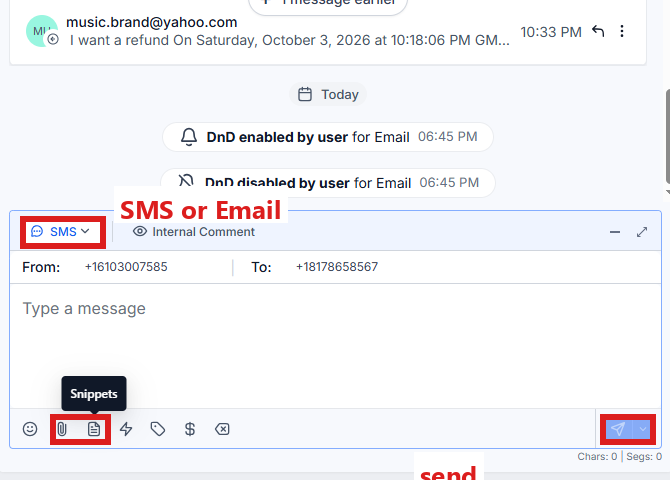
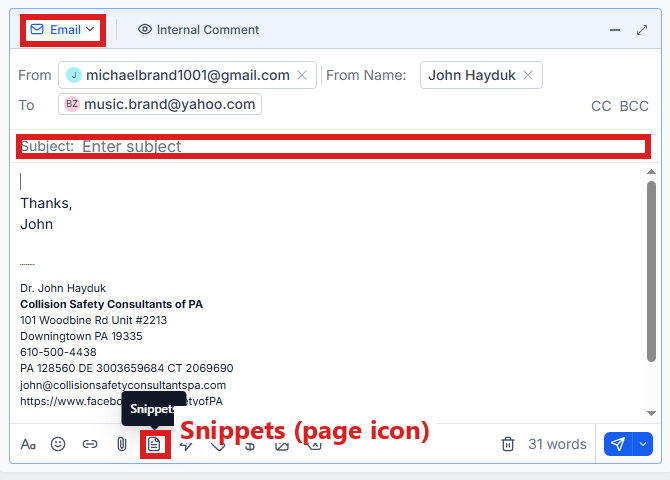
- At the bottom of the middle of the contact profile is the message box. At its left end, click the small button with a down arrow and pick SMS for a text or Email for an email.
- For an email, the box grows to show the subject line; type a subject.
- Click in the box and type. A text stays under 320 characters, and a link goes in a text of its own.
- To use a saved reply instead, click the Snippets icon in the message box (hold the mouse over the small icons to find it). Pick the snippet and change anything that needs changing.
- To attach a file, click the paperclip icon and pick the file.
- Click the paper-plane button at the right end to send.
Their reply lands in the same place, the middle of their contact profile.
Your email address
Every email pdrOS sends for you, and every email you write from the message box, goes out from john@collisionsafetyconsultantspa.com, shown to the reader as "John Hayduk, Collision Safety Consultants of PA", with your signature. Replies do not go to a separate inbox: they come back into pdrOS, into the customer's thread (the middle of their contact profile) or the other side's own conversation, and your phone gets a text when the other side replies. You read and answer them in Conversations on the computer, or in the phone app (called LeadConnector in the app store) (same login).
To the other side
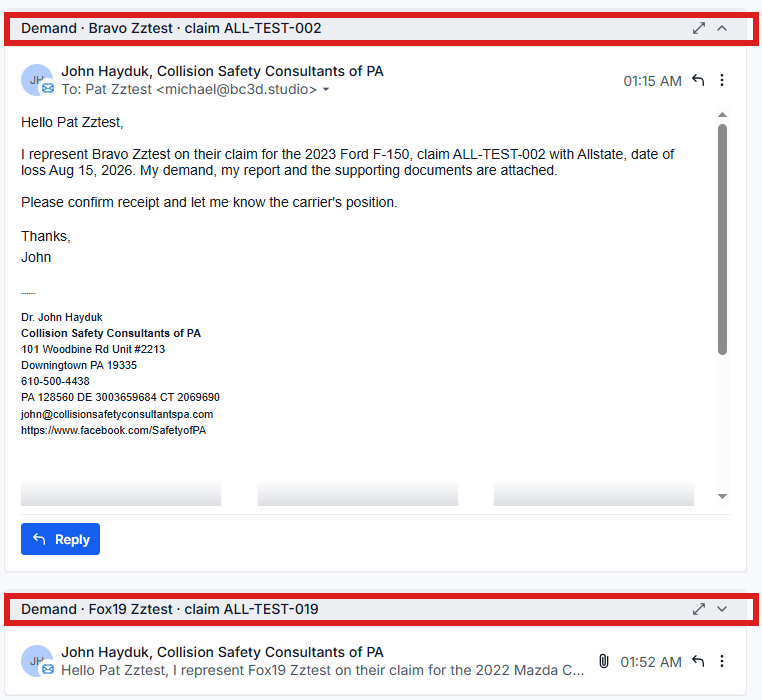
The adjuster, the other appraiser and the shop each have their own conversation under their own name. pdrOS made it the first time it emailed them for you.
- In the left menu, click Conversations.
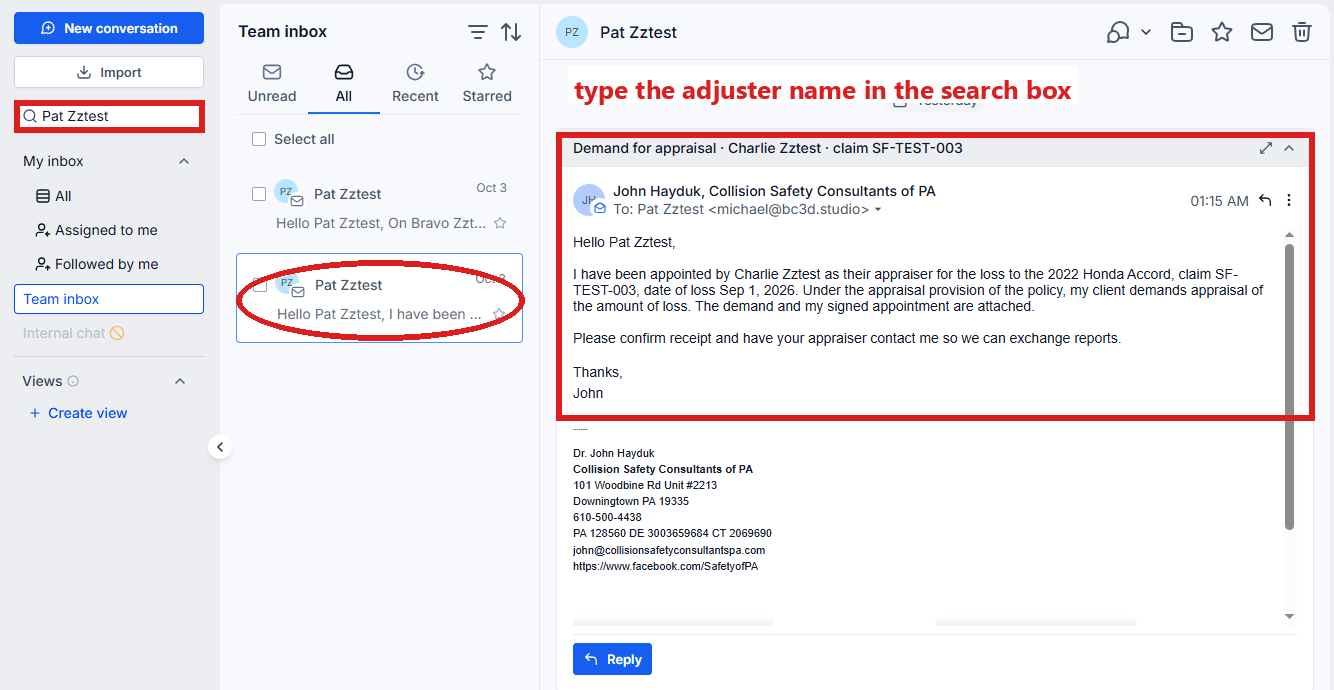
- On the left is the list of people. Find the person's name and click it. If you cannot see it, type their name in the search box above the list.
- Their thread opens in the middle. You are in the right place when you see their name and the emails pdrOS sent them.
- At the bottom of the middle is the message box. At its left end, click the small button with a down arrow and pick Email.
- Type a subject in the subject line.
- Click in the box and type your email.
- Click the paper-plane button at the right end to send.
Their replies come back to that thread, and your phone gets "NAME replied by email about one of your cases. Open Conversations → NAME to read it". Sarah never answers in those threads.
Why separate: it keeps the insurer's words out of the customer's messages, so Sarah can never answer an adjuster and the customer never sees a negotiation email by mistake.
The five emails pdrOS writes for you
The range, the demand, your report, the counter and the settlement summary are written and sent by the Send switches. Let the switch send them: it attaches the right PDFs, writes the date and starts the clocks. If you did send one yourself, set that switch to I sent it myself so the case moves and the clocks start; nothing is sent twice.
- In the left menu, click Contacts.
- Click in the search box at the top of the list and type the customer's last name or RO number.
- Click the customer's name in the list. Their contact profile opens. You are in the right place when you see the customer's name at the top left and their texts in the middle.
- On the left side of the contact profile, scroll down to the folder CASE and click the folder's name to open it.
- Look at the top of the folder. The Send switches sit at the top, right after Case status: Send range, Send demand, Send our report, Send counter, Send summary.
- Find the switch for the email you sent.
- Click the box under it and pick I sent it myself.
- Click the blue Save button at the bottom of the left side.
Saved replies (Snippets)
Your saved replies are under the Snippets icon in the message box. Their names start with "John ·" so they sit together. Five texts: Call you back, One more thing I need, Where your case stands, Moving our inspection, Got it, thanks. Five emails: To the adjuster, cover note, To the other appraiser, cover note, To the customer, where things stand, To the customer, still need from you, To a shop, thanks for the referral. Each fills the customer's name and case details for you; the words in [square brackets] are the blanks you type over before you send. To change a wording, tell us; do not edit the texts and emails the system sends on its own.
To use one:
Open the customer's contact profile first (steps 1 to 3 under To the customer above). Then:
- In the message box at the bottom of the middle, click the small button with a down arrow at its left end and pick SMS or Email.
- Click the Snippets icon in the message box (hold the mouse over the small icons to find it).
- Click the snippet. Its words land in the box.
- Type over every [square bracket].
- Click the paper-plane button at the right end to send.
Attachments
Where each PDF opens from:
Arrows mean: click this, then this.
| The file | Where to open it |
|---|---|
| Your report | RO Hub → the case (type the RO number in the box under RO #:, click Search) → Docs → Shop Estimate (pdrOS's body-shop name for your report); or contact profile, folder Estimates, click the file's name in Upload Estimate Doc Here |
| Their report | RO Hub → the case (type the RO number in the box under RO #:, click Search) → Docs → Supplement #1 Estimate (under SUPPLEMENT ESTIMATES); or contact profile, folder Supplements, click the file's name in Supplement #1 Upload Doc Here |
| The photo report | RO Hub → the case (type the RO number in the box under RO #:, click Search) → Docs → Scope Sheet Images (PDF) |
| The signed agreement | RO Hub → the case (type the RO number in the box under RO #:, click Search) → Docs → Repair Authorization Form |
| The signup sheet | RO Hub → the case (type the RO number in the box under RO #:, click Search) → Docs → Customer Signup Form |
| Your RTA or demand | contact profile, folder CASE, click the file's name in RTA or demand PDF |
| The customer's uploads | contact profile, folder CASE, click the file's name in Carrier valuation report, Repair invoice, Shop estimate PDF or Carrier estimate PDF |
To attach one:
- In the left menu, click Contacts.
- Click in the search box at the top of the list and type the customer's last name or RO number.
- Click the customer's name in the list. Their contact profile opens. You are in the right place when you see the customer's name at the top left and their texts in the middle.
- For your report, their report, your RTA or the customer's uploads: on the left side of the contact profile, scroll down to the folder the table names and click the folder's name to open it. Click the file's name in the field. The PDF opens in a new browser tab.
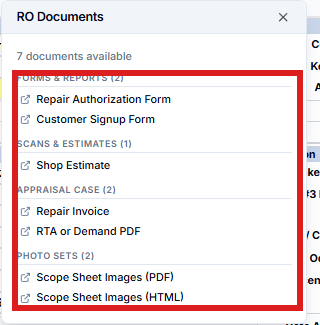
- For the agreement, the signup sheet or the photo report: in the left menu, click RO Hub. Click in the box under RO #: at the top, type the RO number and click Search. Click the small Docs button, to the right of the Contacts button. In the RO Documents window, click the row the table names. The PDF opens in a new browser tab.
- Save it to your computer: in that tab, click the download arrow at the top right.
- Go back to the browser tab with the contact profile.
- In the message box at the bottom of the middle, click the small button with a down arrow at its left end and pick Email.
- Type a subject.
- Click in the box and type your email.
- Click the paperclip icon and pick the file you saved (it is usually in your Downloads folder).
- Click the paper-plane button at the right end to send.
The Documents icon on the far right edge of the contact profile (a page) also lists every file on this customer. Click one to open it.
Replying to an adjuster's email
- In the left menu, click Conversations.
- On the left is the list of people. Find the adjuster's name and click it. If you cannot see it, type their name in the search box above the list.
- Their thread opens in the middle. You are in the right place when you see their name and their email in the thread.
- Click their email to open it in full.
- Click Reply under the email.
- Type your answer.
- Click the paper-plane button at the right end of the message box to send.
Your reply goes from your address with the thread intact.
Did this page not match what you see? Ask the support chat or open a support ticket. We change the page, not you.