Calendar: look here, book from the contact profile
Answers: what do I use the calendar for? why not book from the calendar? where do I book, move or cancel an inspection?
The Calendars screen shows every inspection at a glance. Use it to see your week. Book, move, cancel and mark no-shows from the customer's contact profile, with the Appointments icon on its right edge.
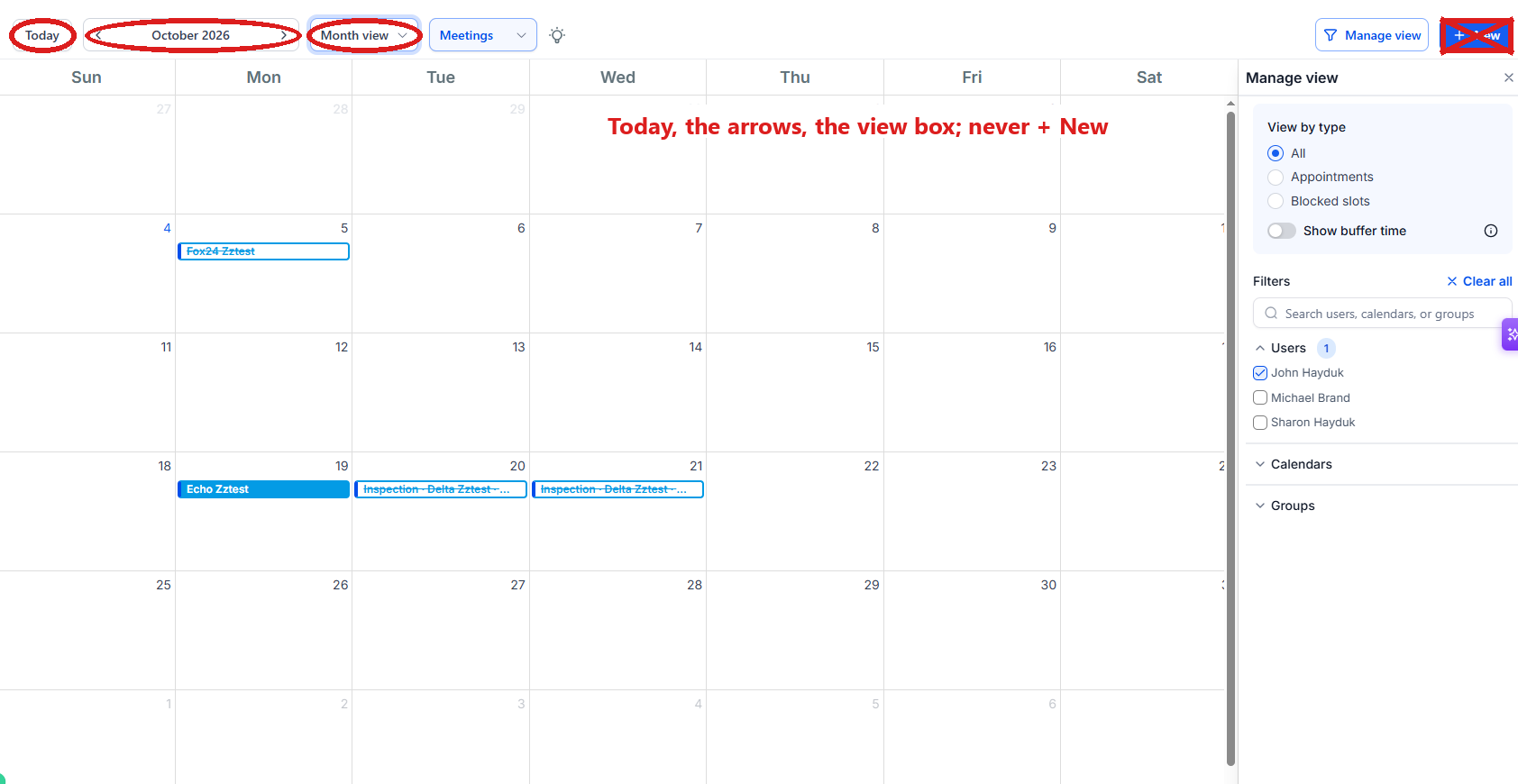
What to look at
- In the left menu, click Calendars.
- Your week of inspections shows. You are in the right place when you see the days of the week with your inspections in them.
- To move to another week, click Today or the arrows.
- To see one day or a whole month, click the Week view box and pick Day view, Week view or Month view.
- Click an appointment to see its details.
- To open the customer, click their name in the details. Their contact profile opens. You are in the right place when you see the customer's name at the top left and their texts in the middle.
Leave the Meetings list and the Manage view panel alone; they only change what the screen shows.
Each inspection on the Inspections Calendar shows the customer's name and RO number (your case number) in its title. Office hours on it are Monday to Friday, 9 to 4; customers can book from the next day up to four weeks out.
What never to do here
- Never book here by typing a name. It makes a second customer with no case, and you get the alert "booked an inspection but has no appraisal case". Book from the contact profile (below).
- Leave the tab Calendar settings alone; the hours are ours. If the hours need to change, tell us (in the left menu, click Support, then the orange Support Ticket button).
What to do instead: book from the contact profile
First open the customer's appointments:
- In the left menu, click Contacts.
- Click in the search box at the top of the list and type the customer's last name or RO number.
- Click the customer's name in the list. Their contact profile opens. You are in the right place when you see the customer's name at the top left and their texts in the middle.
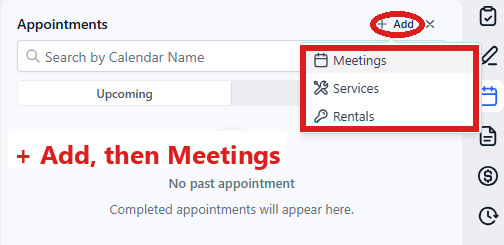
- On the far right edge of the contact profile, click the Appointments icon (a calendar). You are in the right place when the panel's title reads Appointments.
Then, to book a new inspection:
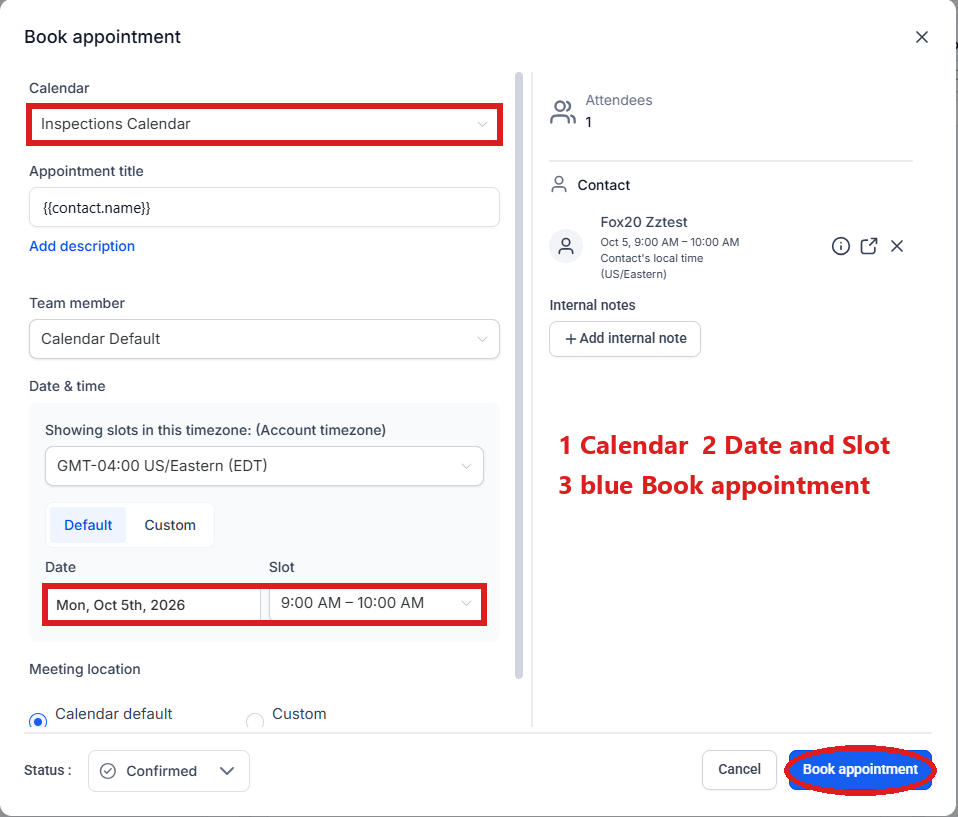
- Click + Add at the top of the panel. A small menu opens; click Meetings. The Book appointment window opens.
- Under Calendar, make sure it reads Inspections Calendar (if not, click the box and pick it).
- Under Date & time, click the box under Date and pick the day, then the box under Slot and pick a free time.
- Click the blue Book appointment button at the bottom right.
Or, to move one:
- Click the three dots at the right of the appointment and pick Edit. The Edit details panel opens.
- Under Date & time, click Date and pick the new day, then click Slot and pick the new time.
- Click Save at the bottom right of the panel.
Or, to cancel one or mark a no show:
- To cancel: click the three dots at the right of the appointment and pick Cancel.
To mark a no show instead:
- Click the three dots at the right of the appointment and pick Edit. The Edit details panel opens.
- At the bottom of the panel, click the box next to Status and pick No show.
- Click Save at the bottom right.
What follows each of these (the customer's texts, the case moving) is in Booking.
Did this page not match what you see? Ask the support chat or open a support ticket. We change the page, not you.