The customer's thread: every text and email with the customer
Answers: where are the customer's texts and emails? how do I send a customer a text or an email? which messages did Sarah send? what is the Conversations page?
The middle of the contact profile is the customer's thread. It holds every text and email they received or sent, in order, including what pdrOS and Sarah sent for you. Conversations in the left menu is the page that lists every thread. The customer's thread there is this same thread, reached another way.
Open the thread
- In the left menu, click Contacts.
- Click in the search box at the top of the list and type the customer's last name or RO number (your case number).
- Click the customer's name in the list. Their contact profile opens.
You are in the right place when you see the customer's name at the top left and their texts in the middle.
The oldest message is at the top, the newest at the bottom, just above the message box. Notes appear here too, mixed in with the texts and emails in time order.
Reading it
- Gray bubbles on the left are the customer. Bubbles on the right are from your office.
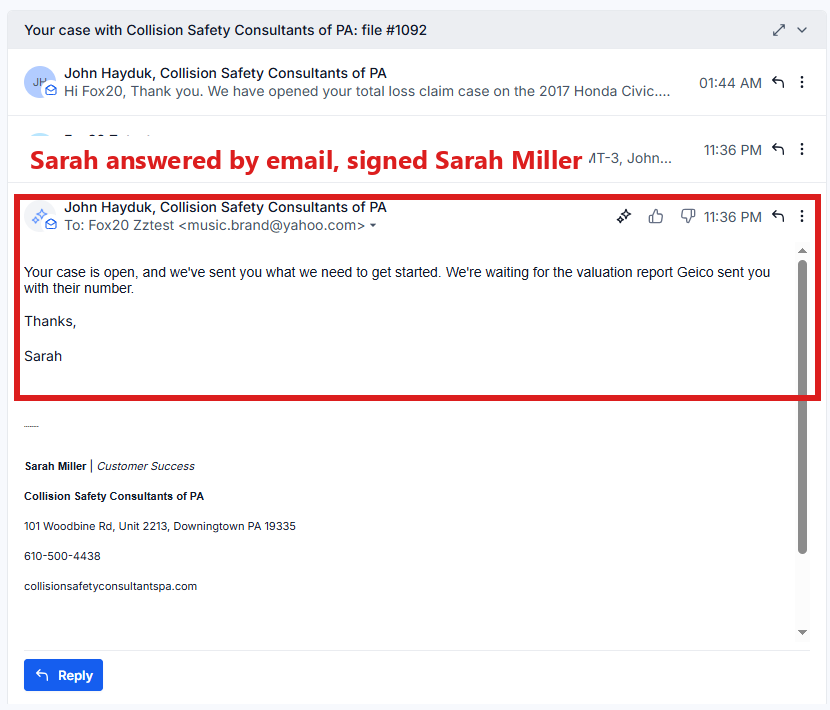
- A message with a small sparkle mark on the sender's picture, and a thumbs up and thumbs down next to its time, was written by Sarah. Her emails are signed Sarah Miller.
- Texts and emails share one thread. Click an email to open it in full.
- When Sarah hands a customer to you, she goes quiet on them for eight hours and your phone gets a text ("Sarah handed NAME to you").
Sending your own text
- In the left menu, click Contacts.
- Click in the search box at the top of the list and type the customer's last name or RO number.
- Click the customer's name in the list. Their contact profile opens.
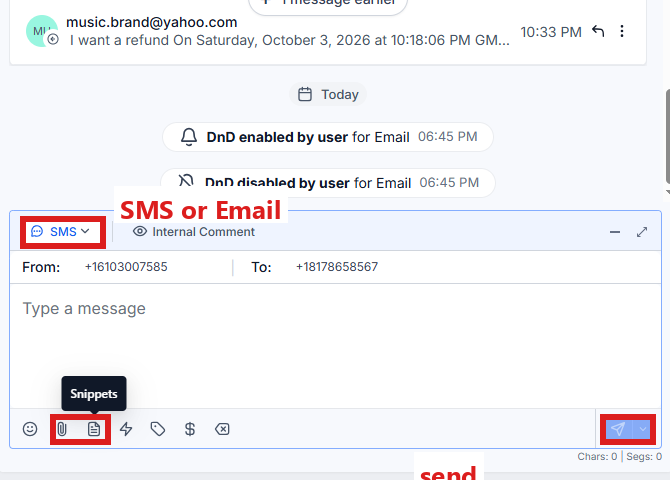
You are in the right place when you see the customer's name at the top left and their texts in the middle. 4. At the bottom of the middle of the contact profile is the message box. At its left end, click the small button with a down arrow. 5. Pick SMS. 6. Click in the box and type your text. Keep it under 320 characters. 7. Click the paper-plane button at the right end of the box. The text goes.
A link always goes in a text of its own; a link mixed with words breaks on the phone.
Sending your own email
- In the left menu, click Contacts.
- Click in the search box at the top of the list and type the customer's last name or RO number.
- Click the customer's name in the list. Their contact profile opens. You are in the right place when you see the customer's name at the top left and their texts in the middle.
- At the bottom of the middle of the contact profile is the message box. At its left end, click the small button with a down arrow.
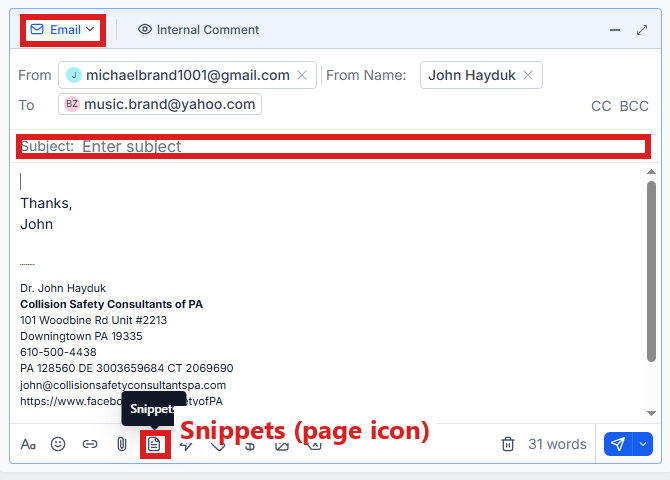
- Pick Email. The box grows to show the subject line.
- Click in the subject line and type a subject.
- Click in the box and type your email (or use saved wording: see Snippets, below).
- To attach a file, click the paperclip icon and pick the file on your computer (your report, a photo).
- Click the paper-plane button at the right end of the box. The customer's reply lands back in this same thread.
A PDF that lives on the contact profile (the signed agreement, the photo report) has to be on your computer before you can attach it. Open it first with the Docs button in RO Hub (Documents shows how). In the new browser tab, click the download button (a down arrow at the top of the PDF).
What is not here
Emails to the adjuster, the other appraiser or the shop are not in the customer's thread. pdrOS keeps a separate conversation for each of those people, under their own name. Their replies never mix with the customer's, and Sarah can never answer them. You find them on the Conversations page, below. See Your own messages.
The Conversations page
Conversations in the left menu lists every thread in one inbox: customers, and separately the adjusters, appraisers and shops.
- In the left menu, click Conversations.
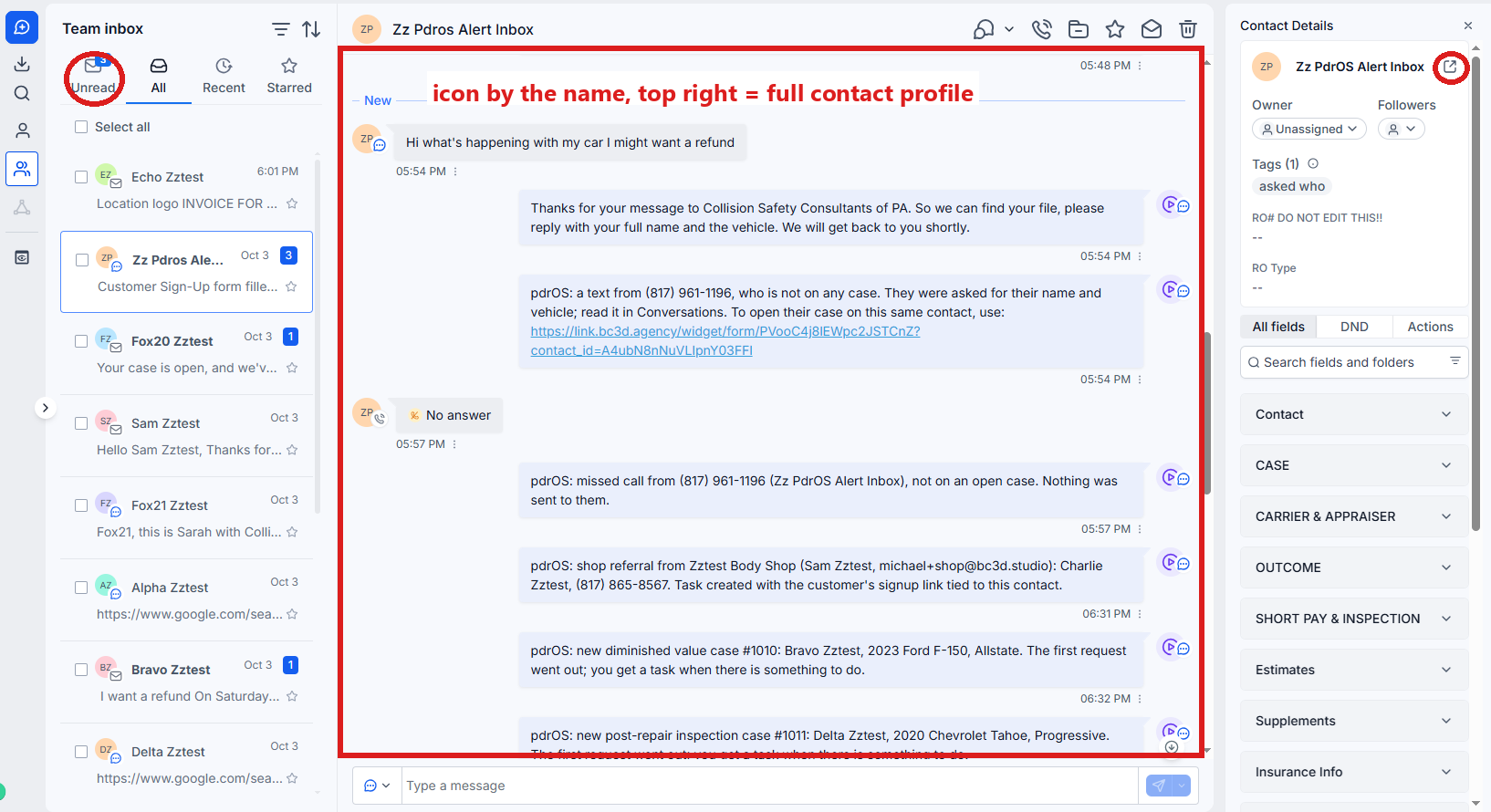
- On the left is the list of people. Click Unread at the top of the list to see new messages.
- Click a person's name. Their thread opens in the middle, and their details on the right.
You are in the right place when the person's name is at the top of the right column and their messages are in the middle.
You can reply right here. The message box at the bottom of the middle works the same way as on the contact profile.
To open the customer's full contact profile from here, look at the top of the right column (headed Contact Details). Click the small square-with-an-arrow icon next to the person's name.
Snippets (saved wording)
The texts and emails pdrOS sends by itself are not snippets you need to touch. For your own messages, the Snippets icon in the message box holds the wording we saved for you. Ask us to add any you send often.
To use one, follow "Sending your own text" or "Sending your own email" above. When you reach the step where you type:
- Click the Snippets icon in the message box (hold the mouse over the small icons to find it).
- Pick the snippet.
- Change anything that needs changing.
- Click the paper-plane button at the right end of the box.
Did this page not match what you see? Ask the support chat or open a support ticket. We change the page, not you.