Reference: every field, by folder
Answers: what does this field do? who fills it? which folder is it in, and how do I open that folder? what kind of box is it, and how do I change it?
Every field on the left side of a customer's contact profile, folder by folder, in the order you see them on screen. Your contact profile shows 15 folders. Your own four come right after Contact: CASE, CARRIER & APPRAISER, OUTCOME and SHORT PAY & INSPECTION. Above the folders, at the top of the left side, are the customer's name, then Tags, the RO number and RO Type, the three tabs (All fields, DND, Actions) and the Search fields and folders box.
⚡ marks a field that starts work when you save it. "pdrOS fills this; leave it" means the system writes that field. Leave those alone unless this guide says otherwise.
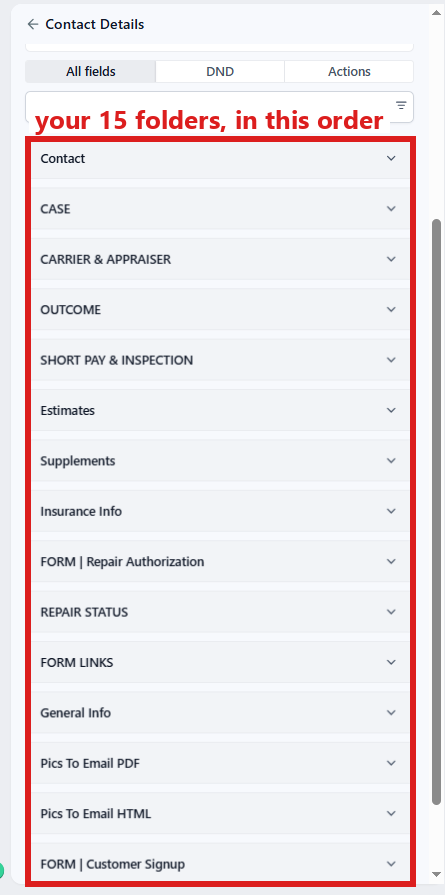
How to open a folder and change a field
- In the left menu, click Contacts.
- Click in the search box at the top of the list and type the customer's last name or RO number (your case number).
- Click the customer's name in the list. Their contact profile opens. You are in the right place when you see the customer's name at the top left and their texts in the middle.
- On the left side of the contact profile, scroll down to the folder you need.
- Click the folder's name to open it.
- Find the field. Do the action for its type (the list below).
- Click the blue Save button at the bottom of the left side.
Can't find a field? Type the field's name in the search box at the top of the left side (it reads Search fields and folders).
The action for each type in the tables:
- A list: click the box under the field and pick the choice from the list.
- Claim side and Fee payer: lists; click the box under the field and pick the choice.
- A checkbox (Intake consent): leave it; the signup form fills it.
- A date: click the box under the field and pick the day in the calendar that opens.
- Money: click in the box under the field and type the amount (numbers only, no dollar sign).
- A number or text: click in the box under the field and type it.
- A file upload: in the field, click Click to upload, pick the PDF on your computer and click Open. To look at a file already there, click its name in the field.
- A PDF address or a link: a text box holding a web address. It is not clickable. Open PDFs with the Docs button in RO Hub (Documents); copy a link with Ctrl and A, then Ctrl and C.
The blue Save button appears as soon as you change a field. Nothing happens and nothing is sent until you click it. If you change a field and no blue Save button appears at the bottom of the left side, stop and tell us. Auto-Save has been switched on, and we switch it back. Until then pick Send switches carefully: they go the moment you choose. Never click Enable auto-save (it is under the three dots next to the blue Save button).
Contact (folder 1 of 15)
To open it: In the left menu, click Contacts. Click in the search box at the top of the list and type the customer's last name or RO number. Click the customer's name in the list. On the left side of the contact profile, scroll down to the folder Contact and click the folder's name to open it.
| Field | Type | Who fills it | What it does |
|---|---|---|---|
| RO# DO NOT EDIT THIS!! | text | pdrOS fills this; never change it | The RO number (your case number). Tasks show it as "CASE #1007", texts to you as "case #1007", customers see "file #1007": all the same number. Every text, email and task carries it. |
| Customer Vehicle / Customer Signup Form | text | the signup form | The vehicle: year, make, model. |
| Customer Signup Notes | text | the signup form | The note typed on the signup form, kept as written. |
CASE (folder 2 of 15)
To open it: In the left menu, click Contacts. Click in the search box at the top of the list and type the customer's last name or RO number. Click the customer's name in the list. On the left side of the contact profile, scroll down to the folder CASE and click the folder's name to open it.
Case status is the first field in this folder. Right after it come the five Send switches, in the order a case uses them: Send range, Send demand, Send our report, Send counter and Send summary. Each Send switch is a list. You pick Send it now or I sent it myself; pdrOS sets Sent or Not sent (see task). Clock A, Clock B and the silence clock below are waiting periods; Reference: every timer lists each one.
| Field | Type | Who fills it | What it does |
|---|---|---|---|
| Case status | text | pdrOS fills this; leave it | The stage sentence: what Sarah says if the customer asks. See Every stage. |
| Send range | a list: Send it now, I sent it myself, Sent, Not sent (see task) | you, then pdrOS | ⚡ The range text, link and email to the customer. |
| Send demand | a list: Send it now, I sent it myself, Sent, Not sent (see task) | you, then pdrOS | ⚡ The RTA or demand email to the adjuster; Clock A or the demand chase. |
| Send our report | a list: Send it now, I sent it myself, Sent, Not sent (see task) | you, then pdrOS | ⚡ Your report to the other appraiser; Clock B. |
| Send counter | a list: Send it now, I sent it myself, Sent, Not sent (see task) | you, then pdrOS | ⚡ The counter email; the 7-day silence clock. |
| Send summary | a list: Send it now, I sent it myself, Sent, Not sent (see task) | you, then pdrOS | ⚡ Works out the sales tax, the net and the gain over the first offer, emails the summary to the customer, then checks whether the fee is paid. |
| Appraiser | text | pdrOS fills this; leave it | Your name, written at signup. |
| Claim side | a list: Insured, Claimant | the signup form; pdrOS sets Claimant itself when you set Engaged against to Shop or Carrier | Which demand goes; the statute deadline on claimant cases. |
| Fee payer | a list: Owner, Shop | the signup form, or you | Owner: the invoice goes to the customer. Shop: no customer invoice, and you get an Invoice the shop task. Never tell the customer or the insurer that the shop pays. |
| Fee amount | money | pdrOS, or you before signing | Which invoice goes at signing. A fee that is not the standard one means you invoice by hand (you get a task). |
| Fee paid | a list: No, Square, Venmo, Check, Cash, Waived | you; pdrOS writes Square when the Square invoice is paid | ⚡ Closes the case once Outcome is set. On a won case, the customer then gets the Google review text. |
| Referring shop | text | the shop referral form or the signup form, or you | The body shop that sent the customer. On a short pay, the shop you work with. |
| Referring shop contact | text | the shop referral form or the signup form, or you | The person at that shop. |
| Referring shop email | text | the shop referral form or the signup form, or you | On a short pay, the shop's upload email and its reminders go here. |
| How they found us | a list: Shop, Past customer, Google, Other | the signup form | For your records only. |
| Agreement signed date | a date | pdrOS fills this; leave it | The day the customer signed. A record. |
| Range low | money | you | Used by Send range. |
| Range high | money | you | Used by Send range. |
| Carrier's offer | money | the signup form, or you | The insurer's first offer. Used by the range email and the summary. |
| Intake consent | a checkbox | the signup form | The customer's permission to text. |
| Agreement type | a list: total loss claim, diminished value, short pay, post-repair inspection | pdrOS fills this; leave it | Which agreement wording the customer signs. |
| Carrier valuation report | a file upload | the customer (upload link), or you | ⚡ The total loss document. When it lands, the case moves to 1.2 and you get Documents in · value it. |
| Repair invoice | a file upload | the customer (upload link), or you | ⚡ One of the diminished value documents (with the mileage and photos). |
| Shop estimate PDF | a file upload | the shop (upload link), or you | ⚡ One of the two short pay estimates. When both are in, Sharon gets Enter the shop's estimate in CCC1 and you get Finish the rewrite. |
| Carrier estimate PDF | a file upload | the shop (upload link), or you | ⚡ One of the two short pay estimates. When both are in, Sharon gets Enter the shop's estimate in CCC1 and you get Finish the rewrite. |
| Referring shop phone | text | you | The shop's phone number. |
| RTA or demand PDF | a file upload | you | Needed by Send demand; attached to the demand email. |
| Documents in date | a date | pdrOS fills this; leave it | The day the customer's documents were all in. A record. |
| Range sent date | a date | pdrOS fills this; leave it | The day the range went. A record. |
| Stage rank | a number | pdrOS fills this; leave it | Internal: where the case is. |
CARRIER & APPRAISER (folder 3 of 15)
To open it: In the left menu, click Contacts. Click in the search box at the top of the list and type the customer's last name or RO number. Click the customer's name in the list. On the left side of the contact profile, scroll down to the folder CARRIER & APPRAISER and click the folder's name to open it.
| Field | Type | Who fills it | What it does |
|---|---|---|---|
| Other appraiser name | text | you | Their appraiser. Printed in the report email; fill it before Send our report. |
| Other appraiser email | text | you | Needed by Send our report. |
| Other appraiser phone | text | you | Their appraiser's phone number. |
| Adjuster name | text | the signup form, or you | Printed in the demand email; fill it before Send demand. |
| Adjuster email | text | the signup form, or you | Needed by Send demand. It must be a valid email. |
| RTA or demand sent date | a date | pdrOS when the demand goes, or you | ⚡ pdrOS writes it when the demand goes. If you type it yourself (or pick I sent it myself), the clocks start: Clock A on an insured case, the demand chase on a claimant case. On an inspection taken on against a shop, it only moves the case to 3.1. Clear it to send a corrected demand. |
| Other appraiser contact date | a date | you | ⚡ Stops Clock A; texts the customer; gives you Their appraiser is in contact · send our report. |
| Report sent date | a date | pdrOS when your report goes | ⚡ Typed by hand: Clock B. |
| Their report received date | a date | pdrOS fills this; leave it | The day their report landed in Supplement #1 Upload Doc Here. A record. |
| My number | money | you | Your valuation. Needed by Send counter. |
| Their number | money | you | ⚡ Stops every chase and every "how did it end" message; texts you; gives you the task Negotiate. Needed by Send counter. |
| Counteroffer | money | you | Needed by Send counter. |
| Umpire | a list: No, Called, Decided | you | ⚡ Called: customer text and email, Umpire task. Decided: nothing. |
| Umpire fee received | a list (Received) | you | A record: pick Received when the customer has paid your invoice for their half of the umpire's fee. |
| Demand-by date | a date | you | ⚡ Alerts 14 and 3 days before. |
| Statute deadline | a date | pdrOS, or you | ⚡ Customer text; alerts 14 and 3 days before. |
| Chase count | a number | pdrOS fills this; leave it | How many chases went. |
| Tortfeasor letter sent date | a date | you | ⚡ Stage 4.4 Pre-court. |
| Appraisal Document Upload Link | a link | pdrOS fills this; leave it | This customer's own upload link. Files sent through it land on this contact profile. Never send it to another customer. |
| Negotiation note | text | you | One line of reasoning. Used by Send counter. |
| Counter sent date | a date | pdrOS when the counter goes | ⚡ Typed by hand: the silence clock. |
OUTCOME (folder 4 of 15)
To open it: In the left menu, click Contacts. Click in the search box at the top of the list and type the customer's last name or RO number. Click the customer's name in the list. On the left side of the contact profile, scroll down to the folder OUTCOME and click the folder's name to open it.
| Field | Type | Who fills it | What it does |
|---|---|---|---|
| Award signed date | a date | you | ⚡ With Award amount: the customer gets the settled text and email, and you get Check the settlement summary (on a short pay or an inspection, Outcome becomes Settled instead). |
| Award amount | money | you | ⚡ Together with Award signed date: the same. |
| Title fees | money | you | Used by the total loss summary. |
| Recovery over offer | money | pdrOS fills this; leave it | Computed by the summary. |
| Settlement summary sent date | a date | pdrOS fills this; leave it | The day the summary went. A record. |
| Release signed date | a date | you | For your record only; nothing reads it. |
| Outcome | a list: Settled, Counteroffer pending, Carrier review report received, Customer took the carrier's number, Court, Went quiet, Withdrawn, Report only | pdrOS writes Settled and Report only; you pick the others | ⚡ With Fee paid, closes the case. Counteroffer pending and Carrier review report received keep it open and ask the customer how it ended on days 30, 60, 90 and 120, then 210 and 300; Court keeps it open and waits for you. See The Outcome list and the Fee paid list. |
| Outcome recorded date | a date | pdrOS fills this; leave it | When it closed. |
| Sales tax % | a number | you (it starts at 6) | Used by the total loss summary. |
| Sales tax amount | money | pdrOS fills this; leave it | Computed by the summary. |
| Net to customer | money | pdrOS fills this; leave it | Computed by the summary. |
SHORT PAY & INSPECTION (folder 5 of 15)
To open it: In the left menu, click Contacts. Click in the search box at the top of the list and type the customer's last name or RO number. Click the customer's name in the list. On the left side of the contact profile, scroll down to the folder SHORT PAY & INSPECTION and click the folder's name to open it.
| Field | Type | Who fills it | What it does |
|---|---|---|---|
| Shop estimate total | money | you or Sharon, optional (the short pay tasks print it) | The shop's estimate total. |
| Carrier estimate total | money | you or Sharon, optional (the short pay tasks print it) | The insurer's estimate total. |
| Rewritten estimate total | money | you (a record) | The total of the rewrite. |
| Variance | money | you or Sharon (a record) | The gap between the two totals. |
| Inspection location | a list: Our office, Travel | the signup form | Our office: the booking link. Travel: the travel fee and a call task. |
| Travel fee | money | pdrOS fills this; leave it | Added to the invoice ($600 on a travel inspection). |
| Engaged against | a list: None, Shop, Carrier | you | ⚡ None: Report only and the close. Shop or Carrier: taking it on. |
Estimates (folder 6 of 15)
To open it: In the left menu, click Contacts. Click in the search box at the top of the list and type the customer's last name or RO number. Click the customer's name in the list. On the left side of the contact profile, scroll down to the folder Estimates and click the folder's name to open it.
| Field | Type | Who fills it | What it does |
|---|---|---|---|
| Upload Estimate Doc Here | a file upload | you | ⚡ Your report or rewrite: your report on a total loss, a diminished value or an inspection; your rewrite on a short pay. It starts the next step for the type. A second upload replaces the file and only leaves a note. |
| Upload Insurance Approved Estimate PDF | a file upload | you, when the Negotiate task asks for it | The signed award. Nothing reads it; it is your record. |
| Other Special Instructions | text | pdrOS fills this; leave it | A copy of the signup notes. On a shop referral, what the shop wrote. |
Supplements (folder 7 of 15)
To open it: In the left menu, click Contacts. Click in the search box at the top of the list and type the customer's last name or RO number. Click the customer's name in the list. On the left side of the contact profile, scroll down to the folder Supplements and click the folder's name to open it.
| Field | Type | Who fills it | What it does |
|---|---|---|---|
| Supplement #1 Upload Doc Here | a file upload | you | ⚡ Their report: stops every chase and gives you the Negotiate task. pdrOS writes Their report received date. |
Insurance Info (folder 8 of 15)
To open it: In the left menu, click Contacts. Click in the search box at the top of the list and type the customer's last name or RO number. Click the customer's name in the list. On the left side of the contact profile, scroll down to the folder Insurance Info and click the folder's name to open it.
| Field | Type | Who fills it | What it does |
|---|---|---|---|
| Insurance Company | text | the signup form, or you | Printed in emails and stage sentences. |
| Deductible | money | you | Used by the total loss summary. |
| Claim # | text | the signup form, or you | The insurer's claim number. Needed by Send demand, Send our report and Send counter. |
FORM | Repair Authorization (folder 9 of 15)
To open it: In the left menu, click Contacts. Click in the search box at the top of the list and type the customer's last name or RO number. Click the customer's name in the list. On the left side of the contact profile, scroll down to the folder FORM | Repair Authorization and click the folder's name to open it.
| Field | Type | Who fills it | What it does |
|---|---|---|---|
| Repair Authorization Form PDF | a PDF address (not clickable; open it with Docs in RO Hub: Repair Authorization Form) | pdrOS fills this; leave it | The signed agreement. |
| VIN | text | the customer, when they sign the agreement | The vehicle's VIN. |
| Date of Loss | a date | the signup form, or you | ⚡ Sets the statute deadline on a diminished value and on a claimant inspection. Needed by Send demand. |
REPAIR STATUS (folder 10 of 15)
To open it: In the left menu, click Contacts. Click in the search box at the top of the list and type the customer's last name or RO number. Click the customer's name in the list. On the left side of the contact profile, scroll down to the folder REPAIR STATUS and click the folder's name to open it.
| Field | Type | Who fills it | What it does |
|---|---|---|---|
| RO Type | a list of twelve: hail, collision, theft, vandalism, animal, mechanical, windshield, circle and go not here, total loss claim, diminished value, short pay, post-repair inspection | the signup form (it calls it Repair Order Type); you change it only to fix a mistake | ⚡ The kind of case. It decides every step that follows; changing it switches the case to the new type's steps. Yours are the last four. See Wrong type, or the type changed later. |
FORM LINKS (folder 11 of 15)
To open it: In the left menu, click Contacts. Click in the search box at the top of the list and type the customer's last name or RO number. Click the customer's name in the list. On the left side of the contact profile, scroll down to the folder FORM LINKS and click the folder's name to open it.
| Field | Type | Who fills it | What it does |
|---|---|---|---|
| REPAIR AUTHORIZATION LINK | a link | pdrOS fills this; leave it | This customer's own agreement link. A change of RO Type swaps it to the new wording. Never send one customer's link to another. |
General Info (folder 12 of 15)
To open it: In the left menu, click Contacts. Click in the search box at the top of the list and type the customer's last name or RO number. Click the customer's name in the list. On the left side of the contact profile, scroll down to the folder General Info and click the folder's name to open it.
This folder holds the customer's address. None of your case fields are in it, and nothing in it starts work. Leave it.
Pics To Email PDF (folder 13 of 15)
To open it: In the left menu, click Contacts. Click in the search box at the top of the list and type the customer's last name or RO number. Click the customer's name in the list. On the left side of the contact profile, scroll down to the folder Pics To Email PDF and click the folder's name to open it.
| Field | Type | Who fills it | What it does |
|---|---|---|---|
| Damage Images PDF | a PDF address (not clickable; open it with Docs in RO Hub: Scope Sheet Images (PDF)) | pdrOS fills this; leave it | The photo report as a PDF. When pdrOS fills it, you get Write the inspection report on an inspection; on a diminished value it counts as documents. |
Pics To Email HTML (folder 14 of 15)
To open it: In the left menu, click Contacts. Click in the search box at the top of the list and type the customer's last name or RO number. Click the customer's name in the list. On the left side of the contact profile, scroll down to the folder Pics To Email HTML and click the folder's name to open it.
| Field | Type | Who fills it | What it does |
|---|---|---|---|
| Damage Images HTML | a link | pdrOS fills this; leave it | The photo report as a web page, built from the customer's photos. When pdrOS fills it, you get Write the inspection report on an inspection; on a diminished value it counts as documents. |
FORM | Customer Signup (folder 15 of 15)
To open it: In the left menu, click Contacts. Click in the search box at the top of the list and type the customer's last name or RO number. Click the customer's name in the list. On the left side of the contact profile, scroll down to the folder FORM | Customer Signup and click the folder's name to open it.
| Field | Type | Who fills it | What it does |
|---|---|---|---|
| Customer Signup Form PDF | a PDF address (not clickable; open it with Docs in RO Hub: Customer Signup Form) | pdrOS fills this; leave it | The signup sheet, made within a minute of the signup. |
Tags: look, never touch
Tags are small labels pdrOS puts on the contact profile as the case moves (for example appraisal-hired). They sit at the top of the left side, under the customer's name. You can look at them; you cannot add or remove them. A tag starts or stops work, so we manage them for you (ask by Support ticket).
Two tags are ones we add for you when you ask through a support ticket (in the left menu, click Support, then the orange Support Ticket button; give the RO number and what you need). We do it on our side within the hour.
| Tag | What it starts | When to ask for it |
|---|---|---|
| restart intake | the signup steps again | after we fix a signup that did not finish, after you correct a shop type to an appraisal type, or after you fix a wrong phone number (Wrong type or type changed) |
| chase documents | the documents or booking reminders again, from day 2 | after the customer promised to upload and you want the reminders back on (Documents) |
Did this page not match what you see? Ask the support chat or open a support ticket. We change the page, not you.