Step 4: the RTA (the demand for appraisal)
Answers: how do I send the RTA? where do I put the claim number, the date of loss and the adjuster? what does the adjuster receive? what is Clock A?
You make the RTA in RTAflow, upload it, type the claim number and the adjuster's details, and set Send demand to Send it now. pdrOS emails the adjuster as you with the RTA and the signed agreement, texts the customer, and starts Clock A.
Before you send
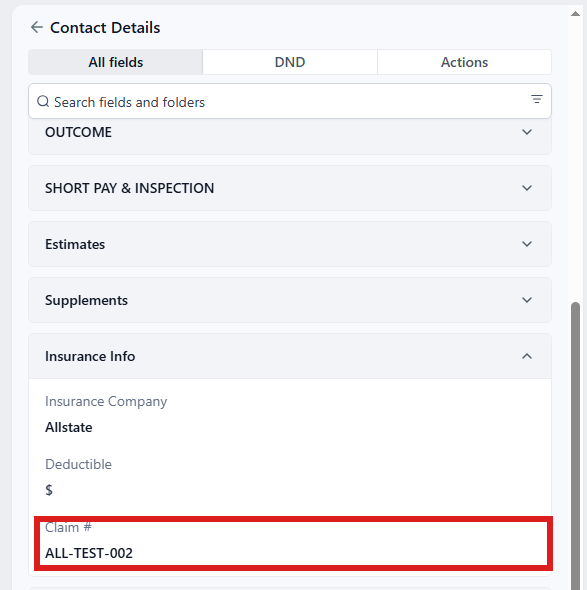
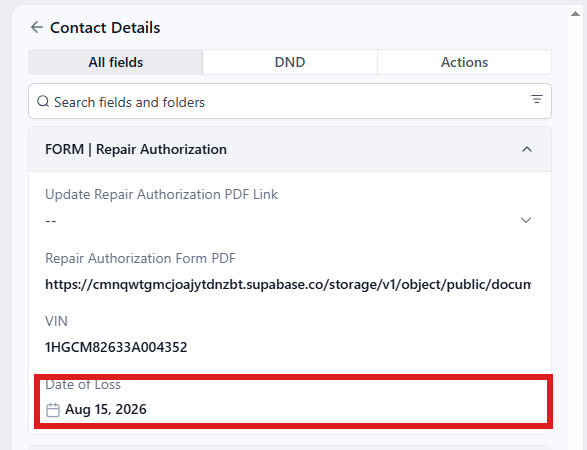
Send demand needs these five things on the contact profile, in four folders: - RTA or demand PDF (folder CASE): your RTA uploaded. - Claim # (folder Insurance Info) filled. - Date of Loss (folder FORM | Repair Authorization) filled. - A valid Adjuster email (folder CARRIER & APPRAISER). Fill Adjuster name in the same folder too, if you have it. - The signed agreement: Agreement signed date (folder CASE) filled. pdrOS writes it when the customer signs; if it is empty, send them their agreement link again. It is filled if you have the Send the demand task.
To fill and check them:
You can also start from the task Send the demand · NAME. In the left menu, click Tasks. Click the task's row, then Open Full View. Click the link under WHERE (after the words "Open the case"). The contact profile opens in a new browser tab. Then start at step 4.
- In the left menu, click Contacts.
- Click in the search box at the top of the list and type the customer's last name or RO number (your case number).
- Click the customer's name in the list. Their contact profile opens. You are in the right place when you see the customer's name at the top left and their texts in the middle.
- On the left side of the contact profile, scroll down to the folder Insurance Info and click the folder's name to open it.
- Look at Claim #. If it is empty, click in the box under Claim # and type the claim number.
- On the left side of the contact profile, scroll down to the folder FORM | Repair Authorization and click the folder's name to open it.
- Look at Date of Loss. If it is empty, click the box under Date of Loss and pick the accident day in the calendar that opens.
- On the left side of the contact profile, scroll up to the folder CASE and click the folder's name to open it.
- In RTA or demand PDF, click Click to upload, pick your RTA on your computer and click Open.
- On the left side of the contact profile, scroll down to the folder CARRIER & APPRAISER and click the folder's name to open it.
- Look at Adjuster name. If it is empty, click in the box under Adjuster name and type the adjuster's name.
- Look at Adjuster email. If it is empty or wrong, click in the box under Adjuster email and type the adjuster's email.
- Click the blue Save button at the bottom of the left side.
Send it
If you closed the contact profile, open it again: in the left menu, click Contacts, type the customer's last name or RO number in the search box at the top of the list, and click their name. You are in the right place when you see the customer's name at the top left and their texts in the middle.
- On the left side of the contact profile, scroll up to the folder CASE (just above CARRIER & APPRAISER; if you just opened the profile again, scroll down to it). If it is closed, click the folder's name to open it.
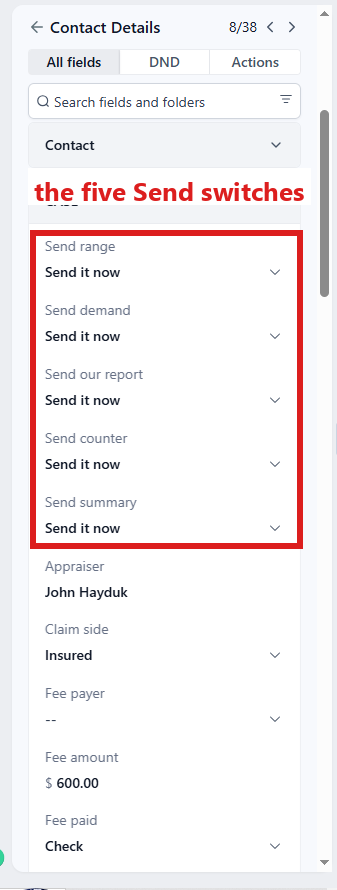
- Look at the top of folder CASE, where the Send switches are.
- Click the box under Send demand ⚡ and pick Send it now from the list.
- Click the blue Save button at the bottom of the left side. Nothing is sent until you click it.
- In the left menu, click Tasks.
- Click the row of the task Send the demand · NAME. If the task is already gone when you come back, pdrOS closed it because the step happened.
- Click Open Full View.
- Click the green Mark Complete button at the bottom right.
What happens, within a minute
- The adjuster gets an email from you: "Demand for appraisal · NAME · claim X", naming you as the customer's appraiser, with the RTA and the signed agreement attached.
- pdrOS makes a contact profile for that adjuster (their own name, their own conversation). Their reply will land there, and you get a text when it does.
- RTA or demand sent date (folder CARRIER & APPRAISER) is written; Send demand reads Sent; the case moves to 3.1 RTA or demand sent.
- The customer gets a text: "the demand for appraisal went to [insurer] today. Their appraiser should contact John Hayduk within 7 to 10 business days; we'll keep you posted."
- Clock A starts.
Clock A: waiting for their appraiser
- Day 10 after the RTA (about seven business days), no contact date picked: your phone gets "no contact from [insurer]'s appraiser in 7 business days on NAME" and the task No contact in 7 business days · call the carrier · NAME. Call the carrier, then mark the task complete (steps below).
- Day 17: the task Still no contact after 17 days · NAME. Call the carrier again and push for their appraiser; ask for the adjuster's supervisor if you need to. Then mark the task complete (steps below).
To mark one of these tasks complete:
- In the left menu, click Tasks.
- Click the task's row (click Due Today or Overdue at the top if you do not see it).
- Click Open Full View.
- Click the green Mark Complete button at the bottom right.
If the task is already gone when you come back, pdrOS closed it because the step happened.
Clock A stops the moment you pick a day in Other appraiser contact date (folder CARRIER & APPRAISER; next step).
If it will not send
Not sent (see task): the ⚠️ Demand not sent task names what is missing (the PDF, the signed agreement, the claim number, the date of loss, or "no valid email for the adjuster"). Fix it, wait a minute, set the switch again. That task closes itself when the email goes.
- In the left menu, click Tasks.
- Click the row of the task ⚠️ Demand not sent. A short preview opens under it.
- Click Open Full View and read what is missing.
- Click the link under WHERE. The customer's contact profile opens in a new browser tab. You are in the right place when you see the customer's name at the top left and their texts in the middle.
- On the left side of the contact profile, scroll down to the folder that holds what is missing and click the folder's name to open it:
- Claim #: folder Insurance Info. Click in the box under Claim # and type the claim number.
- Date of Loss: folder FORM | Repair Authorization. Click the box under Date of Loss and pick the day in the calendar that opens.
- RTA or demand PDF: folder CASE. In RTA or demand PDF, click Click to upload, pick your RTA and click Open.
- Adjuster email: folder CARRIER & APPRAISER. Click in the box under Adjuster email and type the email.
- The signed agreement: only the customer can supply it, by signing (Step 3).
- Click the blue Save button at the bottom of the left side.
- Wait one minute.
- On the left side of the contact profile, scroll to the folder CASE and click the folder's name to open it.
- At the top of the folder, click the box under Send demand and pick Send it now from the list.
- Click the blue Save button at the bottom of the left side.
The ⚠️ task closes itself when the email goes.
Sending again
- Setting Send demand again right after it went sends nothing (the ten-minute guard) and the switch returns to Sent.
-
Setting it again later is refused: "it already went on [date]". To send a corrected RTA, clear RTA or demand sent date, click the blue Save button, wait one minute, then set Send demand to Send it now again:
-
In the left menu, click Contacts.
- Click in the search box at the top of the list and type the customer's last name or RO number.
- Click the customer's name in the list. Their contact profile opens. You are in the right place when you see the customer's name at the top left and their texts in the middle.
- On the left side of the contact profile, scroll down to the folder CASE and click the folder's name to open it.
- In RTA or demand PDF, remove the old RTA first: click the trash can icon to the right of the file's name. Every file left in that field goes with the email.
- In RTA or demand PDF, click Click to upload, pick the corrected RTA on your computer and click Open.
- On the left side of the contact profile, scroll down to the folder CARRIER & APPRAISER and click the folder's name to open it.
- Click in the box under RTA or demand sent date. If a small x shows at its right end, click it; otherwise select the date and press the Delete key until the box is empty.
- Click the blue Save button at the bottom of the left side.
- Wait one minute.
- On the left side of the contact profile, scroll back up to the folder CASE.
- At the top of the folder, click the box under Send demand and pick Send it now from the list.
- Click the blue Save button at the bottom of the left side.
If you sent the RTA yourself
The date is written, the customer is texted and Clock A starts; no email goes.
You can also start from the task Send the demand · NAME. In the left menu, click Tasks. Click the task's row, then Open Full View. Click the link under WHERE (after the words "Open the case"). The contact profile opens in a new browser tab. Then start at step 4.
- In the left menu, click Contacts.
- Click in the search box at the top of the list and type the customer's last name or RO number.
- Click the customer's name in the list. Their contact profile opens. You are in the right place when you see the customer's name at the top left and their texts in the middle.
- On the left side of the contact profile, scroll down to the folder CASE and click the folder's name to open it.
- At the top of the folder, click the box under Send demand and pick I sent it myself from the list.
- Click the blue Save button at the bottom of the left side.
- In the left menu, click Tasks.
- Click the row of the task Send the demand · NAME. If the task is already gone when you come back, pdrOS closed it because the step happened.
- Click Open Full View.
- Click the green Mark Complete button at the bottom right.
When the adjuster replies
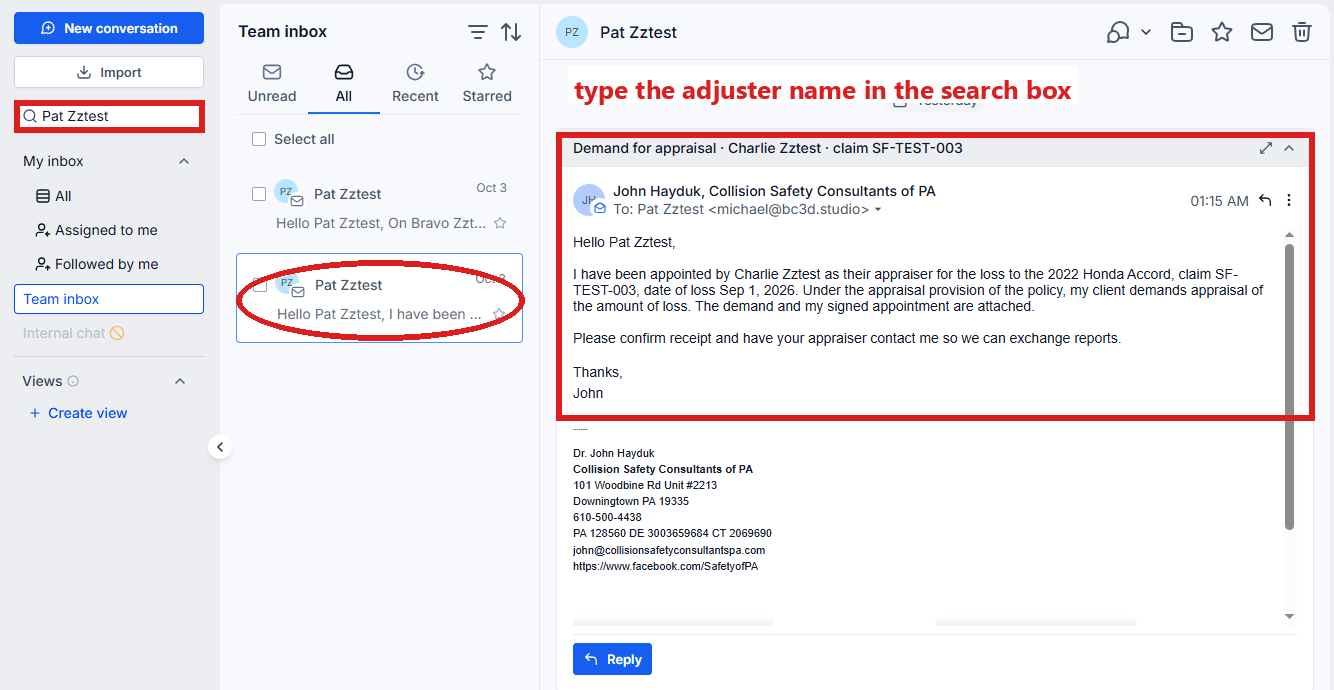
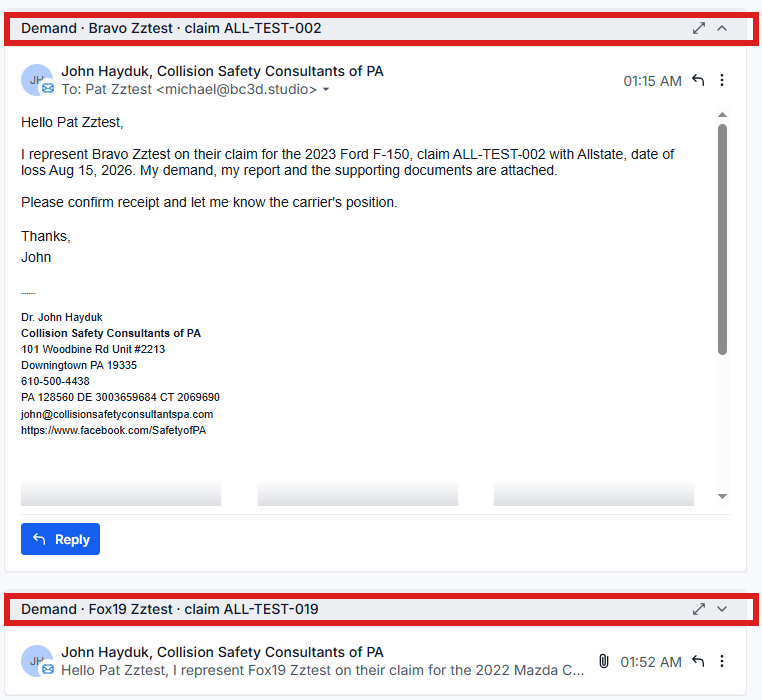
Their email lands in the adjuster's own conversation (not the customer's). Your phone: "Pat Smith replied by email about one of your cases. Open Conversations → Pat to read it." Sarah never answers them. You reply from that conversation:
- In the left menu, click Conversations.
- At the top of the list of people, click Unread.
- Click the adjuster's name (Pat Smith in the example). Their thread opens in the middle. You are in the right place when you see their email there, under their name, not the customer's.
- At the bottom of the middle is the message box. At its left end, click the small button with a down arrow and pick Email.
- Type a subject in the subject line.
- Click in the box and type your reply.
- Click the paper-plane button at the right end to send.
If something looks wrong
If Send demand comes back "Not sent (see task)": follow the steps under If it will not send, higher up on this page.
If the switch still reads "Send it now" after five minutes, then pdrOS could not act on it (usually a second try within seconds of a refusal). Set it to Not sent (see task), click the blue Save button, wait one minute, then set it back to Send it now and click the blue Save button again:
- In the left menu, click Contacts.
- Click in the search box at the top of the list and type the customer's last name or RO number.
- Click the customer's name in the list. Their contact profile opens. You are in the right place when you see the customer's name at the top left and their texts in the middle.
- On the left side of the contact profile, scroll down to the folder CASE and click the folder's name to open it.
- At the top of the folder, click the box under Send demand and pick Not sent (see task). Never pick I sent it myself here: that records the email as sent by you.
- Click the blue Save button at the bottom of the left side.
- Wait one minute.
- Click the box under Send demand again and pick Send it now.
- Click the blue Save button at the bottom of the left side.
- In the left menu, click Tasks.
- Click the row of the task A Send switch did not go · NAME. If the task is already gone when you come back, pdrOS closed it because the step happened.
- Click Open Full View.
- Click the green Mark Complete button at the bottom right.
Other words for this
RTA = right to appraisal, demand for appraisal, the appraisal demand, the appraisal clause letter; the adjuster = the carrier's adjuster, the claims rep.
Did this page not match what you see? Ask the support chat or open a support ticket. We change the page, not you.