Wrong type, or the type changed later
Answers: I picked the wrong type, how do I fix it? where do I change the type? what happens if I change the type later?
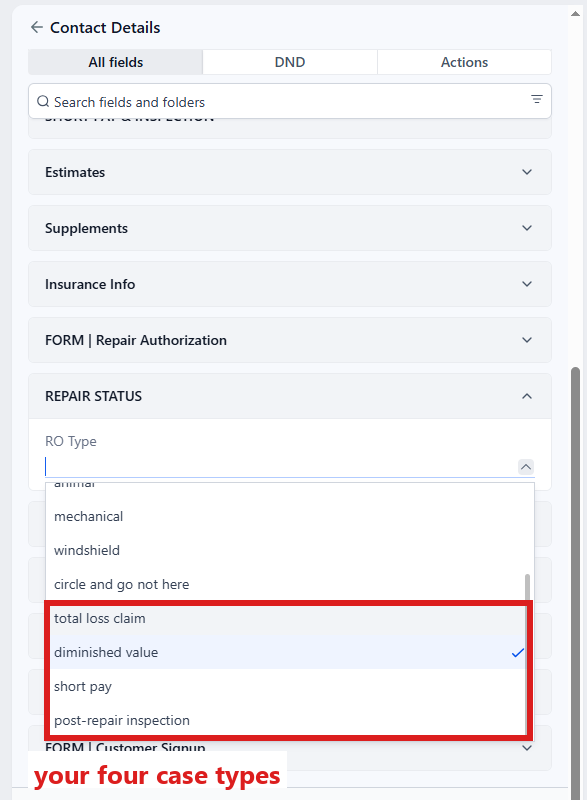
The case type (field RO Type ⚡, in folder REPAIR STATUS on the contact profile) decides the whole path, and you can change it. Before the agreement is signed, pdrOS swaps the type, resets the documents step, re-sends the new type's first request (texts and email) and updates the agreement link. After the agreement is signed, it only updates the link and texts you; the customer gets nothing. No second welcome is ever sent.
RO Type is a list with twelve choices. Yours are the four appraisal types: total loss claim, diminished value, short pay and post-repair inspection. The other eight (hail, collision and the rest) belong to the body-shop side of pdrOS.
You picked a shop type at signup (hail, collision, and so on)
Nothing goes to the customer. You get a text: "NAME signed up on the appraisal form but picked hail, a shop type, so nothing was sent."
Fix: 1. In the left menu, click Contacts. 2. Click in the search box at the top of the list and type the customer's last name or RO number (your case number). The text on your phone names the customer. 3. Click the customer's name in the list. Their contact profile opens. You are in the right place when you see the customer's name at the top left and their texts in the middle. 4. On the left side of the contact profile, scroll down to the folder REPAIR STATUS and click the folder's name to open it. 5. Click the box under RO Type ⚡ and pick the right appraisal type from the list (total loss claim, diminished value, short pay or post-repair inspection). 6. Click the blue Save button at the bottom of the left side. 7. Tell us: in the left menu, click Support, then the orange Support Ticket button. Give the RO number and write "please restart the intake". We do it on our side within the hour.
Why the ticket: a shop-type signup never started the appraisal path, so there is nothing for pdrOS to re-send on its own (changing the type on a case that did start swaps the path by itself, see below). Once we restart it, the welcome, the request for the type and the reminders start as if it were a fresh signup.
You change the type before the customer signed
- In the left menu, click Contacts.
- Click in the search box at the top of the list and type the customer's last name or RO number.
- Click the customer's name in the list. Their contact profile opens. You are in the right place when you see the customer's name at the top left and their texts in the middle.
- On the left side of the contact profile, scroll down to the folder REPAIR STATUS and click the folder's name to open it.
- Click the box under RO Type ⚡ and pick the new type from the list.
- Click the blue Save button at the bottom of the left side.
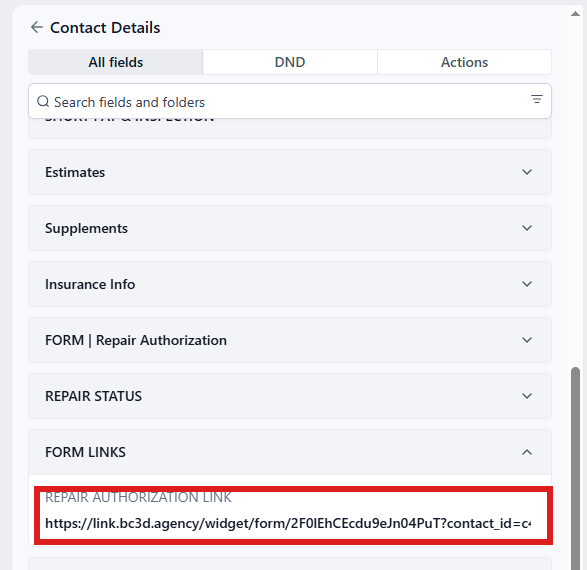
Within a minute: - The documents already received are kept but the "documents in" step is reset, because the new type needs different things. - The customer gets the new type's request (texts and email), and the reminders restart for the new type. - The agreement link in REPAIR AUTHORIZATION LINK (folder FORM LINKS) changes to the new wording. - You get: "case #N (NAME) is now [type]. The right request went out and the agreement link was updated."
You change the type after the customer signed
The agreement they signed is for the old type. pdrOS swaps the agreement link and sends the customer nothing; you get: "case #N was changed to [type] after the agreement was signed. The signed agreement is for the old type: check with the customer and have them sign again if needed."
To change the type, then send the new agreement link yourself:
- In the left menu, click Contacts.
- Click in the search box at the top of the list and type the customer's last name or RO number.
- Click the customer's name in the list. Their contact profile opens. You are in the right place when you see the customer's name at the top left and their texts in the middle.
- On the left side of the contact profile, scroll down to the folder REPAIR STATUS and click the folder's name to open it.
- Click the box under RO Type ⚡ and pick the new type from the list.
- Click the blue Save button at the bottom of the left side. Within a minute pdrOS swaps the agreement link and texts you.
- Talk to the customer. If they need to sign again, go on with step 8.
- On the left side of the contact profile, scroll down to the folder FORM LINKS and click the folder's name to open it.
- Click in the box under REPAIR AUTHORIZATION LINK. Do not type in the box.
- Press Ctrl+A to select the whole link (Command+A on a Mac).
- Press Ctrl+C to copy it (Command+C on a Mac).
- At the bottom of the middle of the contact profile is the message box. At its left end, click the small button with a down arrow and pick SMS.
- Click in the box and type a short line ("Here is your updated agreement to sign.").
- Click the paper-plane button at the right end to send.
- Click in the box and press Ctrl+V (Command+V on a Mac) to paste the link. Type nothing else: a link goes in a text of its own.
- Click the paper-plane button at the right end to send.
The same thread also shows under Conversations in the left menu.
You change it to a shop type by mistake
The appraisal path stops and your phone gets "case #N (NAME) was changed to [type], a shop type." Set it back to the right appraisal type and the path resumes:
- In the left menu, click Contacts.
- Click in the search box at the top of the list and type the customer's last name or RO number.
- Click the customer's name in the list. Their contact profile opens. You are in the right place when you see the customer's name at the top left and their texts in the middle.
- On the left side of the contact profile, scroll down to the folder REPAIR STATUS and click the folder's name to open it.
- Click the box under RO Type ⚡ and pick the right appraisal type from the list.
- Click the blue Save button at the bottom of the left side.
A closed case
Changing the type on a closed case does nothing. If the customer has a new claim, start a new case with the plain signup link. Click your signup bookmark on your computer, or tap the "Signup" icon on your phone's home screen (Your three links). Then fill it with them as in The signup form.
Did this page not match what you see? Ask the support chat or open a support ticket. We change the page, not you.