Step 6: negotiation
Answers: their figure came in, what do I do? how do I send a counter? how do I correct a counter? what if I cleared their number by mistake?
Type their figure (or upload their report), and every chase stops. Type your counteroffer and a one-line note, then set Send counter to Send it now. pdrOS emails it as you and watches for seven days of silence.
Their answer arrives
Two ways to record it. Either one is enough.
Their report, as a PDF
- In the left menu, click Contacts.
- Click in the search box at the top of the list and type the customer's last name or RO number (your case number).
- Click the customer's name in the list. Their contact profile opens. You are in the right place when you see the customer's name at the top left and their texts in the middle.
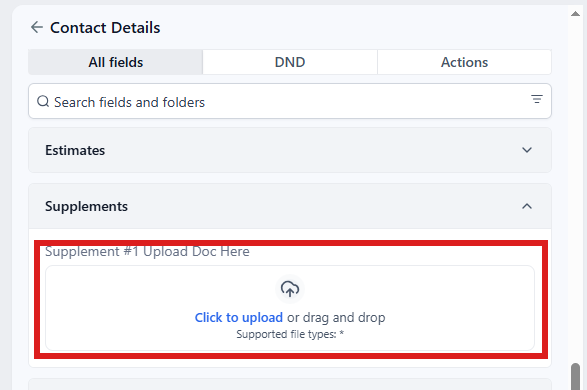
- On the left side of the contact profile, scroll down to the folder Supplements and click the folder's name to open it. (If you already see its fields, it is open: clicking its name again closes it.)
- In Supplement #1 Upload Doc Here ⚡, click Click to upload.
- Pick their report on your computer and click Open.
- Click the blue Save button at the bottom of the left side.
Or their figure
- In the left menu, click Contacts.
- Click in the search box at the top of the list and type the customer's last name or RO number.
- Click the customer's name in the list. Their contact profile opens. You are in the right place when you see the customer's name at the top left and their texts in the middle.
- On the left side of the contact profile, scroll down to the folder CARRIER & APPRAISER and click the folder's name to open it.
- Click in the box under Their number ⚡ and type their figure (numbers only, no dollar sign).
- Click the blue Save button at the bottom of the left side.
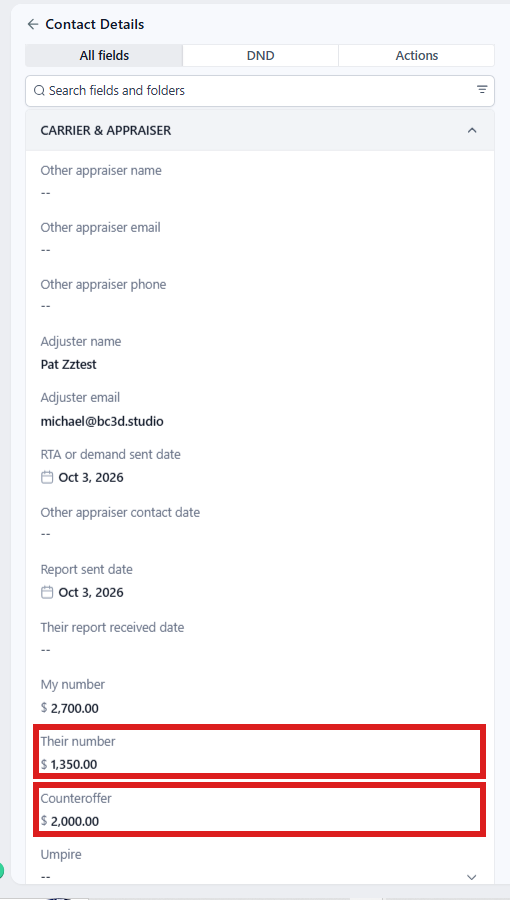
Can't find a field? Type its name in the search box at the top of the left side (it reads Search fields and folders).
Within a minute: every chase and clock stops; the case moves to 4.1 Their report or offer in; your phone gets "the other appraiser's report is in on NAME. Type Their number when you have read it" or "the other side answered on NAME: $X. You are at $Y"; you get the task Negotiate · NAME. Nothing goes to the customer.
A second copy of their report changes nothing. A new figure later brings "new figure from the other side on NAME: $X".
Your counter
You work from the task Negotiate · NAME.
You can also start from the task. In the left menu, click Tasks. Click the row Negotiate · NAME, then Open Full View. Click the link under WHERE (after the words "Open the case"). The contact profile opens in a new browser tab. Then start at step 4.
- In the left menu, click Contacts.
- Click in the search box at the top of the list and type the customer's last name or RO number.
- Click the customer's name in the list. Their contact profile opens. You are in the right place when you see the customer's name at the top left and their texts in the middle.
- On the left side of the contact profile, scroll down to the folder CARRIER & APPRAISER and click the folder's name to open it.
- Click in the box under Counteroffer and type your figure (numbers only, no dollar sign).
- If you want a line in the email, click in the box under Negotiation note and type it ("Comparable sales are in my report.").
- Click the blue Save button at the bottom of the left side.
- On the contact profile, scroll up to the folder CASE (just above CARRIER & APPRAISER) and click the folder's name to open it.
- Look at the top of folder CASE, where the Send switches are.
- Click the box under Send counter ⚡ and pick Send it now from the list.
- Click the blue Save button at the bottom of the left side.
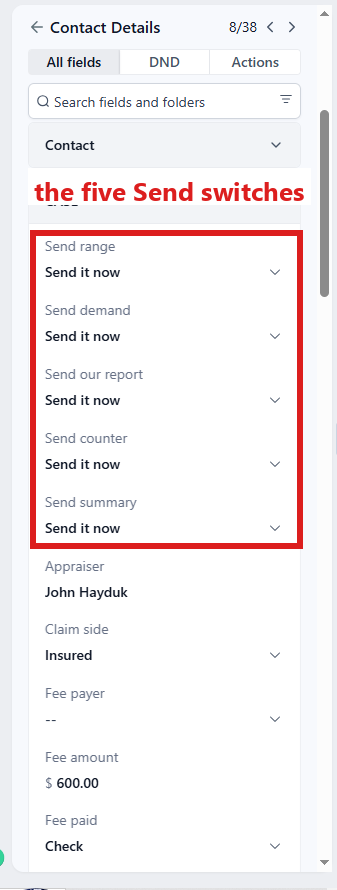
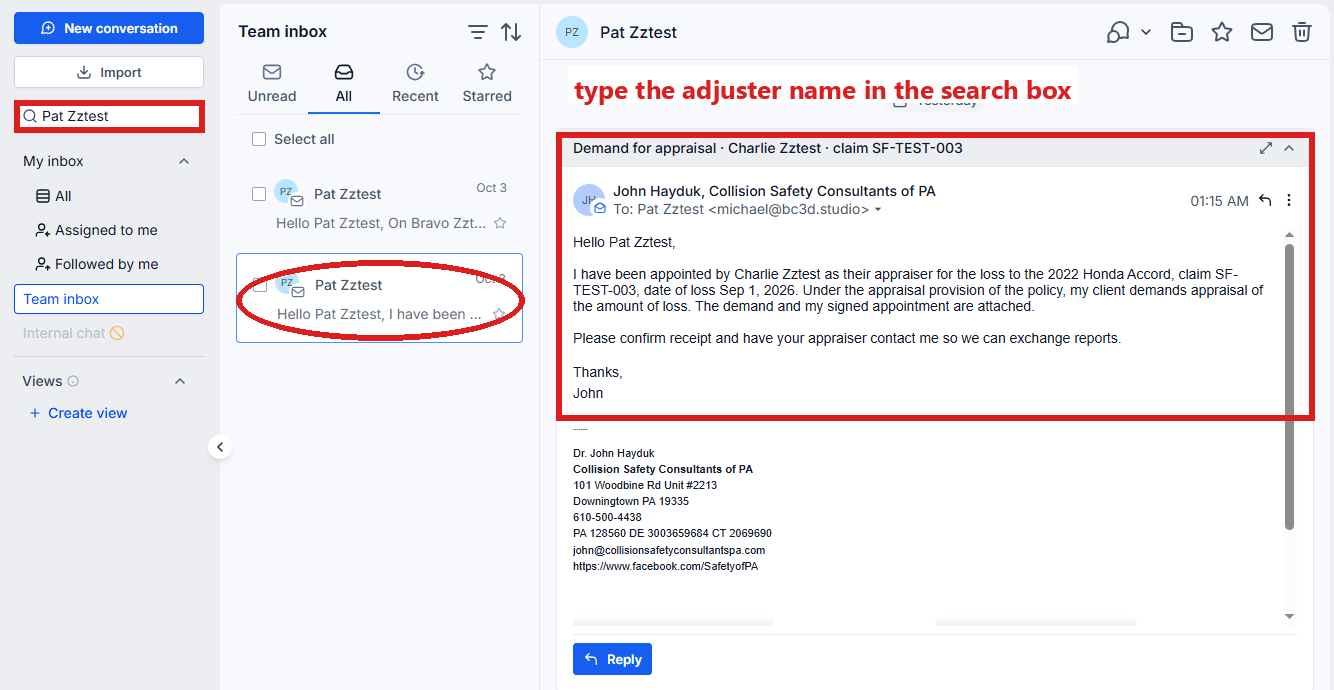
Within a minute the other appraiser gets an email from you: "On NAME's [vehicle], claim X: you are at $12,000.00 and my valuation supports $14,500.00. [Your note]. I can agree today at $14,200.00." Counter sent date is written; the case moves to 4.2 Negotiating; Case status changes to the sentence Sarah gives if asked (we are negotiating; our latest counter went out). Nothing goes to the customer.
Then close the task:
- In the left menu, click Tasks. My Tasks opens. You are in the right place when you see the boxes Overdue, Due Today, This Week and Completed at the top.
- Click the row Negotiate · NAME (click Due Today or Overdue at the top if you do not see it). A short preview opens under it.
- Click Open Full View.
- Click the green Mark Complete button at the bottom right of the full view.
If the task is already gone when you come back, pdrOS closed it because the step happened.
The silence clock
Seven days after a counter with no new figure: your phone gets "no answer in 7 days to your counter of $X on NAME" and the task No answer to your counter in 7 days · NAME. Call them, or go to the umpire.
To go to the umpire:
- In the left menu, click Contacts.
- Click in the search box at the top of the list and type the customer's last name or RO number.
- Click the customer's name in the list. Their contact profile opens. You are in the right place when you see the customer's name at the top left and their texts in the middle.
- On the left side of the contact profile, scroll down to the folder CARRIER & APPRAISER and click the folder's name to open it.
- Click the box under Umpire ⚡ and pick Called from the list.
- Click the blue Save button at the bottom of the left side.
What happens next is in Step 7: the umpire.
Whether you called them or went to the umpire, close the task:
- In the left menu, click Tasks. My Tasks opens.
- Click the row No answer to your counter in 7 days · NAME. A short preview opens under it.
- Click Open Full View.
- Click the green Mark Complete button at the bottom right of the full view.
If the task is already gone when you come back, pdrOS closed it because the step happened.
A corrected counter
- In the left menu, click Contacts.
- Click in the search box at the top of the list and type the customer's last name or RO number.
- Click the customer's name in the list. Their contact profile opens. You are in the right place when you see the customer's name at the top left and their texts in the middle.
- On the left side of the contact profile, scroll down to the folder CARRIER & APPRAISER and click the folder's name to open it.
- Click in the box under Counteroffer and delete the old figure.
- Type the new figure (numbers only, no dollar sign).
- Click the blue Save button at the bottom of the left side.
- On the contact profile, scroll up to the folder CASE (just above CARRIER & APPRAISER) and click the folder's name to open it.
- Look at the top of folder CASE.
- Click the box under Send counter ⚡ and pick Send it now from the list.
- Click the blue Save button at the bottom of the left side.
The new figure goes at once and the seven-day clock restarts. The same figure within ten minutes is skipped.
Later rounds
Each new Their number gives you a "new figure" text and the Negotiate task; each Send counter sends and restarts the clock. There is no limit. Use the same steps each round: Or their figure for their number, Your counter for yours.
If you cleared Their number by mistake
Clearing the field only leaves a note ("Their number was cleared. Nothing stopped, moved or sent"). Type it again with the steps in Or their figure, higher up on this page, and the case carries on.
If the counter will not send
Send counter comes back Not sent (see task) when Counteroffer, Their number or My number (folder CARRIER & APPRAISER) is empty, or Claim # (folder Insurance Info) is empty. The ⚠️ Counteroffer not sent task says which.
You can also start from the task. In the left menu, click Tasks. Click the row ⚠️ Counteroffer not sent, then Open Full View. Click the link under WHERE (after the words "Open the case"). The contact profile opens in a new browser tab. Then start at step 4.
- In the left menu, click Contacts.
- Click in the search box at the top of the list and type the customer's last name or RO number.
- Click the customer's name in the list. Their contact profile opens. You are in the right place when you see the customer's name at the top left and their texts in the middle.
- On the left side of the contact profile, scroll down to the folder Insurance Info and click the folder's name to open it.
- Look at Claim #. If it is empty, click in the box under Claim # and type the claim number.
- Scroll up to the folder CARRIER & APPRAISER and click the folder's name to open it.
- Look at My number. If it is empty, click in the box under My number and type your valuation (numbers only, no dollar sign).
- Look at Their number. If it is empty, click in the box under Their number and type their figure (numbers only, no dollar sign).
- Look at Counteroffer. If it is empty, click in the box under Counteroffer and type your figure (numbers only, no dollar sign).
- Click the blue Save button at the bottom of the left side.
- Wait one minute.
- On the contact profile, scroll up to the folder CASE (just above CARRIER & APPRAISER) and click the folder's name to open it.
- Look at the top of folder CASE.
- Click the box under Send counter ⚡ and pick Send it now from the list.
- Click the blue Save button at the bottom of the left side.
The ⚠️ Counteroffer not sent task closes itself when the counter goes.
If you sent the counter yourself
Set Send counter to I sent it myself: the date is written and the seven-day clock starts; no email goes.
- In the left menu, click Contacts.
- Click in the search box at the top of the list and type the customer's last name or RO number.
- Click the customer's name in the list. Their contact profile opens. You are in the right place when you see the customer's name at the top left and their texts in the middle.
- On the left side of the contact profile, scroll down to the folder CASE and click the folder's name to open it.
- Look at the top of folder CASE, where the Send switches are.
- Click the box under Send counter ⚡ and pick I sent it myself from the list.
- Click the blue Save button at the bottom of the left side.
- In the left menu, click Tasks. My Tasks opens.
- Click the row Negotiate · NAME. A short preview opens under it.
- Click Open Full View.
- Click the green Mark Complete button at the bottom right of the full view.
If the task is already gone when you come back, pdrOS closed it because the step happened.
If something looks wrong
If you typed the wrong number in Their number, type over it with the steps in Or their figure, higher up on this page. Delete the wrong figure before you type the right one. Nothing goes to the customer or the other side, but your phone gets the "new figure" text and a new Negotiate · NAME task comes. Mark that task complete if there is nothing new to do.
If a corrected counter did not go, then it had the same figures as the one just sent (the ten-minute guard). Change the figure or the note and send again, or wait ten minutes and send again.
- In the left menu, click Contacts.
- Click in the search box at the top of the list and type the customer's last name or RO number.
- Click the customer's name in the list. Their contact profile opens. You are in the right place when you see the customer's name at the top left and their texts in the middle.
- On the left side of the contact profile, scroll down to the folder CARRIER & APPRAISER and click the folder's name to open it.
- Click in the box under Counteroffer or Negotiation note and change the figure or the note.
- Click the blue Save button at the bottom of the left side.
- On the contact profile, scroll up to the folder CASE (just above CARRIER & APPRAISER) and click the folder's name to open it.
- Look at the top of folder CASE.
- Click the box under Send counter ⚡ and pick Send it now from the list.
- Click the blue Save button at the bottom of the left side.
Other words for this
Their number = their figure, their offer, their value; Counteroffer = my counter, my number back; their report = the other appraiser's valuation, the carrier's report.
Did this page not match what you see? Ask the support chat or open a support ticket. We change the page, not you.