Sarah: the texting assistant on the 610 number
Answers: what does Sarah answer? what does she never say? when does she hand a customer to me? how do I reply myself? how do I switch her off or on for one customer? how do I let a customer who replied STOP get texts again? what happens when a customer calls the 610 number?
Sarah answers your customers' texts and emails: where their case stands, what you need from them, how the process works. She never gives a figure, a settlement date or the other side's name, and she hands figures, offers and decisions to you (fee questions and requests to move an inspection go to Sharon as tasks).
Who she talks to
- Customers with an open case, on the 610 number, by text and by email.
- Not strangers (a number with no case gets one message asking who they are, and you get a text).
- Not adjusters, appraisers or shops (their emails go to their own conversations and to you).
- Not closed cases (she is switched off at the close).
What she answers herself
- Status: she reads the field Case status (folder CASE). It holds one sentence on where the case stands, for example "Case opened. We have sent you what we need from you to get started."
- What we need, how long it takes, whether to bring the car in (no, except a post-repair inspection), what an umpire is, whether there is a deadline, how to pay, and the questions in her list.
- A document request: she may send the customer their own agreement link.
What she never does
- Give a dollar figure, a settlement date, or the adjuster's or appraiser's name.
- Promise an outcome or a date.
- Book or move an appointment herself.
When she hands to you
She hands over when a customer asks what to do about an offer or a release, what the umpire decided or when their own deadline is, about court, or asks for a person. She tells the customer John will come back to them and texts you ("Sarah handed NAME to you (vehicle, type). The bot is asleep on it for 8 hours. Their last message is in the case conversation"). Sharon gets the task Sarah handover; you get User query. She stays quiet on that customer for eight hours, then wakes by herself. Money questions and requests to move an inspection go to Sharon as their own tasks (below).
To reply to the customer yourself:
- In the left menu, click Contacts.
- Click in the search box at the top of the list and type the customer's last name or RO number (your case number).
- Click the customer's name in the list. Their contact profile opens. You are in the right place when you see the customer's name at the top left and their texts in the middle.
- On the contact profile, read the middle. The newest messages are at the bottom.
- At the bottom of the middle is the message box. At its left end, click the small button with a down arrow and pick SMS for a text or Email for an email.
- Click in the box and type your answer. For an email, the box grows to show the subject line; type a subject too.
- Click the paper-plane button at the right end to send.
- In the left menu, click Tasks. My Tasks opens. You are in the right place when you see the boxes Overdue, Due Today, This Week and Completed at the top.
- Find the row of the task User query (it is one line: what the customer asked).
- Check the box at the left of its row. That marks it complete; this short task has no Open Full View button.
The office tasks she creates (Sharon)
Each with the facts and the steps, and an alert to the office phone (Sharon's cell):
- Customer has a money question · NAME
- Customer wants a date or an update · NAME
- Customer gave new contact or case details · NAME
- Customer asked for a document · NAME
- URGENT · unhappy customer · call within the hour · NAME
- Sarah needs a person · NAME (most often to move or cancel an inspection)
- Sarah handover · NAME (she stepped back for 8 hours; John also gets a one-line User query task with what the customer asked)
Sharon does the step, comes back to the Tasks page and clicks Mark Complete. The list with what each one means: The tasks you will see.
When a customer calls the 610 number
- The call rings your cell. Pick up as you always do.
- If you do not pick up, the caller hears your pdrOS voicemail greeting.
- If the caller has an open case, pdrOS texts them within a minute: "Sorry we missed your call. What can I help with on your case? Text me here and I'll answer, or get John Hayduk to call you back." Sarah answers whatever they text back, and you get her handover text if it needs you.
- If the caller has no open case, nothing is sent to them. Your phone gets "missed call from (phone), not on an open case".
- Every call shows in the customer's thread, in the middle of their contact profile, with the time.
The word refund
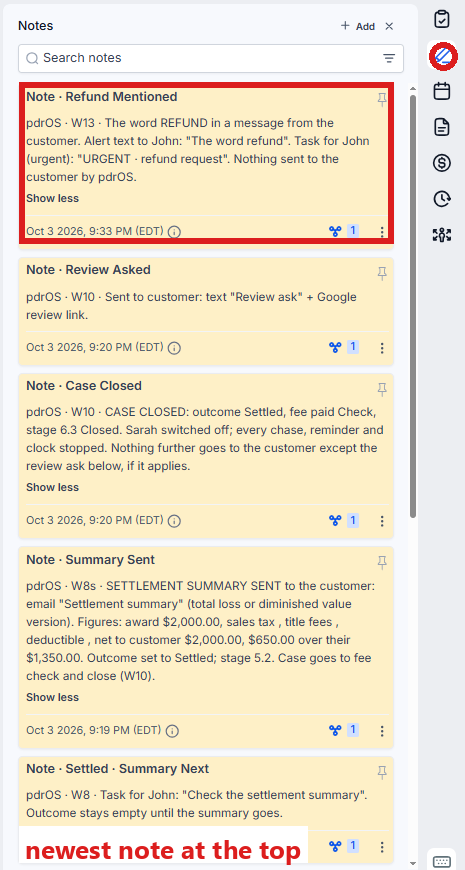
Any text or email from a customer containing "refund" goes straight to you: an URGENT text, the task URGENT · refund request and a note, open case or closed. Sarah may also answer politely; you call.
Switching her off or on for one customer
Sarah's on/off switch is not on your screen; it is ours. When you want to handle a customer yourself for a while, tell us: in the left menu, click Support, then the orange Support Ticket button, with the customer's name and "please switch Sarah off". We do it within the hour, and switch her back on when you say.
You do not need to switch her off to answer a customer yourself: anything you type in the message box goes out as you, and Sarah goes quiet by herself for eight hours after she hands a customer to you.
What to do when she texts you
The text on your phone names the customer and the case number. Read the messages and her note first, then answer the customer.
- In the left menu, click Contacts.
- Click in the search box at the top of the list and type the customer's last name or the case number from the text.
- Click the customer's name in the list. Their contact profile opens. You are in the right place when you see the customer's name at the top left and their texts in the middle.
- On the contact profile, read the middle. The newest messages are at the bottom.
- On the far right edge of the contact profile, click the Notes icon (it looks like a pen; hold the mouse over the icons to see their names). The notes open beside it, newest at the top.
- Read Sarah's newest note. It says who she sent the question to and why.
- At the bottom of the middle is the message box. At its left end, click the small button with a down arrow and pick SMS for a text or Email for an email.
- Click in the box and type your answer.
- Click the paper-plane button at the right end to send.
Three things to tell customers
- Text the 610 number, not John's cell.
- The first text from the office comes within two minutes of signup. If it did not come, see "If the first text did not come" below.
- If a customer replied STOP, texts to them are off. If they later ask in writing to get texts again, see "If a customer who replied STOP wants texts again" below, or tell us (in the left menu, click Support, then the orange Support Ticket button).
If the first text did not come
If the consent box was left empty on purpose and their DND is set to Text Messages, that customer is on email only, so no text is expected. Otherwise, check the phone number:
- In the left menu, click Contacts.
- Click in the search box at the top of the list and type the customer's last name or RO number.
- Click the customer's name in the list. Their contact profile opens. You are in the right place when you see the customer's name at the top left and their texts in the middle.
- Click in the search box at the top of the left side (it reads Search fields and folders) and type Phone.
- Read the number in the box under Phone.
- If it is wrong, click in that box and delete the old number.
- Type the right number.
- Click the blue Save button at the bottom of the left side.
- Tell us: in the left menu, click Support, then the orange Support Ticket button. Give the RO number and write "please restart the intake, the phone number was wrong". We do it on our side within the hour. The welcome and the first request go then.
If a customer who replied STOP wants texts again
Do this only when they asked in writing.
- In the left menu, click Contacts.
- Click in the search box at the top of the list and type the customer's last name or RO number.
- Click the customer's name in the list. Their contact profile opens. You are in the right place when you see the customer's name at the top left and their texts in the middle.
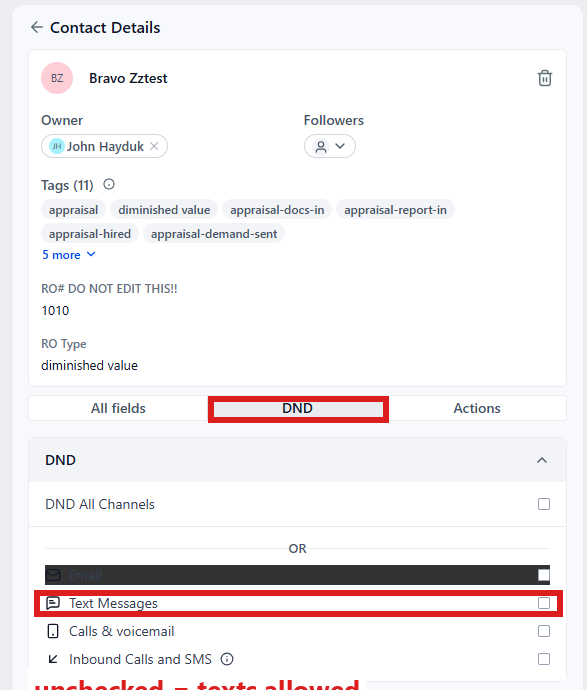
- On the left side of the contact profile, under the RO number, click the tab DND. It sits next to the tab All fields.
- Look at the list: DND All Channels, then Email, Text Messages, Calls & voicemail, Inbound Calls and SMS. A checked box means that channel is blocked.
- If the box next to Text Messages (or DND All Channels) is checked, click it to uncheck it. The change saves by itself; the middle of the profile notes "DnD disabled".
- Click the tab All fields to go back to the folders.
Did this page not match what you see? Ask the support chat or open a support ticket. We change the page, not you.