Your three links
Answers: where is the signup link? what link do I give a shop? what if a customer lost their upload link? how do I put the links on my phone? how do I open this guide on my phone?
You have three links to hand out. Keep them in your browser bookmarks and on your phone's home screen; nothing else in pdrOS needs a link. A fourth address, this guide's own, is for you (at the end of this page).
The signup link
https://link.bc3d.agency/widget/form/PVooC4j8lEWpc2JSTCnZ
For a new customer only. The usual way: open it yourself while they are on the phone, and fill it with them as you talk. The signup form
To have them fill it on their own phone instead, send it to them. Copy the link from this page: select it, then press Ctrl+C. Paste it with Ctrl+V into a text or email from your own phone or email (they have no contact profile yet). In a text, send it alone, with no words around it. On a Mac, use the Command key instead of Ctrl.
Never give it to someone who is waiting to start a case (a referred customer, someone who texted the 610 number). Their own signup link is waiting for you, and it lands on their own contact profile; this link would make a second one. The one exception: a past customer with a new claim gets this link, because a new claim needs its own contact profile.
- A referred customer: the link is in your task. In the left menu, click Tasks. Click the row of the task Call the referred customer · NAME (from SHOP), then click Open Full View. The signup link is written in the task.
- Someone who texted the 610 number: the link is at the end of the alert text on your phone.
The shop referral link
https://link.bc3d.agency/widget/form/GC1h4fUWtSuyVkggI5fX
Give it to body shops. When a shop fills it, pdrOS makes a contact profile for the customer and emails them a welcome with their own signup link. You get the "Call the referred customer" task. Shop referrals
The blank upload link
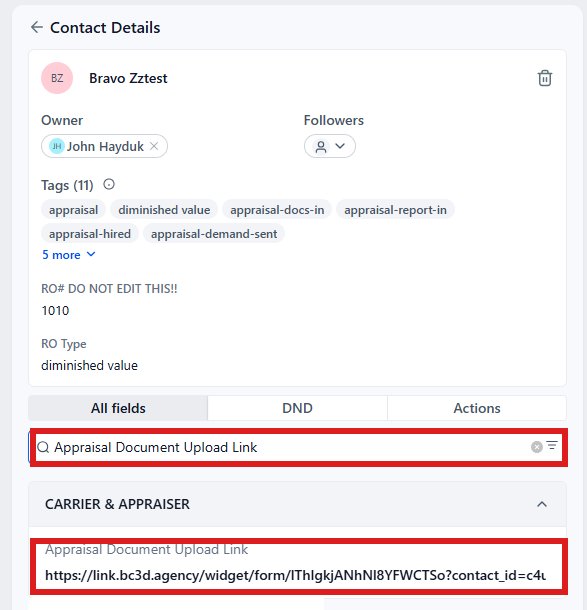
https://link.bc3d.agency/widget/form/lThIgkjANhNl8YFWCTSo
Only when a customer has lost theirs and you cannot find their contact profile. Their own upload link is always better: files sent through it land on their contact profile by themselves. It is the field Appraisal Document Upload Link, in folder CARRIER & APPRAISER. Through the blank link, the customer has to type their name and you may have to match the files by hand.
To text a customer their own upload link:
- In the left menu, click Contacts.
- Click in the search box at the top of the list and type the customer's last name or RO number (your case number).
- Click the customer's name in the list. Their contact profile opens.
You are in the right place when you see the customer's name at the top left and their texts in the middle. 4. On the left side of the contact profile, scroll down to the folder CARRIER & APPRAISER and click the folder's name to open it. 5. Find Appraisal Document Upload Link. 6. Click in the box under it. 7. Press Ctrl+A to select the whole link. 8. Press Ctrl+C to copy it. Do not type anything in the box. 9. At the bottom of the middle of the contact profile is the message box. At its left end, click the small button with a down arrow. 10. Pick SMS. 11. Click in the message box and press Ctrl+V to paste the link. Leave it alone in the text, with no words around it. 12. Click the paper-plane button at the right end of the box.
On a Mac, use the Command key instead of Ctrl. If a blue Save button appears at the bottom of the left side, the link was changed by accident. Do not click it: click Cancel next to it, which throws the change away.
This guide on your phone
https://pdros-guide.pages.dev/cscpa/
In pdrOS, this guide is the Support item in the left menu. On your phone, the pdrOS app does not show it, so open the address above in your phone's browser and add it to the home screen (steps below). The support chat and the orange Support Ticket button are at the top of its first page.
Keep them on your phone
Name the icons "Signup", "Shop referral", "Upload" and "Guide".
iPhone:
- Open the link in Safari (tap it on this page, or type it into Safari's address bar).
- Tap Share (the square with the arrow).
- Scroll down the list and tap Add to Home Screen.
- Type the icon's name.
- Tap Add.
Android:
- Open the link in Chrome.
- Tap the three dots ⋮ at the top right.
- Tap Add to Home screen.
- Type the icon's name.
- Tap Add.
Computer:
- Open the link in your browser.
- Click the star at the right end of the address bar to bookmark it.
Did this page not match what you see? Ask the support chat or open a support ticket. We change the page, not you.