Step 1: the documents
Answers: how does the customer send documents? how long does pdrOS chase? what do I do when the documents are in? how do I upload a report the customer emailed me? how do I restart the reminders?
On a total loss, pdrOS asks the customer for the insurer's valuation report and keeps asking on a schedule. You do nothing until a task arrives: Chase documents · NAME on day 5 if nothing has come, or Documents in · value it · NAME when a file lands.
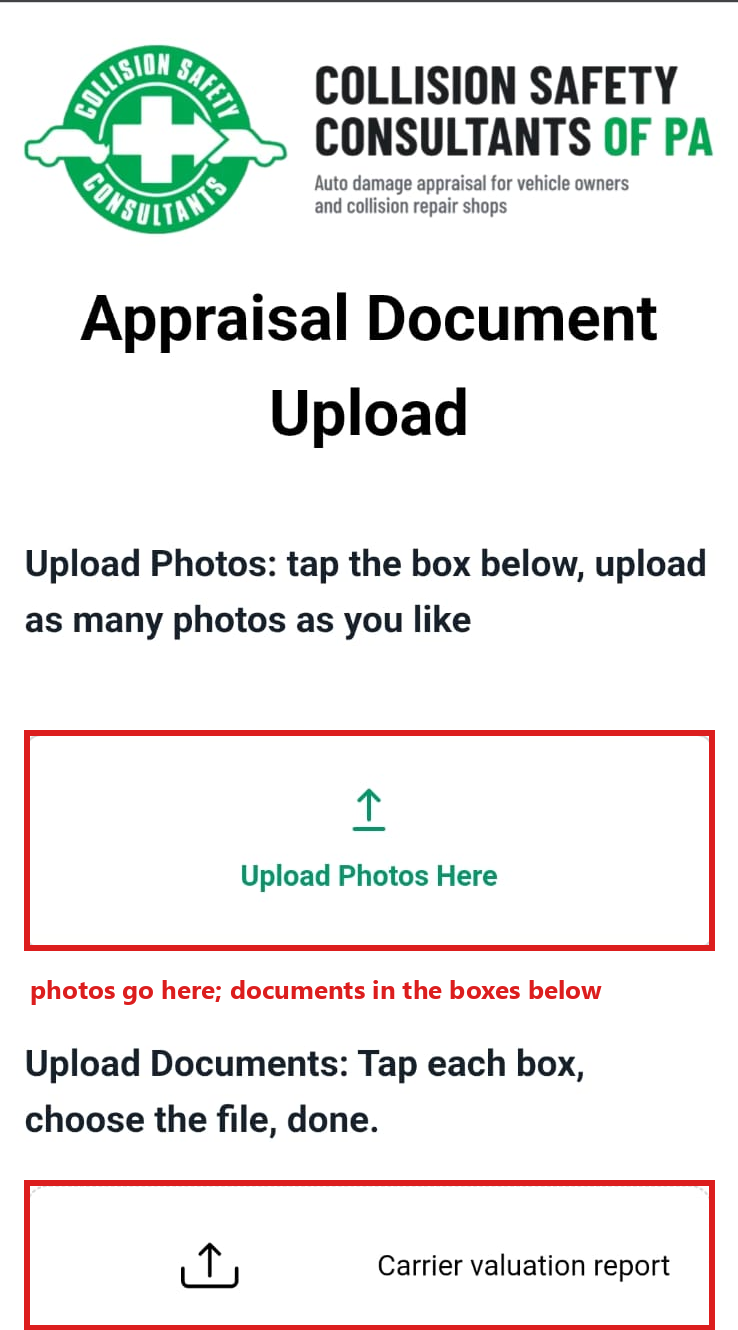
What the customer sees
At signup: a text ("First step: we need the insurer's valuation report… Upload it with the link in my next text; photos of the car help too"), the upload link in its own text, and the email "One document to start: the insurer's valuation report".
Then, if nothing arrives: - Day 2: a reminder text, the upload link again, and the email "Still waiting on one thing to start your case". - Day 12: the same reminder again.
Reminders go between 8 am and 8 pm only.
What you get
- Day 5: the task Chase documents · NAME. Call them, then mark the task complete (steps below).
- Day 19: the task Nothing after three weeks · close it? · NAME. The reminders stop. Call once more, or set Outcome to Went quiet to close the case (steps below). Either way, then mark the task complete.
To mark one of these tasks complete:
- In the left menu, click Tasks.
- Click the task's row (click Due Today or Overdue at the top if you do not see it).
- Click Open Full View.
- Click the green Mark Complete button at the bottom right.
If the task is already gone when you come back, pdrOS closed it because the step happened.
Close it as Went quiet
You can also start from the task Nothing after three weeks · close it? · NAME. In the left menu, click Tasks. Click the task's row, then Open Full View. Click the link under WHERE (after the words "Open the case"). The contact profile opens in a new browser tab. Then start at step 4.
- In the left menu, click Contacts.
- Click in the search box at the top of the list and type the customer's last name or RO number (your case number).
- Click the customer's name in the list. Their contact profile opens. You are in the right place when you see the customer's name at the top left and their texts in the middle.
- On the left side of the contact profile, scroll down to the folder OUTCOME and click the folder's name to open it.
- Click the box under Outcome and pick Went quiet from the list.
- Click the blue Save button at the bottom of the left side.
When a file arrives
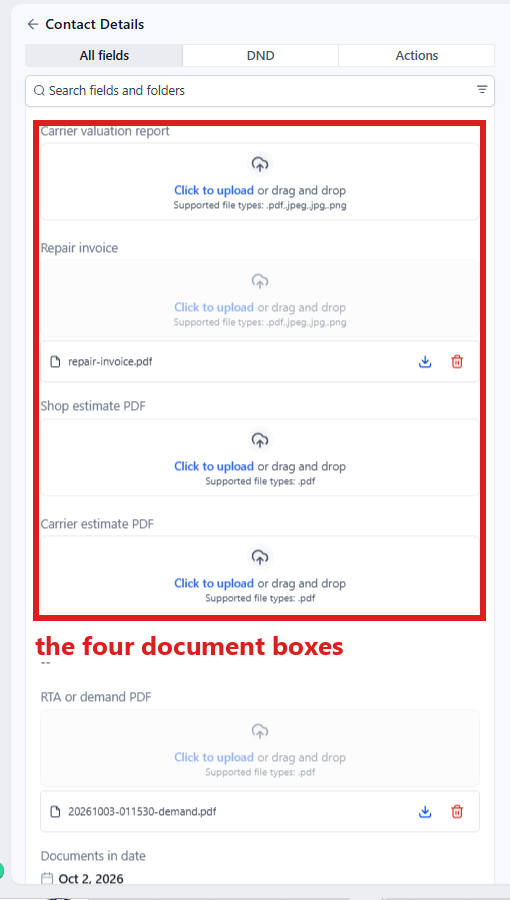
The customer's upload link puts the file into one of four boxes. All four are in folder CASE on their contact profile: Carrier valuation report, Repair invoice, Shop estimate PDF or Carrier estimate PDF. On a total loss any one file in any box counts, so a report dropped in the wrong box still starts the case.
Within about a minute of the upload: 1. The reminders stop. 2. The case moves to 1.2 Documents in; Case status changes to "We have your documents and are working on the valuation." (nothing is sent) 3. You get the task Documents in · value it · NAME with links to every file received.
A second file afterwards changes nothing (no second task).
If the documents come to you another way
If the customer emails or hands you the report, upload it yourself. If it came by email, first save the attachment to your computer: in the email, click the attachment's download arrow; it goes to your Downloads folder.
- In the left menu, click Contacts.
- Click in the search box at the top of the list and type the customer's last name or RO number.
- Click the customer's name in the list. Their contact profile opens. You are in the right place when you see the customer's name at the top left and their texts in the middle.
- On the left side of the contact profile, scroll down to the folder CASE and click the folder's name to open it.
- In Carrier valuation report ⚡, click Click to upload, pick the PDF on your computer and click Open.
- Click the blue Save button at the bottom of the left side.
Same result: the reminders stop, the case moves to 1.2 Documents in, and you get the task Documents in · value it.
Starting the reminders again
Sometimes you want the reminder schedule to run again on a case, for example after you spoke to them and they promised to upload. Tell us: in the left menu, click Support, then the orange Support Ticket button. Give the RO number and write "please restart the document reminders". We do it on our side within the hour. The schedule restarts from day 2.
Did this page not match what you see? Ask the support chat or open a support ticket. We change the page, not you.