Your day: tasks in, tasks out
Answers: what do I do every day? where do I start in the morning? how do I finish a task? what do I not have to do any more?
Eighty percent of your time in pdrOS is one loop: open the Tasks page, read the top task, do what it says, click Mark Complete. New tasks appear as cases move.
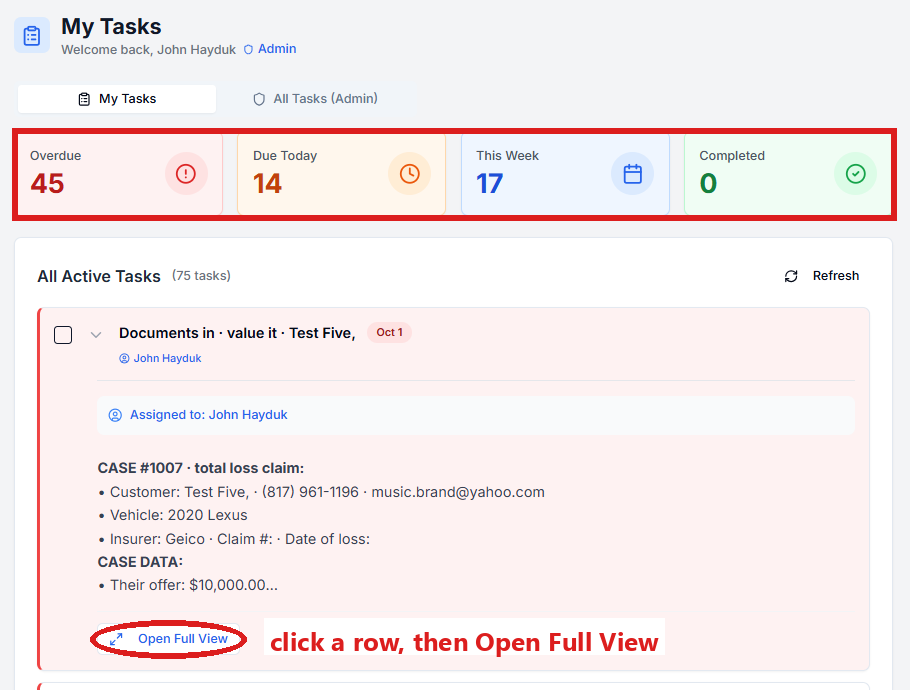
The loop
- In the left menu, click Tasks. My Tasks opens. You are in the right place when you see the four boxes Overdue, Due Today, This Week and Completed at the top.
- Click the box Overdue. Its tasks list under it. Each box shows how many tasks are in it. (When those are done, click Due Today.)
- Click the task's row. A short preview opens under it.
- Click Open Full View to read the whole task. Every task tells you the case, the facts you need, and what to do in one to three steps (under DO THIS).
- Click the link under WHERE (it follows the words "Open the case"). The customer's contact profile opens in a new browser tab. You are in the right place when you see the customer's name at the top left and their texts in the middle.
- On the left side of the contact profile, scroll down to the folder the task names and click the folder's name to open it.
- Find the field the task names.
- Do its action. A PDF: click Click to upload, pick it and click Open. A number: click in the box and type it. A date: click the box and pick the day. A Send switch: click the box under it and pick Send it now.
- Click the blue Save button at the bottom of the left side.
- Click the browser tab with the Tasks page (the contact profile opened in a tab of its own).
- Click the green Mark Complete button at the bottom right of the full view.
- Click Close to go back to the list.
If the task is already gone when you come back, pdrOS closed it because the step happened. When a task says "Tick this task", it means: click Mark Complete.
pdrOS then does the next piece of work. When it is your turn again, a new task appears.
Most tasks need under two minutes. There is nothing to remember between them: the task carries what you need.
If you change a field and no blue Save button appears at the bottom of the left side, stop and tell us. Auto-Save has been switched on, and we switch it back. Until then pick Send switches carefully: they go the moment you choose. Never click Enable auto-save (it is under the three dots next to the blue Save button).
When your phone buzzes
A text to your phone means something time-sensitive happened. A new case, a customer signed, the other side answered, a deadline is near, a customer sounds unhappy, a switch did not go. The text says what. When there is a step for you, a task waits with the steps. The full list is in Texts to your phone.
The text names the customer and the RO number (your case number). To open their contact profile: in the left menu, click Contacts. Click in the search box at the top of the list and type the name or the number. Click the customer's name in the list. You are in the right place when you see the customer's name at the top left and their texts in the middle.
What you do not have to do
- You do not chase documents, signatures, adjusters or appraisers. pdrOS does, on a schedule. It tells you only when a chase runs out.
- You do not write the range email, the RTA email, the counter email or the settlement email. You type the numbers; pdrOS writes and sends as you.
- You do not log the sent dates. pdrOS writes each one when the email goes. You pick a date only when a task or this guide asks (for example Award signed date).
- You do not answer "what's the status" texts. Sarah does, from what is on the customer's contact profile.
Sharon's day
Sharon gets her own tasks. One is entering the shop's estimate in CCC1 on a short pay. The rest are the office follow-ups Sarah creates (money question, wants a date, new details, a document, unhappy, needs a person). Same loop: the Tasks page, read, do, Mark Complete. Her page: For Sharon.
Did this page not match what you see? Ask the support chat or open a support ticket. We change the page, not you.