The one rule: every field does work
Answers: why does changing a field send something? when does a change count? can I use a field as a note? what if a step does not fit how I work?
In pdrOS a field is not a place to store a note. When you change a field and save it, the system acts on it, usually within one to two minutes.
What that means in practice
Every field below is on the left side of the customer's contact profile, inside the folder named. To get there: in the left menu, click Contacts. Click in the search box at the top of the list and type the customer's last name or RO number (your case number). Click the customer's name in the list. On the left side, scroll down to the folder named and click its name to open it.
- Typing Their number ⚡ (folder CARRIER & APPRAISER) stops every chase email to the other side and gives you the Negotiate task.
- Picking Send it now in Send demand ⚡ (at the top of folder CASE) emails the adjuster as you, with the attachments, and texts the customer.
- Uploading your report to Upload Estimate Doc Here ⚡ (folder Estimates) moves the case and gives you the Set the range task.
- Typing an Award amount ⚡ and an Award signed date ⚡ (folder OUTCOME) texts and emails the customer that the claim is settled.
- Setting Fee paid ⚡ (folder CASE) to anything but No closes the case and, if the case was won (Settled or Report only), asks the customer for a review. It does that only once the case has an Outcome (folder OUTCOME: Settled, Report only, or one of the endings). With no Outcome yet, it waits.
So: put the real thing in the real field, and only when it is true. Do not use a field as a scratch pad. Do not type a figure "to see what happens".
Throughout this guide, every field or switch that starts work is marked ⚡ the first time it appears, with one line on what it starts.
Work with it, not against it
pdrOS was built around the way you described your cases to us. If you work the way the guide shows, the system does the typing, sending, chasing and remembering, and you keep the thinking.
If a step does not fit how you actually work, do not force it, skip it or work around it. Tell us (Getting help). We can change the step, the wording or the timing. A workaround on your side usually means a chase goes to the wrong person or a customer gets a message twice. A change on our side is usually done within a day and holds for every case after.
Two habits that keep you safe
1. Save after every change
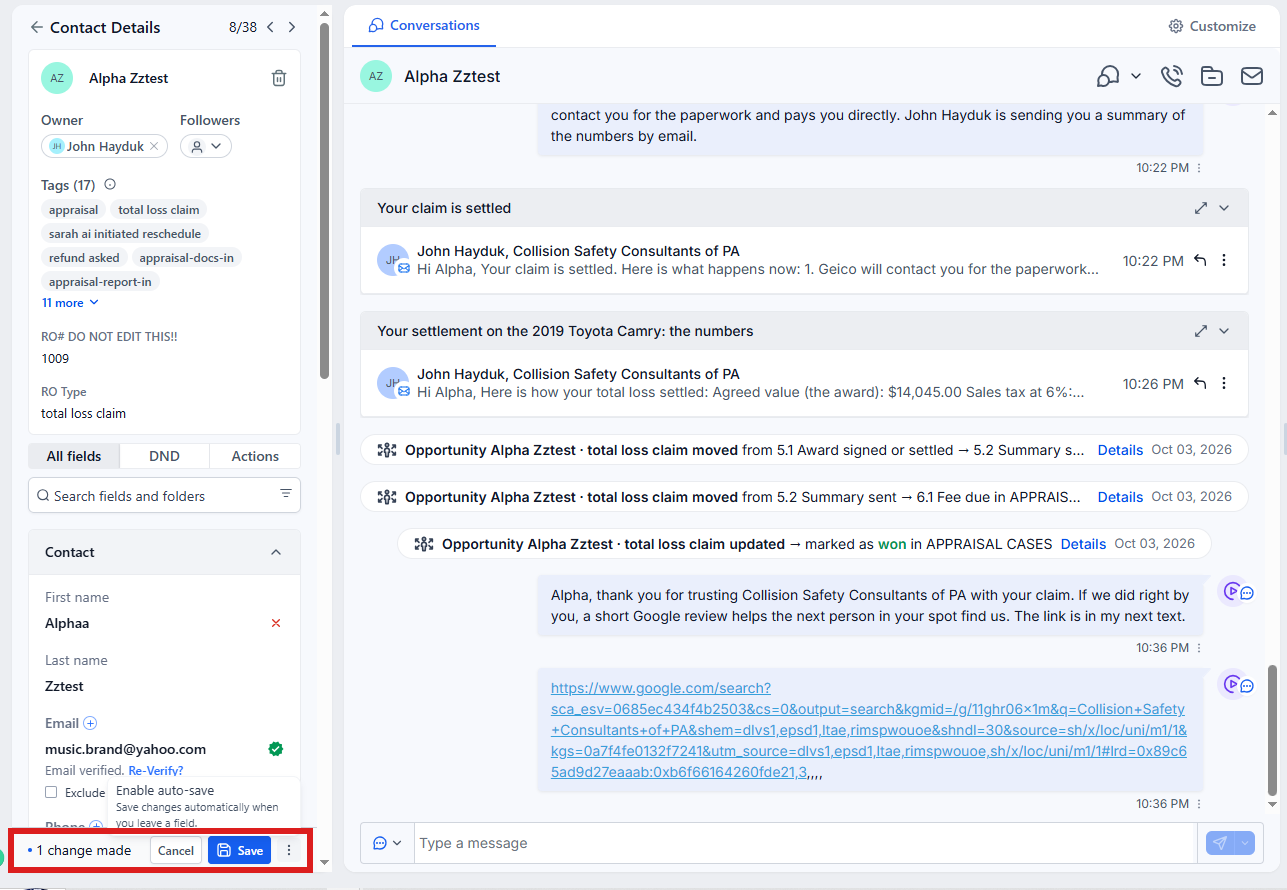
Click the blue Save button at the bottom of the left side. It appears as soon as you change a field. Nothing happens and nothing is sent until you click it.
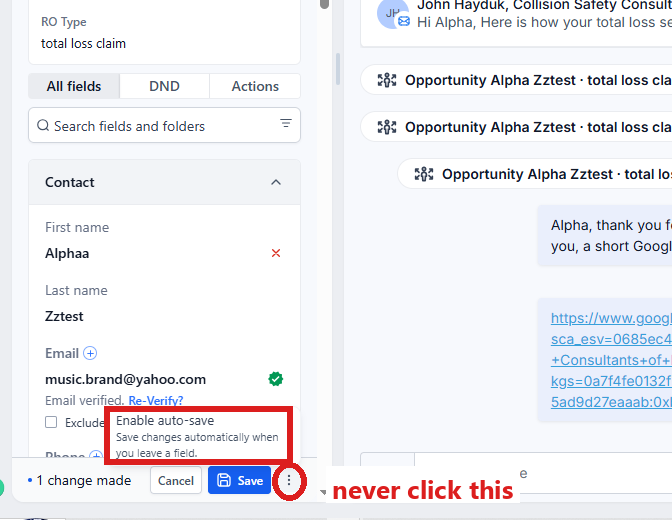
If you change a field and no blue Save button appears at the bottom of the left side, stop and tell us. Auto-Save has been switched on, and we switch it back. Until then pick Send switches carefully: they go the moment you choose.
Never click Enable auto-save (it is under the three dots next to the blue Save button).
2. Read the newest note after an action
Stay on the customer's contact profile after you click Save. If you left it, open it again. In the left menu, click Contacts. Click in the search box at the top of the list and type the customer's last name or RO number. Click their name. You are in the right place when you see the customer's name at the top left and their texts in the middle.
- On the far right edge of the contact profile, click the Notes icon (it looks like a pen; hold the mouse over the icons to see their names). The notes open beside it, newest at the top.
- Wait up to two minutes and read the top note. It says what pdrOS did.
If no new note appears, see When something goes wrong.
Did this page not match what you see? Ask the support chat or open a support ticket. We change the page, not you.