Step 7: the umpire
Answers: how do I go to the umpire? what does the customer hear? who pays the umpire? how do I record that the customer paid the umpire, and the decision?
When the two appraisers cannot agree, set Umpire to Called. The customer gets a text and an email on how the umpire step works and what they pay, and you get a three-step task.
Set it
- In the left menu, click Contacts.
- Click in the search box at the top of the list and type the customer's last name or RO number (your case number).
- Click the customer's name in the list. Their contact profile opens. You are in the right place when you see the customer's name at the top left and their texts in the middle.
- On the left side of the contact profile, scroll down to the folder CARRIER & APPRAISER and click the folder's name to open it. (If you already see its fields, it is open: clicking its name again closes it.)
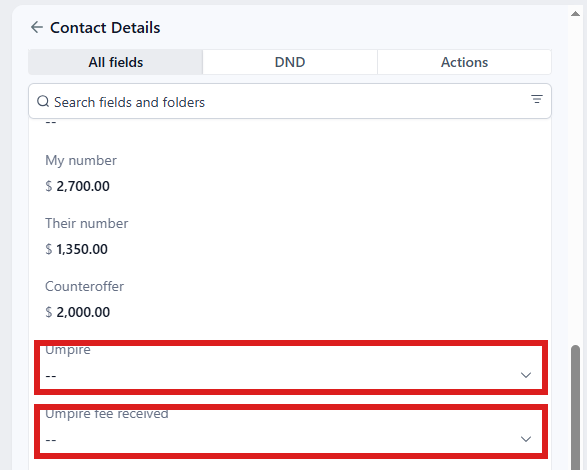
- Click the box under Umpire ⚡ and pick Called from the list.
- Click the blue Save button at the bottom of the left side.
What happens, within a minute
- The case moves to 4.3 Umpire; the silence clock stops; Case status changes to "The case is with the umpire. We are waiting on the decision."
- The customer gets a text explaining the umpire step in plain words, and the email "Your claim is going to an umpire". It says the two appraisers could not agree and a neutral umpire decides. The umpire's fee is split: you send them an invoice for their half, and you release your valuation to the umpire once it is paid.
- You get the task Umpire · NAME:
- Agree the umpire with the other appraiser.
- Send the customer an invoice for their half of the umpire's fee (the clicks are in Invoices and payments). Release your valuation to the umpire only after it is paid.
- When it is paid, click the box under Umpire fee received and pick Received.
Working the Umpire task
Task step 1 is a call with the other appraiser. Step 2 happens in Invoices; step 3 on the contact profile.
Invoice the customer for their half (task step 2)
- In the left menu, click Invoices. You are in the right place when you see the list of invoices, each with its status.
- Click the blue + New button at the top right, then New Invoice.
- Under Customer Information, click the box Select Customer, type the customer's last name and click their name.
- Under Add Products, click + Add Product and pick Appraisal fee.
- Click in the Price box on that line and type their half of the umpire's fee (numbers only, no dollar sign).
- Click the blue Send button at the top right.
- A window asks how to send it. Choose email and text, then click its send button.
Release your valuation to the umpire only after this invoice is paid.
Record that they paid (task step 3)
When the customer says the umpire is paid:
- In the left menu, click Contacts.
- Click in the search box at the top of the list and type the customer's last name or RO number.
- Click the customer's name in the list. Their contact profile opens. You are in the right place when you see the customer's name at the top left and their texts in the middle.
- On the left side of the contact profile, scroll down to the folder CARRIER & APPRAISER and click the folder's name to open it.
- Click the box under Umpire fee received and pick Received.
- Click the blue Save button at the bottom of the left side.
All three task steps are done. Close the task:
- In the left menu, click Tasks. My Tasks opens. You are in the right place when you see the boxes Overdue, Due Today, This Week and Completed at the top.
- Click the row Umpire · NAME (click Due Today or Overdue at the top if you do not see it). A short preview opens under it.
- Click Open Full View.
- Click the green Mark Complete button at the bottom right of the full view.
If the task is already gone when you come back, pdrOS closed it because the step happened.
When the umpire decides
Set Umpire to Decided. That changes nothing by itself; the award does (Step 8: the award).
- In the left menu, click Contacts.
- Click in the search box at the top of the list and type the customer's last name or RO number.
- Click the customer's name in the list. Their contact profile opens. You are in the right place when you see the customer's name at the top left and their texts in the middle.
- On the left side of the contact profile, scroll down to the folder CARRIER & APPRAISER and click the folder's name to open it.
- Click the box under Umpire ⚡ and pick Decided from the list.
- Click the blue Save button at the bottom of the left side.
Setting Called twice
Nothing happens the second time; the customer is not told again.
If something looks wrong
If the customer asks who pays the umpire, the answer is in the email they got. They pay their half to you, on the invoice you send them, before you release your valuation to the umpire. The agreement says so too. To read that email yourself:
- In the left menu, click Contacts.
- Click in the search box at the top of the list and type the customer's last name or RO number.
- Click the customer's name in the list. Their contact profile opens. You are in the right place when you see the customer's name at the top left and their texts in the middle.
- In the middle of the contact profile, scroll up through the texts and emails to the email "Your claim is going to an umpire".
If you set Called by mistake, then the customer has already been told. Call them and carry on negotiating (the counter steps are in Step 6: negotiation). Tell us the RO number (in the left menu, click Support, then the orange Support Ticket button); we reset the field. Nothing else is sent. To find the RO number:
- In the left menu, click Contacts.
- Click in the search box at the top of the list and type the customer's last name.
- Click the customer's name in the list. Their contact profile opens. You are in the right place when you see the customer's name at the top left and their texts in the middle.
- At the top of the left side, under Tags, read the number next to RO# DO NOT EDIT THIS!!. pdrOS sets it; never change it.
Then close the Umpire · NAME task: in the left menu, click Tasks, click its row, click Open Full View, then click the green Mark Complete button.
Other words for this
umpire = the third appraiser, the tie-breaker; umpire fee = the umpire's half, the split fee.
Did this page not match what you see? Ask the support chat or open a support ticket. We change the page, not you.