Getting help
Answers: how do I reach support? how do I open a support ticket? what should I send? where is the newest note? what can the chat answer?
Ask the support chat first. Ask a person when the chat cannot tell you, or when something went to the wrong customer or insurer.
How to reach us
- In the left menu, click Support. The support page opens: the chat sits at the top, under the heading Need help now?, and this guide sits under the chat and in the list on the left.
- To ask the chat, type your question in the chat box and press Enter.
- To ask a person, click the orange Support Ticket button under the chat.
- Type your name, your email and your question in the form.
- Click the button at the bottom of the form to send it.
- Within minutes you get an email saying we are on it. We answer by email or call you.
To find a page of this guide, click in the Search box at the top of the support page and type a word from your question (for example "demand" or "umpire"). The pages that use it appear as you type.
What to send us
Four things, and we can usually answer in minutes:
- The RO number (your case number). It is on every task (CASE #1007) and every text to your phone (case #1007).
- What you did (the field, the switch, the upload) and when.
- What you expected to happen.
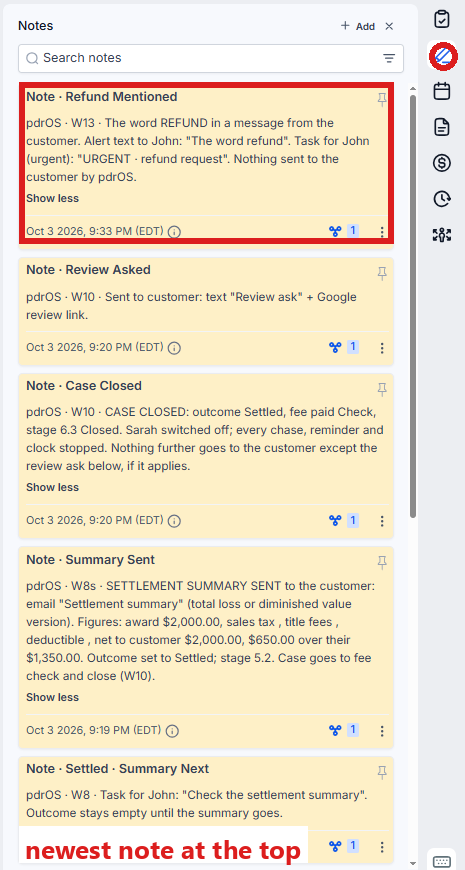
- A screenshot of the newest note on the customer's contact profile (how to find it is just below).
The notes on the contact profile tell us the rest.
Finding the newest note
- In the left menu, click Contacts.
- Click in the search box at the top of the list and type the customer's last name or RO number.
- Click the customer's name in the list. Their contact profile opens. You are in the right place when you see the customer's name at the top left and their texts in the middle.
- On the far right edge of the contact profile, click the Notes icon (it looks like a pen; hold the mouse over the icons to see their names). The notes open beside it, newest at the top.
- Take a screenshot of the top note: press the Windows key, Shift and S together, then drag a box around the note (on a Mac: Command, Shift and 4).
- Attach the picture to your support ticket.
Our promise
If a step does not fit how you work, do not work around it. Tell us. We change the step, the wording or the timing on our side, usually within a day, and the change holds for every case after. A workaround on your side usually means a chase goes to the wrong person or a customer gets a message twice.
What the support chat can answer
- How to do anything in this guide (it reads these pages).
- What a task or a text to your phone means.
- What a field or a switch starts.
- Where a document, a date or a message is.
When to ask a person
- Something went to the wrong customer, adjuster or shop.
- A customer or an insurer says they got nothing and the case shows it sent.
- Your phone says "the intake for NAME did not finish".
- A customer opens a second case on the same phone (tell us that day; we move the phone number to the new case).
- Anything about money that the agreement does not settle.
- Sarah said something you would not say.
While you wait
Nothing in pdrOS needs a reply within minutes except a customer. If a task is urgent, call the customer first and write the note after. Chases, reminders and clocks keep running on their own.
To write the note after the call:
- In the left menu, click Contacts.
- Click in the search box at the top of the list and type the customer's last name or RO number.
- Click the customer's name in the list. Their contact profile opens. You are in the right place when you see the customer's name at the top left and their texts in the middle.
- On the far right edge of the contact profile, click the Notes icon (it looks like a pen).
- Click + Add at the top of the notes.
- Type a title and the note.
- Click Save in the note.
Then mark the task complete:
- In the left menu, click Tasks. My Tasks opens. You are in the right place when you see the boxes Overdue, Due Today, This Week and Completed at the top.
- Click the task's row. A short preview opens under it.
- Click Open Full View.
- Click the green Mark Complete button at the bottom right of the full view. If the task is already gone when you come back, pdrOS closed it because the step happened.
Did this page not match what you see? Ask the support chat or open a support ticket. We change the page, not you.