Diminished value: what differs from a total loss
Answers: what is different on a diminished value case? how do I send the demand? what is in the demand pack? what is the statute deadline? how do I set a Demand-by date?
A diminished value case is a claimant case. The demand goes to the at-fault driver's insurer with a full pack. pdrOS chases the adjuster three times and tracks the statute deadline from day one. Everything else runs like a total loss.
At signup
- Claim side is Claimant. To check: in the left menu, click Contacts, search the customer and click their name. On the left side of the contact profile, scroll down to the folder CASE and click its name. If it says Insured, click the box under Claim side and pick Claimant, then click the blue Save button at the bottom of the left side.
- Date of Loss matters (folder FORM | Repair Authorization). Within a few minutes pdrOS sets Statute deadline (folder CARRIER & APPRAISER) to two years after it. It texts the customer "if this claim ever has to go to court, the deadline to file is [date]. We keep track of it for you."
- The documents request asks for the final repair invoice and the mileage (they reply by text). It also asks for photos of the damage and of the finished repair (the Upload Photos Here box on the upload page).
Documents in
The case moves to 1.2 Documents in when two things have arrived: the customer's photos, and a file in Repair invoice or Carrier valuation report (both in folder CASE). The photos come in as a photo report in Damage Images PDF (folder Pics To Email PDF).
Range and agreement
Same as a total loss. The range email is "Your diminished value claim: what I think the car lost". The fee can be a different amount: type Fee amount before they sign and you get the "Send a custom invoice · NAME" task instead of an automatic invoice.
- In the left menu, click Contacts.
- Click in the search box at the top of the list and type the customer's last name or RO number (your case number).
- Click the customer's name in the list. Their contact profile opens. You are in the right place when you see the customer's name at the top left and their texts in the middle.
- On the left side of the contact profile, scroll down to the folder CASE and click the folder's name to open it. (If you already see its fields, it is open: clicking its name again closes it.)
- Click in the box under Fee amount and type the fee (numbers only, no dollar sign).
- Click the blue Save button at the bottom of the left side.
The steps for the custom invoice are in Invoices and payments.
The demand
You work from the task Send the demand · NAME (it comes when the customer signs).
You can also start from the task. In the left menu, click Tasks. Click the row Send the demand · NAME, then Open Full View. Click the link under WHERE (after the words "Open the case"). The contact profile opens in a new browser tab. Then start at step 4.
- In the left menu, click Contacts.
- Click in the search box at the top of the list and type the customer's last name or RO number.
- Click the customer's name in the list. Their contact profile opens. You are in the right place when you see the customer's name at the top left and their texts in the middle.
- On the left side of the contact profile, scroll down to the folder Insurance Info and click the folder's name to open it.
- Look at Claim #. If it is empty, click in the box under Claim # and type the claim number.
- Scroll down to the folder FORM | Repair Authorization and click the folder's name to open it.
- Look at Date of Loss. If it is empty, click the box under Date of Loss and pick the accident day in the calendar that opens.
- Scroll up to the folder CASE and click the folder's name to open it.
- In RTA or demand PDF, click Click to upload.
- Pick your demand letter on your computer and click Open.
- Scroll down to the folder CARRIER & APPRAISER and click the folder's name to open it.
- Click in the box under Adjuster name and type the adjuster's name.
- Click in the box under Adjuster email and type the adjuster's email.
- Click the blue Save button at the bottom of the left side.
- Scroll up to the folder CASE (just above CARRIER & APPRAISER) and go to the top of the folder, where the Send switches are.
- Click the box under Send demand ⚡ and pick Send it now from the list.
- Click the blue Save button at the bottom of the left side.
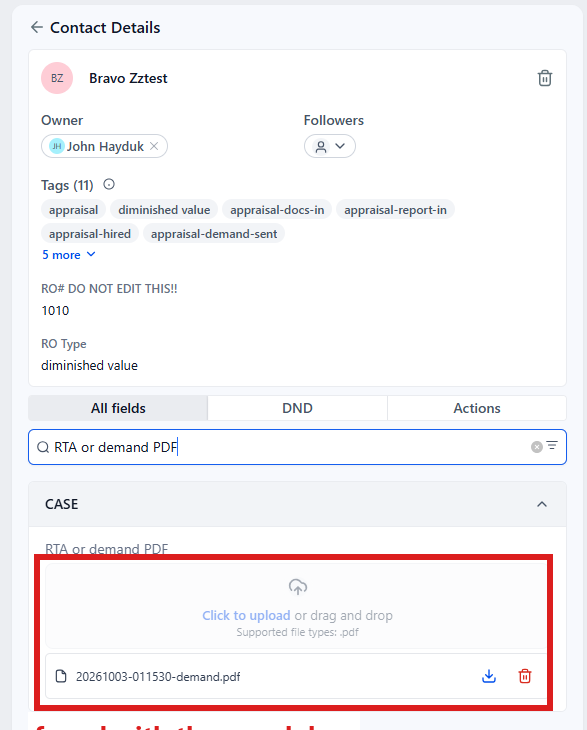
The adjuster gets "Demand · NAME · claim X" from you with the pack attached: the demand, your report, the repair invoice, the photo report and the signed agreement. The customer is texted that the demand went and that you follow up if they go quiet.
If Send demand comes back Not sent (see task), the ⚠️ Demand not sent task names what is missing. Fix it with the steps under If it will not send in Step 4: the RTA.
Then close the task:
- In the left menu, click Tasks. My Tasks opens. You are in the right place when you see the boxes Overdue, Due Today, This Week and Completed at the top.
- Click the row Send the demand · NAME (click Due Today or Overdue at the top if you do not see it). A short preview opens under it.
- Click Open Full View.
- Click the green Mark Complete button at the bottom right of the full view.
If the task is already gone when you come back, pdrOS closed it because the step happened.
The demand chase
- Day 10: a chase email to the adjuster, with the demand and your report attached again.
- Day 17: a second chase.
- Day 24: a third.
- Then your phone gets "three demand chases to [insurer] got no answer" and you get the task Three chases, no answer · NAME: call the adjuster's supervisor. The customer is asked how it stands on days 30, 60, 90 and 120 after the third chase, then days 210 and 300. The case stays at 3.1. The asks stop the moment their figure or report comes in, or when you set an Outcome.
After you call the supervisor, close the task:
- In the left menu, click Tasks. My Tasks opens.
- Click the row Three chases, no answer · NAME. A short preview opens under it.
- Click Open Full View.
- Click the green Mark Complete button at the bottom right of the full view.
If the task is already gone when you come back, pdrOS closed it because the step happened.
The chase stops the moment you type Their number or upload their report into Supplement #1 Upload Doc Here (folder Supplements). The steps for Their number are in the next section.
Their figure and your counter
Their number ⚡ stops the chase and gives you the Negotiate task. Send counter emails the adjuster: "the carrier is at $1,350.00 and the documented loss supports $2,700.00. [Your note]. My client will accept $2,000.00 today." If the adjuster is silent for 7 days, you get a text and the task No answer to your counter in 7 days · NAME.
Type their figure
- In the left menu, click Contacts.
- Click in the search box at the top of the list and type the customer's last name or RO number.
- Click the customer's name in the list. Their contact profile opens. You are in the right place when you see the customer's name at the top left and their texts in the middle.
- On the left side of the contact profile, scroll down to the folder CARRIER & APPRAISER and click the folder's name to open it.
- Click in the box under Their number ⚡ and type their figure (numbers only, no dollar sign).
- Click the blue Save button at the bottom of the left side.
Send your counter
You work from the task Negotiate · NAME.
You can also start from the task. In the left menu, click Tasks. Click the row Negotiate · NAME, then Open Full View. Click the link under WHERE (after the words "Open the case"). The contact profile opens in a new browser tab. Then start at step 4.
- In the left menu, click Contacts.
- Click in the search box at the top of the list and type the customer's last name or RO number.
- Click the customer's name in the list. Their contact profile opens. You are in the right place when you see the customer's name at the top left and their texts in the middle.
- On the left side of the contact profile, scroll down to the folder CARRIER & APPRAISER and click the folder's name to open it.
- Click in the box under Counteroffer and type your figure (numbers only, no dollar sign).
- If you want a line in the email, click in the box under Negotiation note and type it.
- Click the blue Save button at the bottom of the left side.
- On the contact profile, scroll up to the folder CASE (just above CARRIER & APPRAISER) and click the folder's name to open it.
- Look at the top of folder CASE, where the Send switches are.
- Click the box under Send counter ⚡ and pick Send it now from the list.
- Click the blue Save button at the bottom of the left side.
- In the left menu, click Tasks. My Tasks opens.
- Click the row Negotiate · NAME. A short preview opens under it.
- Click Open Full View.
- Click the green Mark Complete button at the bottom right of the full view.
If the task is already gone when you come back, pdrOS closed it because the step happened.
Pre-court
When you send the tortfeasor letter (the pre-court letter to the at-fault driver) yourself, pick the day in Tortfeasor letter sent date ⚡ (folder CARRIER & APPRAISER). The case moves to 4.4 Pre-court.
- In the left menu, click Contacts.
- Click in the search box at the top of the list and type the customer's last name or RO number.
- Click the customer's name in the list. Their contact profile opens. You are in the right place when you see the customer's name at the top left and their texts in the middle.
- On the left side of the contact profile, scroll down to the folder CARRIER & APPRAISER and click the folder's name to open it.
- Click the box under Tortfeasor letter sent date ⚡ and pick the day you sent the letter in the calendar that opens.
- Click the blue Save button at the bottom of the left side.
Deadlines you can set
Demand-by date ⚡ (folder CARRIER & APPRAISER): a date you choose. You get a text and task 14 days before and a text 3 days before. Clearing it stops them. The statute deadline alerts the same way, by itself. You get a text and the task Statute deadline in 14 days · NAME 14 days before, and a text 3 days before.
To set it:
- In the left menu, click Contacts.
- Click in the search box at the top of the list and type the customer's last name or RO number.
- Click the customer's name in the list. Their contact profile opens. You are in the right place when you see the customer's name at the top left and their texts in the middle.
- On the left side of the contact profile, scroll down to the folder CARRIER & APPRAISER and click the folder's name to open it.
- Click the box under Demand-by date ⚡ and pick the day in the calendar that opens.
- Click the blue Save button at the bottom of the left side.
To clear it, do steps 1 to 4, then:
- Click in the box under Demand-by date. If a small x shows at its right end, click it; otherwise select the date and press the Delete key until the box is empty.
- Click the blue Save button at the bottom of the left side.
When the task Demand-by date in 14 days · NAME or Statute deadline in 14 days · NAME comes and you have acted on it, close it:
- In the left menu, click Tasks. My Tasks opens.
- Click the row of that task. A short preview opens under it.
- Click Open Full View.
- Click the green Mark Complete button at the bottom right of the full view.
If the task is already gone when you come back, pdrOS closed it because the step happened.
Settlement
Award amount and date settle it; the summary needs only Award amount and Carrier's offer. pdrOS writes Recovery over offer and Net to customer (the award itself) in folder OUTCOME and emails "Your diminished value settlement: the numbers". Example from testing: $2,000 award on a $1,350 offer, $650 over, $2,000 net.
Type the award
- In the left menu, click Contacts.
- Click in the search box at the top of the list and type the customer's last name or RO number.
- Click the customer's name in the list. Their contact profile opens. You are in the right place when you see the customer's name at the top left and their texts in the middle.
- On the left side of the contact profile, scroll down to the folder OUTCOME and click the folder's name to open it.
- Click in the box under Award amount ⚡ and type the amount (numbers only, no dollar sign).
- Click the box under Award signed date ⚡ and pick the day the award was signed in the calendar that opens.
- Click the blue Save button at the bottom of the left side.
Send the summary
You work from the task Check the settlement summary · NAME.
You can also start from the task. In the left menu, click Tasks. Click the row Check the settlement summary · NAME, then Open Full View. Click the link under WHERE (after the words "Open the case"). The contact profile opens in a new browser tab. Then start at step 4.
- In the left menu, click Contacts.
- Click in the search box at the top of the list and type the customer's last name or RO number.
- Click the customer's name in the list. Their contact profile opens. You are in the right place when you see the customer's name at the top left and their texts in the middle.
- On the left side of the contact profile, scroll down to the folder CASE and click the folder's name to open it.
- Look at Carrier's offer. If it is empty or wrong, click in the box under Carrier's offer and type the amount (numbers only, no dollar sign).
- If you typed anything, click the blue Save button at the bottom of the left side.
- Look at the top of folder CASE, where the Send switches are.
- Click the box under Send summary ⚡ and pick Send it now from the list.
- Click the blue Save button at the bottom of the left side.
- In the left menu, click Tasks. My Tasks opens.
- Click the row Check the settlement summary · NAME. A short preview opens under it.
- Click Open Full View.
- Click the green Mark Complete button at the bottom right of the full view.
If the task is already gone when you come back, pdrOS closed it because the step happened.
Counteroffer pending
If the customer is sitting on a counter, set Outcome to Counteroffer pending. The case waits at 6.2 Outcome pending. The customer is asked how it went on days 30, 60, 90 and 120, then days 210 and 300, until you set the final outcome.
- In the left menu, click Contacts.
- Click in the search box at the top of the list and type the customer's last name or RO number.
- Click the customer's name in the list. Their contact profile opens. You are in the right place when you see the customer's name at the top left and their texts in the middle.
- On the left side of the contact profile, scroll down to the folder OUTCOME and click the folder's name to open it.
- Click the box under Outcome ⚡ and pick Counteroffer pending from the list.
- Click the blue Save button at the bottom of the left side.
Other words for this
diminished value = DV, loss of value, the car is worth less after the repair; demand = demand letter, the claim letter; tortfeasor letter = pre-court letter, the letter to the at-fault driver; statute deadline = the two-year limit, the filing deadline.
Did this page not match what you see? Ask the support chat or open a support ticket. We change the page, not you.